
The Definitive Guide to Forex Trade Copying · Chapter 7 of 10
Control What Gets Copied: Stops, Pending Orders, Partial Closes, Filters and Reverse Copying
By Rimantas Petrauskas · Updated November 2026 · 10 min read
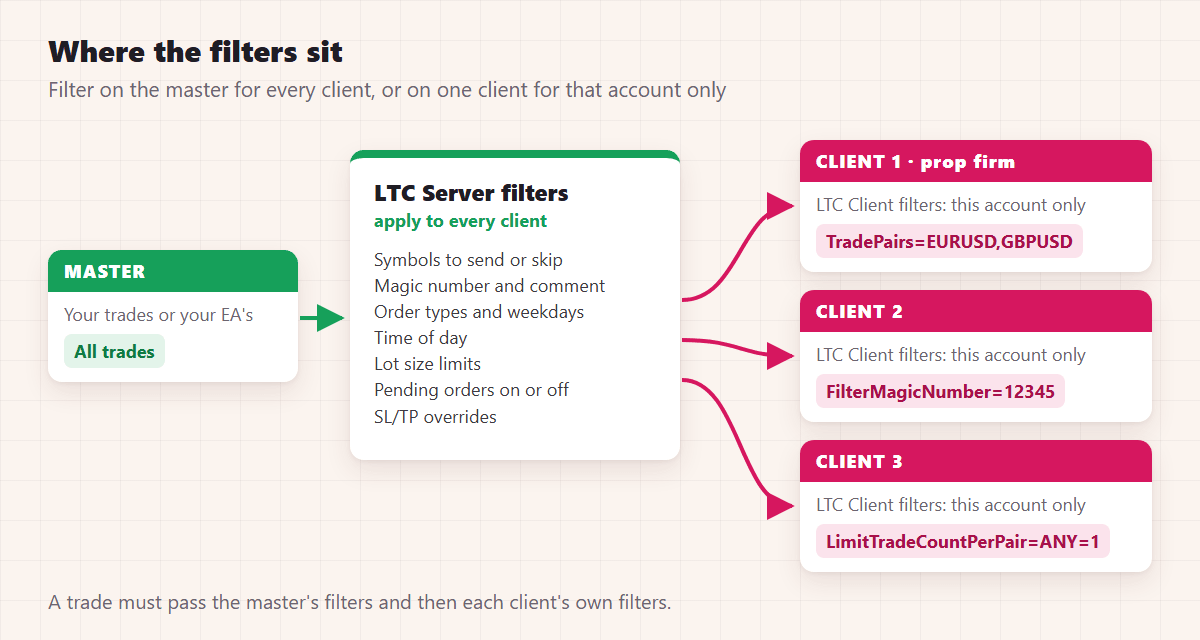
A trade copier copies three kinds of events from the master: new trades and pending orders, changes to them (stop loss, take profit, pending price), and closes, including partial closes. You can switch each kind on or off, change how the stop loss and take profit are copied, and filter trades by symbol, direction, magic number, comment, time of day or number of open trades. Two features change the trade itself: entry shifting places the copy at a better or worse price, and reverse copying turns every buy into a sell. All examples use Local Trade Copier (LTC) by Algonexis Technologies, mt4copier.com. Filters on LTC Server apply to every client of that master; filters on LTC Client apply to that one account.
Key facts
- By default, everything is copied: market and pending orders, stop loss and take profit changes, partial closes and closes.
- Stop loss and take profit are copied at the master’s prices by default. They can also be copied at the same distance, scaled, fixed or removed.
- Partial closes are copied in proportion: when the master closes half, the copy closes half.
- The magic number filter copies only one EA’s trades, or only manual trades (magic number 0).
- Reversed trades pay the spread too, so a reversed copy wins a little less than the master loses and loses a little more than the master wins.
Which trade events can you switch off?
Three switches in the LTC Client inputs decide what reaches the client at all:
- AcceptNewTradeSignals: new trades and pending orders. Set it to false to stop copying new trades while LTC Client keeps managing the copies already open.
- AcceptTradeModifySignals: stop loss, take profit and pending-order changes. Set it to false to keep the levels the copy got when it opened.
- AcceptTradeCloseSignals: closes. Set it to false, and copies stay open when the master closes; they close at their own stop loss or take profit, or when you close them. Every copy that was open while this was false keeps that rule even if you switch it back; only copies opened after that close with the master again.
Related settings: WaitForSLTP ignores the master’s close for copies that have both a stop loss and a take profit, so they run to one of them. DontManageTradeTickets lists copies that LTC Client should leave alone from now on. And two-way closing (SendTradeCloseSignalsToMaster on the client and CloseTradesWithClient on the master) closes the master trade when you close a copy.
How are the stop loss and take profit copied?
By default the copy gets the master’s stop loss and take profit at the same prices. That’s right when both brokers quote the same prices, which is the case for most forex pairs. LTC Client has separate settings for the take profit (“How to copy Take Profit”) and the stop loss (“How to copy Stop Loss”), and both offer the same methods:
| Method | What the copy gets | Use it when |
|---|---|---|
| Same value as on the master account (default) | The master’s price | Both brokers quote about the same prices |
| Same size in points as on the master account | The master’s distance, measured from the copy’s own entry | The brokers’ prices differ, as they often do for indices and some CFDs |
| Multiply by X, Double the size, Cut in half, Increase by 10% | The master’s distance, scaled | You want wider or tighter levels than the master |
| Fixed X value in points | Always the same distance | You set your own risk per trade, whatever the master does |
| Master SL/TP + X points, Same size in points + X points or × X | The master’s level with your adjustment | You want a little more room, for example for a wider spread |
| Remove | No stop loss or take profit | The master’s exit decides, or you manage the exit yourself |
One more setting protects copies of master trades without a stop loss: EmergencyStopLossPoints gives them one. TakeProfitMoney and StopLossMoney close all copies on the account when their total profit or loss reaches an amount; with MagicNumber at 0, the default, they also count and close other EAs’ trades on that account.
LTC Server can change the stop loss and take profit for every client at once: OverrideStopLossPoints and OverrideTakeProfitPoints set fixed levels, StopLossMultiplier and TakeProfitMultiplier scale them, and EmergencyStopLossPoints adds a stop loss where the master trade has none. The master trades themselves aren’t changed.
How are pending orders copied?
By default, a pending order on the master is placed as the same pending order on every client, and it’s moved, changed and deleted along with the master’s. That works well when the brokers’ prices are close. When they aren’t, the copy can stay unfilled while the master’s order fills, or the other way round. LTC Client has four settings for this:
- IgnorePendingOrders: no pending copies at all. The trade is copied at market when the master’s order fills. It’s the simplest choice when the brokers’ prices differ, or when the master places many orders that never fill. LTC Server has the same setting for all its clients.
- MarketCopyIfMasterPendingFilled (new in 3.1.10): when the master’s pending order fills while the copy is still waiting for its price, LTC Client deletes the copy and opens the trade at market. You can choose all pending orders, limit orders only or stop orders only. It’s off by default.
- DelayPendingOrdersForSeconds: places pending copies a number of seconds after the master.
- OpenNonTriggeredPendingOrders: when LTC Client starts, also copies the pending orders that were already waiting on the master.
MT4 has no stop-limit orders. If an MT5 master uses Buy Stop Limit or Sell Stop Limit orders and a client is on MT4, set IgnorePendingOrders on that client so the trade is copied once the master’s order fills.
How are partial closes copied?
In proportion. When the master closes half of its trade, every copy closes half of its own size: a 0.50 lot copy of a 1.00 lot master trade becomes 0.25. Whether the copy is bigger or smaller than the master’s trade doesn’t matter. “Close By”, where one trade closes against an opposite one, is copied too.
Partial closes need LTC Client’s MagicNumber setting at 0, the default. It gives each copy the master trade’s ticket as its magic number, which is how LTC Client links each copy to its master trade. With MagicNumber above 0 you can run several LTC Clients on one account, but partial closes and Close By are no longer copied.
On MT5 netting accounts there is one position per symbol, so a partial close is a reduction of that position. Chapter 9 explains what changes on netting and US FIFO accounts.
How do you copy only some trades?
Filters decide which master trades a client copies. These are the main ones in the LTC Client inputs:
| To copy only… | Setting and example |
|---|---|
| Some symbols | TradePairs=EURUSD,GBPUSD (DontTradePairs excludes symbols instead) |
| Some order types or directions | FilterByTradeType: 0 buy, 1 sell, 2 buy limit, 3 sell limit, 4 buy stop, 5 sell stop, and from an MT5 master also 6 buy stop limit, 7 sell stop limit. 0,2,4,6 copies buys only |
| One EA’s trades | FilterMagicNumber=12345 (ExcludeMagicNumber skips an EA instead) |
| Manual trades only | FilterMagicNumber=0 (ExcludeMagicNumber=0 copies only EA trades) |
| Trades with a word in their comment | FilterTradeComment=Scalper (ExcludeTradeComment skips them instead) |
| Trades at certain hours | DailyTimeFilterMode and DailyTimeFilter, in broker time: MODE_ALLOW with 08:00-17:00 copies only daytime trades |
| Trades on certain weekdays | IgnoreWeekDays, 1 for Monday to 5 for Friday: 5 skips Friday’s trades |
| A limited number of trades | MaxTrades for the whole account; LimitTradeCountPerPair per symbol, such as EURUSD=1,ANY=2 |
| Trades with a stop loss within your limits | MinSLAllowed and MaxSLAllowed in points, with IgnoreTooSmallSLTrades and IgnoreTooBigSLTrades set to true |
| Trades from some masters only | Copy From These Master Accounts, or Signal_Provider_ID (chapter 4) |
Comment filters are case-sensitive and match any part of the comment. Time filters use the broker’s server time, the clock shown in Market Watch. Without the two “IgnoreToo…SLTrades” settings, a stop loss outside your limits is moved to the limit instead of the trade being skipped. The LTC Client settings manual lists every filter with more examples.
Delay or ignore?
When a trade can’t be copied right now, LTC Client either delays it and copies it later, at the price of that moment, or ignores it for good. Most filters ignore, because a trade that doesn’t pass a symbol or magic number filter will never pass it. The limits on the number of trades let you choose: with IfMaxTradesReached and, since 3.1.10, IfPairLimitReached, extra trades are either delayed until a copy closes, or ignored. Ignore them when the master opens several trades as one signal: a delayed one would open later at a different price.
Since 3.1.10, LimitTradeCountPerPair also accepts the master’s symbol names and names without the broker’s suffix, so EURUSD=1 also limits EURUSD.m and XAUUSD=1 also limits GOLD.
The MAAB filter
On the MANAGER and VIP plans, LTC Client can also follow a master only while that master’s balance is above its own moving average, and pause copying while it’s below. MAAB stands for moving average on account balance. Like any filter based on recent results, it skips some losing streaks, and it also skips the trades that would have recovered them, so test it on your own history before you rely on it.
How do you copy trades at a better or worse price?
ShiftEntryPoints moves the entry of every copy by a number of points. A market trade on the master then becomes a pending order on the client:
- The master buys EURUSD at market at 1.11926. With ShiftEntryPoints = -200, the client gets a Buy Limit at 1.11726, 200 points better. The price has to come back 200 points before the copy fills.
- With ShiftEntryPoints = 200, the client gets a Buy Stop at 1.12126, which fills only if the price keeps moving in the trade’s direction.
With RelativeShift = true (the default) the shift is mirrored for sell trades, so -200 is always a better price. Set ShiftStops to true to move the stop loss and take profit by the same distance, so the copy keeps the master’s risk and target. If the master closes before the copy fills, the copy is deleted.
Since 3.1.10, entry shifting also works with IgnorePendingOrders = true: no pending order is placed, and LTC Client opens the copy at market when the price reaches the shifted entry. A better entry means some trades are never copied, because the price never comes back. Those are often the trades that went straight into profit. The tutorial Shift the Entry Price of Copied Trades has screenshots of each step.
How does reverse copying work, and what does it cost?
With ReverseTrades = true, every buy is copied as a sell and every sell as a buy. Pending orders are reversed too: a Buy Limit becomes a Sell Stop and a Buy Stop becomes a Sell Limit. In version 3.1.10, MT5 Buy Stop Limit and Sell Stop Limit orders aren’t reversed: if the master uses them, set IgnorePendingOrders = true on the reversed client, and the trade is copied, reversed, at market when the master’s order fills (Reverse Trade Copying Setup). The stop loss and take profit swap places, so the copy closes at the master’s prices: the master’s stop loss is the copy’s take profit, and the master’s take profit is the copy’s stop loss.
Reversing doesn’t remove the trading costs. Both trades pay the spread and any commission:
- The master buys EURUSD at 1.1000 with a stop loss at 1.0980 and a take profit at 1.1020: 20 pips each way.
- With a 1-pip spread, the reversed copy sells at 1.0999. Its take profit at 1.0980 is 19 pips away, and its stop loss at 1.1020 is 21 pips away.
- When the master wins 20 pips, the copy loses 21. When the master loses 20, the copy wins 19 at most.
So a strategy that loses mainly because of its costs loses on the reversed side as well. Reversing turns a strategy’s direction around, not its costs. If you use it, test it on demo accounts, with the spreads and commissions of the real accounts. If the brokers’ prices differ, the copy can hit its own stop loss before the master reaches its take profit; a wider stop loss on the copy (How to copy Stop Loss = Multiply by X) leaves the exit to the master’s close. SwapSLTP is a separate setting: it swaps the stop loss and take profit distances without reversing the trade.
Prop firms usually ban opposite positions across accounts, also when all the accounts are yours. Check the rules before you reverse anything onto a funded account (chapter 9).
Checklist
- The three switches (new, modify, close) set the way you want on every client
- Stop loss and take profit method chosen; “same size in points” where the brokers’ prices differ
- Pending orders tested between your brokers; IgnorePendingOrders where they behave differently
- MagicNumber left at 0, so partial closes are copied
- Every filter tested with a demo trade that should pass and one that shouldn’t
- Reverse copying only on demo accounts until you have measured its real costs
All the settings are in place. Chapter 8 keeps them running around the clock on a VPS and grows the setup to many accounts.
← Chapter 6: Symbol mapping between brokers
Next: Chapter 8: Run your copier 24/5 on a VPS, and scale up →
All 10 chapters of the guide
The Definitive Guide to Forex Trade Copying: contents
- What trade copying is and how a trade copier works
- How to choose a trade copier: 12 questions
- Run several MT4 and MT5 terminals on one PC or VPS
- Set up a trade copier and copy your first trade
- Lot size and risk: how copied trades are sized
- Symbol mapping between brokers
- Control what gets copied (you are here)
- Run your copier 24/5 on a VPS, and scale up
- Prop firms, US FIFO rules and MT5 netting accounts
- Troubleshooting: why a trade wasn't copied

About the author
Rimantas Petrauskas
Rimantas Petrauskas is a software developer who has built trading tools for MetaTrader traders since 2009. He created Local Trade Copier in 2010 and still develops it today. It copies trades locally between MT4 and MT5 accounts on a trader’s own PC or VPS. He also created the Signal Magician trade copier, FxMagnetic and Equity Sentry EA. Rimantas is the author of two books: “How to Start Your Own Forex Signals Service”, which reached #4 in Amazon’s Forex category in its launch week, and “Trading Mindset Unlocked” (2025), a guide to the psychology of prop and retail traders. He runs Algonexis Technologies, based in Dubai.
Local Trade Copier
Try it on your own demo accounts
Local Trade Copier (LTC) by Algonexis Technologies copies trades between MT4 and MT5 accounts on your own Windows PC or VPS, with unlimited accounts per computer. Start the 7-day trial and copy your first trade between two demo accounts.
Card required. After 7 days the trial continues as the PERSONAL plan (€29 a month, 1 PC/VPS) unless you cancel. 30-day conditional money-back guarantee on your first purchase.