
The Definitive Guide to Forex Trade Copying · Chapter 4 of 10
Set Up a Trade Copier and Copy Your First Trade
By Rimantas Petrauskas · Updated November 2026 · 10 min read
To set up a local trade copier, log in to each account in its own MetaTrader terminal, allow algorithmic trading and DLL imports in every terminal, attach the copier’s master part to one chart of the account you trade, and attach the client part to one chart of every other account. Then prove it works: place a pending order far from the price on the master, check that it appears on every client, and delete it. This chapter does it step by step with Local Trade Copier (LTC) by Algonexis Technologies, mt4copier.com. With its default settings, every new trade is copied from every master to every client on the same computer, sized to each account’s balance.
Key facts
- The master can log in with the trading or the investor (read-only) password. Every client needs its trading password.
- Every terminal needs two options ticked: “Allow algorithmic trading” (MT4: “Allow automated trading”) and “Allow DLL imports”.
- LTC Server goes on one chart of each master account, and LTC Client on one chart of each client account. One chart copies every symbol.
- Only LTC Server needs the licence key. LTC Client needs none.
- Trades that were already open on the master when LTC Client started are not copied, unless you ask for them.
What do you need before you start?
- One MetaTrader terminal per account, each logged in and connected. Chapter 3 shows how to install them.
- A Windows PC or VPS that runs all the terminals, or a Mac via Wine (chapter 3). For copying around the clock, a VPS (chapter 8).
- The copier itself, the master part and the client part, for MT4, MT5 or both.
- Two demo accounts for the first test, if you can. Ten minutes on demo accounts saves a lot of worry later.
If you want the one-page version, the Local Trade Copier Quick Start has the same steps in short. This chapter explains each step and what to do when something looks different.
Which password goes where?
Every MetaTrader account has two passwords. The trading (main) password can open and close trades. The investor password can only look.
| Account | Password | Why |
|---|---|---|
| Master | Trading or investor | The copier only reads the trades on the master. Read-only access is enough. |
| Every client | Trading (main) password | The copier opens, changes and closes trades on these accounts. |
The investor password on the master is useful when the master isn’t yours to trade, for example a friend or a signal provider who gives you read-only access. You can follow every trade without being able to touch that account.
If a client is logged in with its investor password, nothing is copied and LTC Client shows “Trading is forbidden for this account”. Log in to that terminal again (File > Login to Trade Account) with the trading password.
With a local copier, the passwords stay in your MetaTrader terminals, where they already are. Nothing is typed into a website or sent to a server.
Which MetaTrader setting must be on in every terminal?
Expert Advisors can’t trade until you allow it, and local copiers also need DLL imports. Local Trade Copier passes trades between your terminals through its own DLL (a small program library), so without DLL imports it can’t start. Do this once in every terminal, the master and all clients:
- MT5: Tools > Options > Experts, tick Allow algorithmic trading and Allow DLL imports.
- MT4: Tools > Options > Expert Advisors, tick Allow automated trading and Allow DLL imports.
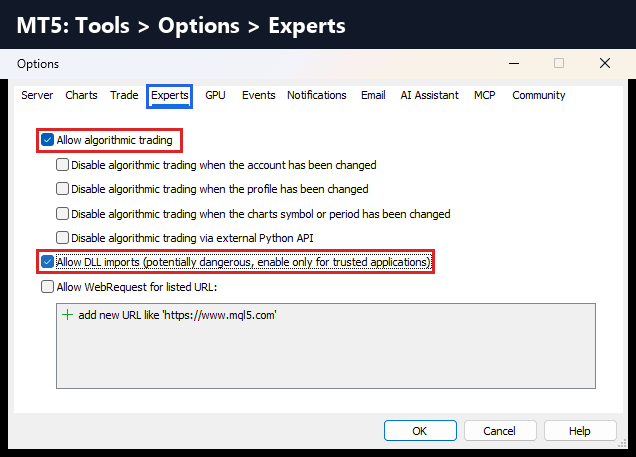
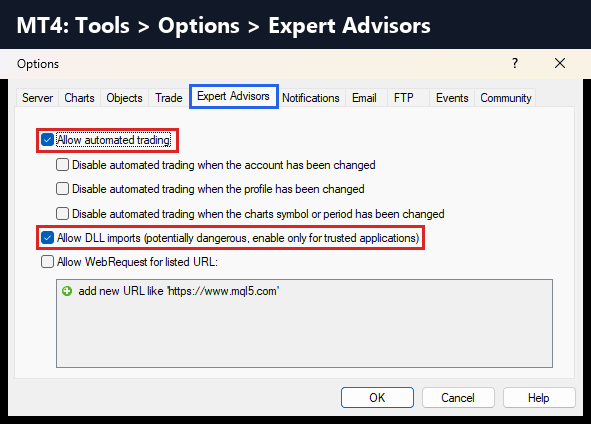
Leave the “Disable … when the account / profile / chart symbol has been changed” boxes unticked. Otherwise MetaTrader switches algorithmic trading off by itself later, and copying stops without a warning. Finally, check that the Algo Trading button (MT5) or AutoTrading button (MT4) in the toolbar is green.
MetaTrader marks DLL imports as “potentially dangerous” because any DLL can run code on your computer. Allow them for software you trust, and don’t attach Expert Advisors from unknown sources.
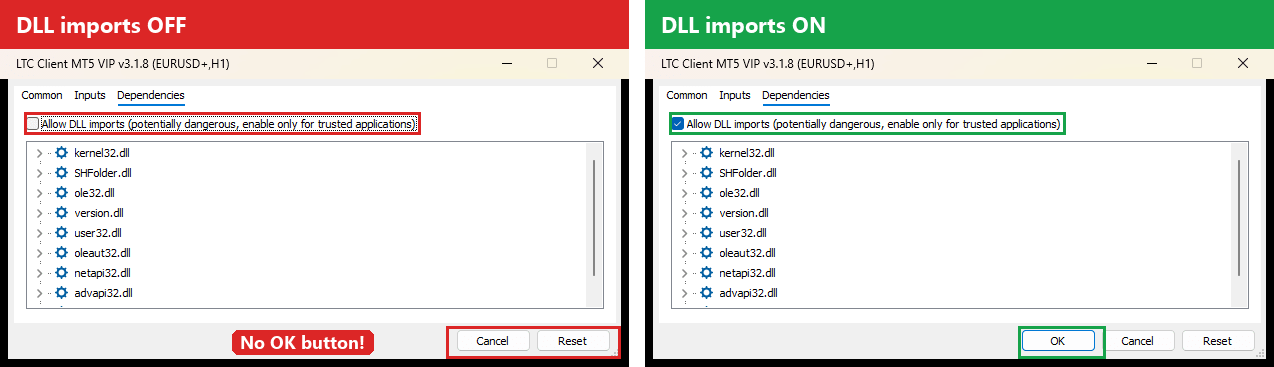
No OK button in the MT5 EA window?
When DLL imports are off, MetaTrader 5 shows only Cancel and Reset in the EA window, so the EA can’t start. Tick Allow DLL imports on the EA’s Dependencies tab (or once for all EAs in Tools > Options > Experts), and the OK button appears.
How do you install the copier into your terminals?
Most local copiers come as installers that copy their files into each terminal. For Local Trade Copier:
- Start the 7-day trial or buy a plan. You get your Download Center login by e-mail. The installers and your licence key are there.
- In the Download Center, download the LTC Server and LTC Client installers for your platform (MT4, MT5 or both) and your plan. Each plan has its own installers, and a licence key only works with its own plan.
- Close the terminals you’re installing into.
- Run the LTC Server installer and choose the folder of the master terminal.
- Run the LTC Client installer and choose the folders of the client terminals. You can tick several at once.
- Start the terminals again. LTC Server or LTC Client now appears under Expert Advisors in the Navigator window.
Copying between MT4 and MT5 needs no extra step. Use the MT4 installers for MT4 terminals and the MT5 installers for MT5 terminals: an MT4 LTC Server sends to MT5 clients and the other way round. The installation page has the same steps with a video.
How do you start copying from the master account?
- In the master terminal, open one chart. The symbol doesn’t matter; EURUSD H1 is fine.
- Drag LTC Server from the Navigator onto the chart.
- On the Common tab, tick “Allow Algo Trading” (MT5) or “Allow live trading” (MT4). On MT5, the Dependencies tab must have “Allow DLL imports” ticked.
- On the Inputs tab, enter your licence key in LicenseKey, leave everything else at the defaults, and click OK.
One LTC Server per master account is enough. It sends the trades of every symbol, not only the symbol of its chart. With the default settings, LTC Server only reads the master’s trades and never trades on that account.
How do you start copying on each client account?
- In the client terminal, open a chart of a symbol exactly as the client’s broker names it. If Market Watch shows EURUSD+ or EURUSD.m, open that chart, not a plain EURUSD one. LTC Client takes the broker’s prefix and suffix from this chart (chapter 6 explains why).
- Drag LTC Client onto the chart, check the Common and Dependencies tabs as above, and click OK. LTC Client doesn’t need a licence key.
- Repeat on every client account.
The chart then shows the LTC Client status panel. It tells you what this client copies, which filters are on, and how many trades were copied, delayed or ignored since it started.
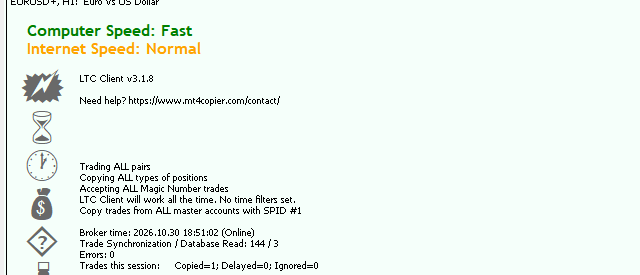
LTC Client uses its chart for this panel. To trade by hand on a client account, open a second chart.
What do the default settings do?
You can copy your first trades without changing a single setting. Out of the box, LTC Client:
- copies every new trade from every master on the same computer: market and pending orders, stop loss and take profit changes, partial closes and closes;
- sizes each copy to the account (mode AA): a client with twice the master’s balance gets twice the lot size, so both take the same risk in percent (chapter 5);
- maps symbol names automatically, including suffixes such as EURUSD.m and common alternative names such as GOLD for XAUUSD (chapter 6);
- copies the master’s stop loss and take profit at the same prices (chapter 7 lists the other ways);
- copies at the current market price, however far it has moved since the master’s entry (Deviation Type “Copy at any price”), so fast markets don’t cause missed trades;
- stops opening new copies when the margin in use reaches 90% of the equity, and opens them when margin frees up;
- leaves your other trades alone: trades you place by hand or with another EA on a client account aren’t touched.
How do you test a trade copier safely?
Before you copy a real trade, prove that everything works, including the symbol names. This test takes two minutes and can’t lose money:
- On the master, place a Buy Limit far below the current price, so it can’t be filled.
- Within a second or two, the same pending order appears on every client. Check the symbol: it should be the client broker’s own name, for example EURUSD+.
- Move the order on the master. The copies move too.
- Delete the order on the master. LTC Client deletes the copies.

Then try a small market trade on demo accounts: open it, set a stop loss and take profit, close half of it, then close the rest. Each step should appear on every client within a moment.
Where do you see what the copier did?
Open the Experts tab at the bottom of each client terminal (View > Toolbox in MT5, View > Terminal in MT4). LTC Client writes a line there for every trade it copies, delays or ignores, with the reason:
- Lines starting with DELAYED mean LTC Client is still trying, for example while it waits for free margin or for the broker to accept the order.
- Lines starting with IGNORED mean it gave up on that trade, and they say why, for example because a filter excluded it.
The same counts appear on the status panel (“Copied”, “Delayed”, “Ignored”). Chapter 10 lists the common messages and what to do about each one.
What happens to trades that were already open?
By default, trades that were already open on the master when LTC Client started are not copied, so old trades don’t suddenly appear on a new client at today’s price. If you do want them, set CopyExistingMasterTradesOnStart to true. To copy only the recent ones, add a date and time in IgnoreTradesBeforeTimeStamp. They’re opened at the current price, which can be far from the master’s entry.
Restarting LTC Client or the terminal is safe. LTC Client recognises the copies it opened and carries on managing them. If the master closed a trade while the client was off, LTC Client closes the copy when it starts again.
How do you pause copying?
- Stop new trades on one client, but keep managing the open copies: set AcceptNewTradeSignals to false.
- Keep the copies open after the master closes them: set AcceptTradeCloseSignals to false.
- Stop one client completely: remove LTC Client from the chart. Its copies stay open and are no longer managed until you start it again.
How do you get an alert when something goes wrong?
LTC Client and LTC Server can send e-mail alerts or push notifications to the MT4 or MT5 app on your phone. Set AlertLevel to the events you want (“when Client EA stops”, “some trade open errors”, or every successful open and close; on LTC Server you type 1, 2 or 3), then switch on AlertByEmail or AlertByPushNotifications. MetaTrader sends them, so set up your e-mail in Tools > Options > Email, or enter your MetaQuotes ID from the phone app in Tools > Options > Notifications. If the terminal itself crashes or the computer goes off, it can’t send anything, which is one more reason to run on a VPS.
What if you have more than one master?
By default every client copies every master on the computer. To decide which client follows which master, give each LTC Server its own Signal_Provider_ID (SPID) and set the same number on the clients that should follow it. For example, master A sends to clients 1–5 with SPID 1, and master B to clients 6–10 with SPID 2. You can also list specific master account numbers on a client with Copy From These Master Accounts. The LTC Client settings manual explains every option.
Checklist after setup
- Every terminal: algorithmic trading and DLL imports allowed, toolbar button green
- Master: LTC Server on one chart, licence key entered
- Every client: LTC Client on a chart of the client broker’s own symbol name, logged in with the trading password
- Pending-order test passed: placed, moved and deleted on every client
- The Experts tab shows no IGNORED lines you can’t explain
- Alerts switched on, if you won’t be watching the screen
Next, decide how big each copy should be. Chapter 5 explains the 8 ways to size a copied trade.
← Chapter 3: Run several MT4 and MT5 terminals on one PC or VPS
Next: Chapter 5: Lot size and risk: how copied trades are sized →
All 10 chapters of the guide
The Definitive Guide to Forex Trade Copying: contents
- What trade copying is and how a trade copier works
- How to choose a trade copier: 12 questions
- Run several MT4 and MT5 terminals on one PC or VPS
- Set up a trade copier and copy your first trade (you are here)
- Lot size and risk: how copied trades are sized
- Symbol mapping between brokers
- Control what gets copied
- Run your copier 24/5 on a VPS, and scale up
- Prop firms, US FIFO rules and MT5 netting accounts
- Troubleshooting: why a trade wasn't copied

About the author
Rimantas Petrauskas
Rimantas Petrauskas is a software developer who has built trading tools for MetaTrader traders since 2009. He created Local Trade Copier in 2010 and still develops it today. It copies trades locally between MT4 and MT5 accounts on a trader’s own PC or VPS. He also created the Signal Magician trade copier, FxMagnetic and Equity Sentry EA. Rimantas is the author of two books: “How to Start Your Own Forex Signals Service”, which reached #4 in Amazon’s Forex category in its launch week, and “Trading Mindset Unlocked” (2025), a guide to the psychology of prop and retail traders. He runs Algonexis Technologies, based in Dubai.
Local Trade Copier
Try it on your own demo accounts
Local Trade Copier (LTC) by Algonexis Technologies copies trades between MT4 and MT5 accounts on your own Windows PC or VPS, with unlimited accounts per computer. Start the 7-day trial and copy your first trade between two demo accounts.
Card required. After 7 days the trial continues as the PERSONAL plan (€29 a month, 1 PC/VPS) unless you cancel. 30-day conditional money-back guarantee on your first purchase.