
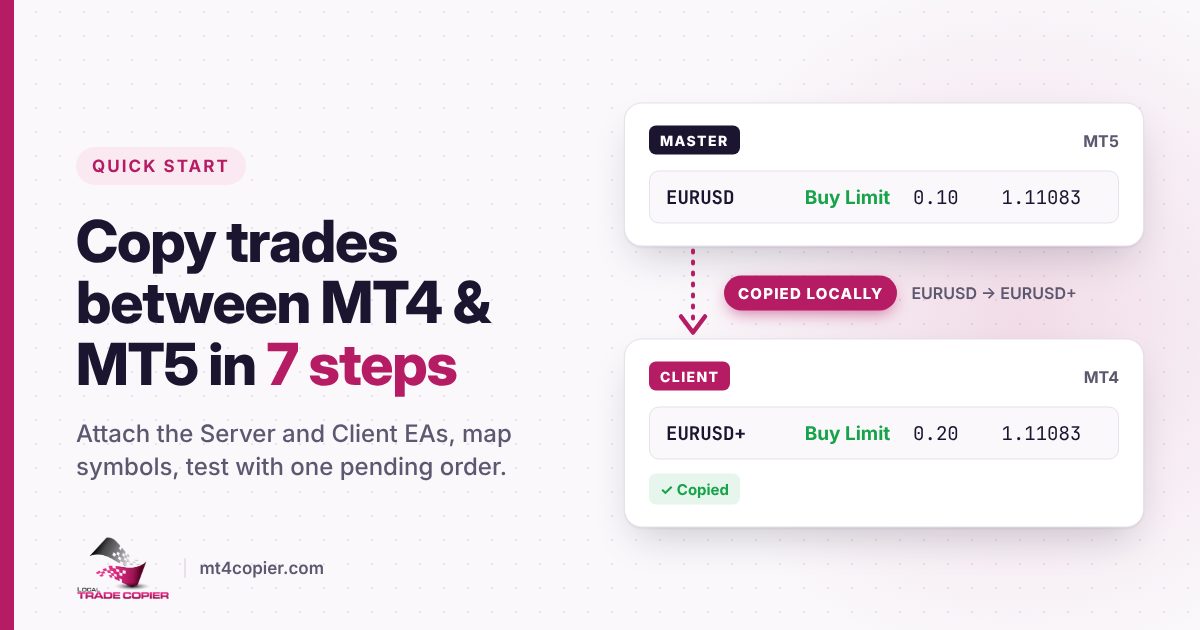
To start copying trades with Local Trade Copier (LTC) by Algonexis Technologies, run all your MetaTrader 4 or MetaTrader 5 terminals on the same Windows PC or VPS, allow algorithmic trading and DLL imports once in each terminal, attach LTC Server to one chart on the master account and LTC Client to one chart on each client account. With the default settings, new trades are copied straight away, even between different brokers with different symbol names. This quick start guide shows every step with screenshots taken with LTC 3.1.8.
What you need
- A Windows PC or Windows VPS. All accounts run on the same computer.
- One MetaTrader 4 or MetaTrader 5 terminal per account. If you need more terminals, see how to install multiple MT4 platforms or how to install multiple MT5 terminals.
- The LTC installers and your licence key from the Download Center (you get the login details by e-mail after purchase or when you start the free trial).
- The trading (main) password for every client account. The master account can be logged in with the investor (read-only) password. See step 6.
Step 1: Install LTC Server and LTC Client
Run the LTC Server installer and choose the MetaTrader folder of your master account. Then run the LTC Client installer and choose the folders of your client accounts. You can select several folders at once. The installer copies the EA and its DLL library into each terminal. If you prefer to watch it, here is the installation video for MT4 and MT5.
After the installation, open each terminal (or right-click “Expert Advisors” in the Navigator window and choose Refresh) and you will see the LTC Server or LTC Client EA in the Navigator.
Step 2: Allow algorithmic trading and DLL imports (once per terminal)
Do this once in every MetaTrader terminal that runs LTC, the master and all clients. LTC uses its own DLL library to pass trades between the terminals on your computer, so it cannot work without DLL imports.
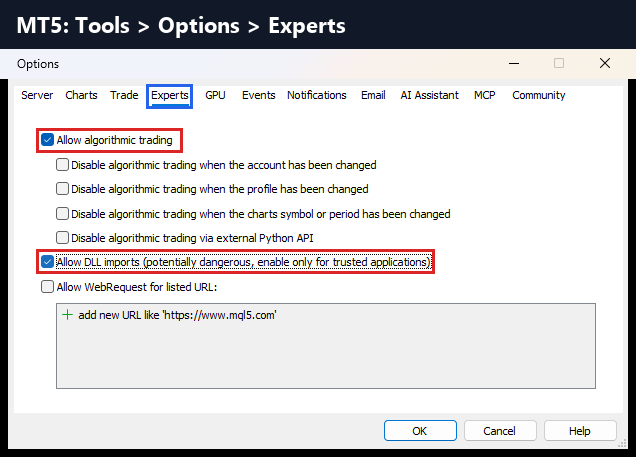
MetaTrader 5: go to Tools > Options > Experts and tick:
- Allow algorithmic trading
- Allow DLL imports
MetaTrader 4: go to Tools > Options > Expert Advisors and tick:
- Allow automated trading
- Allow DLL imports
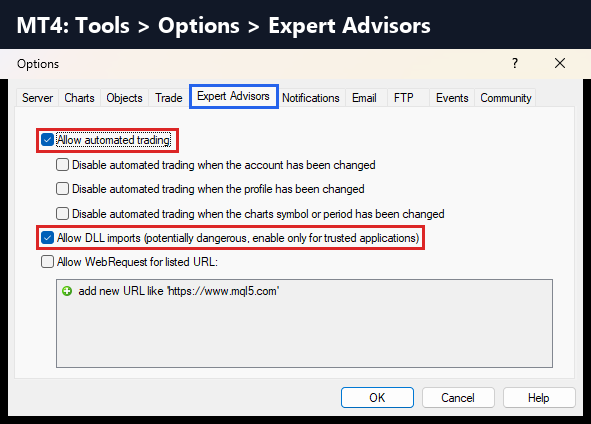
Leave the “Disable … when the account / profile / chart symbol has been changed” boxes unticked, otherwise MetaTrader switches algo trading off for you later. Finally, make sure the Algo Trading button (MT5) or AutoTrading button (MT4) in the top toolbar is green.
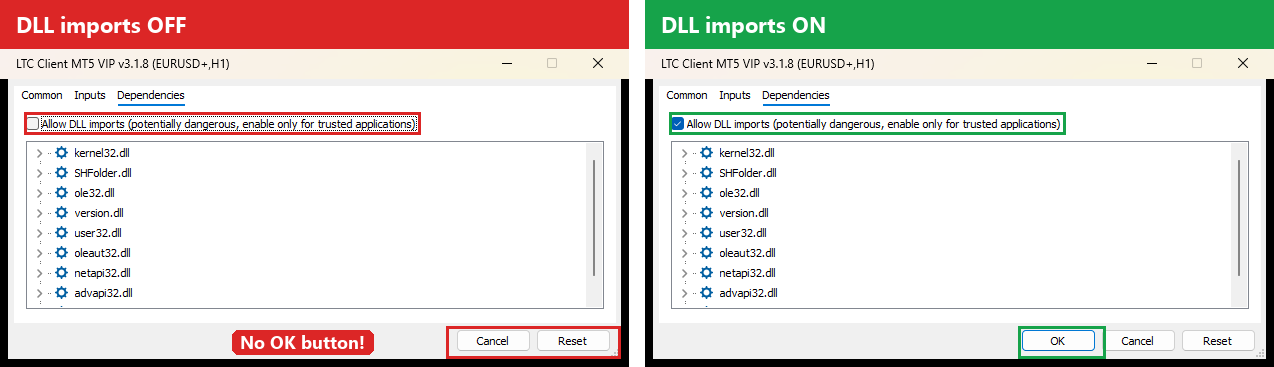
No OK button in MT5? DLL imports are switched off
This confuses many MT5 users: when DLL imports are not allowed, the LTC EA window in MetaTrader 5 shows only Cancel and Reset. There is no OK button, so you cannot start the EA. Tick “Allow DLL imports” on the EA’s Dependencies tab (or once for all EAs in Tools > Options > Experts, as shown above) and the OK button appears.
Step 3: Attach LTC Server to the master account
- In the master terminal, open any chart (EURUSD H1 is fine).
- Drag LTC Server from the Navigator onto the chart, or double-click it.
- On the Common tab, make sure “Allow Algo Trading” (MT5) or “Allow live trading” (MT4) is ticked. On MT5 also check the Dependencies tab: “Allow DLL imports” must be ticked.
- On the Inputs tab, enter your licence key in the
LicenseKeyinput. Leave the other settings at their defaults for now. - Click OK.
You only need LTC Server on one chart per master account. It copies trades of all symbols, not only the symbol of its chart.
Step 4: Attach LTC Client to each client account
- In the client terminal, open a chart of a symbol exactly as your client broker names it. For example, if your client broker shows
EURUSD+orEURUSD.min Market Watch, open that chart, not a plainEURUSDone. LTC Client reads the symbol prefix and suffix from this chart (see step 5). - Drag LTC Client onto the chart, check the Common and Dependencies tabs as in step 3 and click OK. LTC Client does not need a licence key.
LTC Client uses its chart window for its status panel. Open another chart if you want to trade on that account. You need LTC Client on only one chart per client account.
That’s it. With the default settings, LTC Client copies every new trade from every master account on the same PC (Signal Provider ID 1). The lot size is auto-adjusted to the account size (Money Management Mode “AA”): a client account with twice the balance of the master gets twice the lot size. All settings are explained in the LTC Client settings manual and the LTC Server settings manual.
Step 5: Different brokers, prefixes, suffixes and symbol names
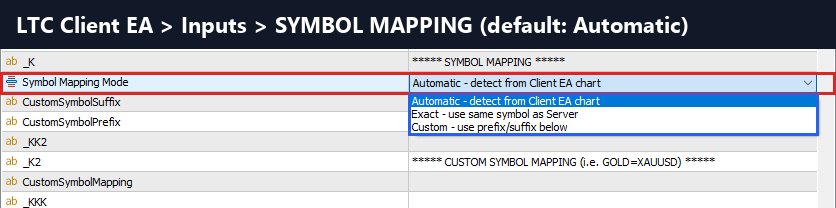
Master and client accounts can be at different brokers. In most cases you don’t need to set anything, because the default Symbol Mapping Mode is “Automatic – detect from Client EA chart”:
- Prefix and suffix: LTC Client takes them from the chart it is attached to. In our test, the master (Pepperstone) traded
EURUSDand LTC Client ran on aEURUSD+chart at Vantage, so it copied the trade toEURUSD+. Its chart shows “Currency suffix: + (auto)”. - Different names: since version 3.1.0, LTC Client also matches common alternative names automatically, for example GOLD and XAUUSD, NAS100, US100 and USTEC, US500 and SPX500, or GER40 and DE40. Version 3.1.8 improved this detection further.

If the automatic detection doesn’t work for your broker, you have two settings in the LTC Client inputs:
- Symbol Mapping Mode = “Custom – use prefix/suffix below”, then enter
CustomSymbolPrefixand/orCustomSymbolSuffix. “Exact – use same symbol as Server” turns the mapping off. - CustomSymbolMapping for a symbol with a completely different name, in the format
master symbol=client symbol, separated by commas, for exampleGOLD=XAUUSD,GDAXI=DE30. Names are case sensitive, and these manual mappings always have priority.
More details and examples: copying trades when symbol names are different between brokers.
Step 6: Master account with an investor (read-only) password
The master account can be logged in with its investor password. LTC Server only reads the trades on that account and never trades there itself, so read-only access is enough. This is useful when the master is a signal, a fund manager’s account or another copy service. Only the client accounts need the trading password, because LTC Client opens, modifies and closes trades on them. Read more about copying trades from an investor password account.
Step 7: Test it safely with a pending order
The easiest way to check that everything works, including the symbol mapping, is a temporary pending order:
- On the master account, place a Buy Limit (or Sell Limit) far away from the current price, so it can’t be triggered.
- Within a few seconds, the same pending order appears on each client account. Check the symbol name: it must be the client broker’s symbol.
- Delete the pending order on the master. LTC Client deletes its copy too.

In the screenshot, the master Buy Limit on EURUSD (0.10 lot) was copied to EURUSD+ on the client with 0.20 lot, because the client balance is about twice the master balance (AA mode). If you have set IgnorePendingOrders = true in LTC Server or LTC Client, use a very small market trade on a demo account for this test instead.
Common problems
- No OK button in the MT5 EA window: DLL imports are off. See step 2.
- The EA is attached but nothing happens: the Algo Trading / AutoTrading button in the toolbar is red, or “Allow Algo Trading” / “Allow live trading” is unticked on the EA’s Common tab.
- Trades are not copied, error 133 or “unknown symbol”: the client uses a different symbol name. Attach LTC Client to a chart with the client broker’s symbol name, or use CustomSymbolSuffix / CustomSymbolMapping (step 5).
- “Trade is disabled” on the client: the client account is logged in with its investor password. Client accounts need the trading password.
- Still stuck? Open the Experts tab in the Toolbox of both terminals. LTC writes every copied, skipped or rejected trade there with the reason. Also see what to do when Local Trade Copier does not copy trades.
FAQ
Can I copy from MT4 to MT5, or from MT5 to MT4?
Yes. LTC Server and LTC Client work in any combination of MT4 and MT5 terminals on the same computer. See the MT4 to MT5 guide.
Do the master and client accounts have to be at the same broker?
No. They can be at any brokers or prop firms that allow Expert Advisors. Symbol names are mapped automatically in most cases (step 5).
Do I need to keep the computer running?
Yes. LTC copies trades locally, so the terminals must stay open. Most traders use a Windows VPS for this.
Can the master account use the investor password?
Yes, the master account can be logged in with the investor (read-only) password. Client accounts need the trading password.
How do I check that copying works without risking money?
Place a pending order far from the price on the master, check that it appears on the clients with the right symbol, and delete it again (step 7).
Ready to try it on your own accounts? Start the 7-day free trial of Local Trade Copier or see the pricing plans.
