
The Definitive Guide to Forex Trade Copying · Chapter 5 of 10
Lot Size and Risk: How Copied Trades Are Sized
By Rimantas Petrauskas · Updated November 2026 · 10 min read
A trade copier sizes every copy with a money management mode that you choose separately for each client account. The usual choice is to scale by account size: a client with twice the master’s balance gets twice the lot size, so both accounts risk the same percentage on every trade. Other modes copy the same lot, multiply it, use a fixed lot, or size the trade so that the loss at the stop loss is a set percentage or amount. Local Trade Copier (LTC) by Algonexis Technologies, mt4copier.com has 8 money management modes, and this chapter works through all of them on one example trade. It also covers the limits that protect each account when you’re not watching.
Key facts
- Local Trade Copier has 8 money management modes, set separately on each client account.
- The default mode, AA, multiplies the master’s lot by the client’s balance divided by the master’s balance. Both accounts then risk the same percentage.
- Risk per trade, in percent or in money, needs a stop loss on the master trade. Without one, the copy waits until the master sets it.
- A broker’s minimum lot can make a small account risk more than planned. By default, LTC Client copies at the minimum lot only if that is at most twice the calculated size, and skips the trade otherwise.
- Each client has its own limits: a maximum lot, a margin limit, equity stops and a maximum daily loss.
How does a trade copier decide the lot size?
Three things decide the size of a copy:
- The mode you choose for that client account.
- The master trade: its lot size and, for the risk modes, its stop loss.
- The client account: its balance or equity, its deposit currency, and the broker’s rules for that symbol (minimum lot, maximum lot and lot step).
In Local Trade Copier these are the four settings under MONEY MANAGEMENT in the LTC Client inputs: Money Management Mode, Money Management Value (the number the mode uses), Money Management Calculation Mode (balance or equity), and LMR Value for the lot-money-ratio mode. Each client account has its own, so one client can follow the master at the same risk while another trades at half of it.
One trade, sized eight ways
The example: the master account has a balance of USD 10,000. It buys 0.20 lot of EURUSD with a 50-pip stop loss (500 points). One lot of EURUSD gains or loses about USD 10 per pip, so the master risks 0.20 × 50 × 10 = USD 100, or 1% of its balance. The client account has USD 25,000, also in US dollars.
| Mode | Setting | Client lot | Loss at the stop loss |
|---|---|---|---|
| AA: auto-adjust to the account size (default) | none | 0.50 | USD 250 (1%) |
| AAM: auto-adjust and multiply by X | 0.5 | 0.25 | USD 125 (0.5%) |
| Same lot size as on the master | none | 0.20 | USD 100 (0.4%) |
| Multiply by X | 2 | 0.40 | USD 200 (0.8%) |
| Fixed lot size | 0.10 | 0.10 | USD 50 (0.2%) |
| Risk per trade (%) | 1 | 0.50 | USD 250 (1%) |
| Risk per trade (money) | 300 | 0.60 | USD 300 (1.2%) |
| LMR: lot-money ratio | 0.02 per 1,000 | 0.50 | USD 250 (1%) |
AA: auto-adjust to the account size
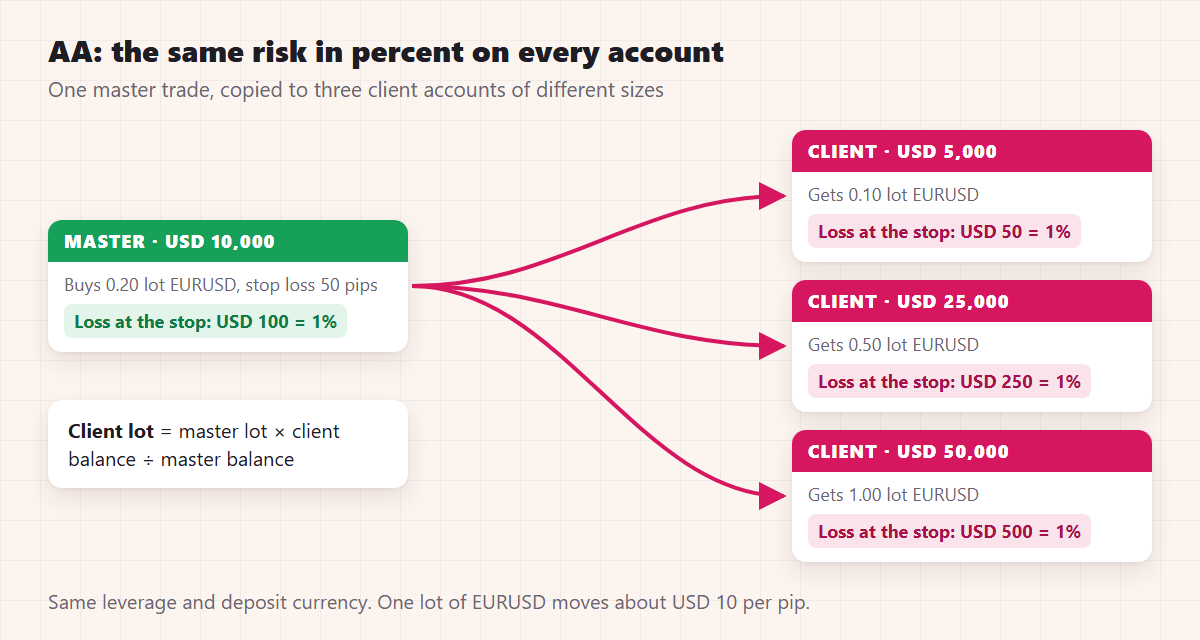
Client lot = master lot × client balance ÷ master balance. In the example, 0.20 × 25,000 ÷ 10,000 = 0.50 lot. The client risks USD 250, which is 1% of its balance, the same as the master. This is the default because it’s the safest general choice: every account takes the same risk in percent, whatever its size.
AA also takes care of two differences you might not notice:
- Deposit currency. A client account in euros is converted to the master’s currency at the current rate. With EURUSD at 1.10, a EUR 100,000 client copying a USD 100,000 master is treated as USD 110,000, so a 1.00 lot master trade is copied as 1.10 lots. The risk in percent stays the same.
- Contract size. If the client’s broker uses a different contract size for the symbol, which is common for indices and metals, AA adjusts the lot for it (chapter 6).
Leverage is ignored by default, because it doesn’t change the loss at the stop loss. A client with much lower leverage than the master does need more margin for the same trade. To reduce the lot in that case, switch on EnableLeverageProtectionWithAAM. With a master at 1:500 and a client at 1:100, the lot is then divided by 5.
Balance or equity? By default AA compares the two balances. Balance changes only when trades close, so lot sizes stay steady. Money Management Calculation Mode can compare equity instead, which includes open profit and loss.
AAM: auto-adjust and multiply by X
The same as AA, then multiplied by the Money Management Value. With 0.5, the example copy is 0.25 lot and risks 0.5%; with 2, it’s 1.00 lot and risks 2%. Use it when you want the master’s strategy at a lower risk on some accounts, for example on a prop firm account with a tight daily loss limit.
Same lot size as on the master account
The copy gets exactly the master’s lot: 0.20. Nothing is adjusted, not even for a smaller account. Use it when the accounts are the same size and you want identical lots.
Multiply by X
The master’s lot times the Money Management Value, whatever the account sizes: with 2, the copy is 0.40. Use it for a fixed ratio between two accounts whose balances you keep in step yourself.
Fixed lot size
Every copy gets the same lot, the Money Management Value, whatever the master trades. With 0.10, every copy is 0.10. It’s useful for a first test and for a master whose lot sizes don’t matter to you. Partial closes still follow the master: if the master closes half its trade, the 0.10 copy is reduced to 0.05.
Risk per trade (%)
The lot is sized so that, if the trade hits the master’s stop loss, the client loses the set percentage of its balance. In the example, 1% of 25,000 is USD 250, and a 50-pip stop loss costs USD 500 per lot, so the copy is 0.50 lot. The master’s lot size doesn’t matter at all.
Version 3.1.10 made this calculation safer. On MT5, LTC Client now asks the terminal what one lot would lose at the stop loss, the same calculation MetaTrader uses for the real profit. Some brokers report a wrong tick value (seen on gold), and a lot size based on it could risk up to 10 times the setting.
This mode needs a stop loss. If the master trade has none, the copy waits, and the Experts tab says “delayed because stop loss is not set yet”. It’s copied as soon as the master sets a stop loss. If the master never sets one, the trade is never copied. If the master moves its stop loss later, the copy follows, so the real risk changes with it.
Risk per trade (money)
The same idea with a fixed amount instead of a percentage: lose at most USD 300 at the stop loss, so the copy is 300 ÷ 500 = 0.60 lot. It suits accounts where the rules are set in money, such as a prop firm’s daily loss limit. It also needs a stop loss on the master trade.
LMR: lot-money ratio
A set lot for every set amount of balance, counted in whole steps. With 0.02 lot per USD 1,000, the USD 25,000 client trades 25 × 0.02 = 0.50 lot. At USD 25,999 it’s still 0.50; at USD 26,000 it becomes 0.52. The lot grows in steps as the account grows, and the master’s lot size doesn’t matter. The smallest copy is one step (0.02 here).
Which money management mode should you use?
| Your situation | Mode |
|---|---|
| The same strategy on accounts of different sizes | AA (the default) |
| The same strategy, at a lower or higher risk on some accounts | AAM with 0.5, 2 or another multiplier |
| Accounts of the same size, identical lots wanted | Same lot size as on the master |
| A first test, or a constant size whatever the master does | Fixed lot size |
| You set the risk per trade yourself, and the master always uses a stop loss | Risk per trade (%) |
| Rules set in money, such as a prop firm’s loss limits | Risk per trade (money) |
| A lot that grows step by step with the balance | LMR |
Why is a copied lot different from what you expected?
Most “wrong lot size” questions come from one of these:
- Rounding to the lot step. Brokers accept lots in steps, usually 0.01. A calculated 0.054 becomes 0.05. Even a USD 1 difference in balance can tip a lot to the next step.
- The broker’s minimum lot. If the calculated lot is below the minimum, copying at the minimum means taking more risk than planned. LTC Client does it with a warning when the minimum is at most twice the calculated lot (MaxMinLotUpsize = 2), and otherwise skips the trade with a message. Set it to 0 to always copy at the minimum, or raise the lot settings.
- The broker’s maximum lot. A copy can’t be bigger than the broker allows. On the MANAGER and VIP plans, SplitLots splits it into several trades.
- Partial closes. When the master closes part of a trade, the copy is reduced in proportion, so a later look at the account shows a smaller lot than the one copied.
- Different deposit currencies or contract sizes, which AA corrects on purpose (see above).
- A multiplier for one symbol, such as XLotMultiplier for XPairs, or a lot multiplier in a custom symbol mapping (chapter 6).
The Experts tab shows how each lot was calculated: the balances used, the currency conversion and any adjustment.
How do you limit the risk on each client account?
The mode decides the size of each copy. These settings decide how much an account can lose in total. All of them are in the LTC Client inputs, separately for each account:
- MaxLotSizeAllowed: no copy bigger than this. By default, a trade that would be bigger is skipped; set IgnoreTooBigLotSizeTrades to false to copy it at the maximum instead.
- MarginLimitPercent (90% by default): no new copies while the margin in use is above this share of the equity. They’re opened when margin frees up.
- Close & Stop if Equity below X (money or %): when the equity falls below the level, LTC Client closes all trades on the account and stops until you restart it. The percentage is of the current balance, so 80% limits the open loss to a fifth of the balance.
- DelayTradesWhenEquityBelowX (money or %): below the level, no new copies, but the open ones are still managed.
- Max Daily Loss (MDL): when the equity falls by the set percentage of the day’s starting balance, LTC Client closes all trades and either waits until the next day or stops completely.
- EmergencyStopLossPoints: a stop loss for copies of master trades that have none.
- TradeProtectionRequirement: copy only master trades that have a stop loss, a take profit, or both.
- MaxTrades and LimitTradeCountPerPair: a cap on the number of copies (chapter 7).
- AccountSizeClient: size the copies as if the account were smaller or bigger. For example, AA on a USD 10,000 account set to replace the size with USD 2,000 trades like a USD 2,000 account, so only a fifth of the money is at risk.
The LTC Client settings manual describes each setting in full.
How do you size copies for a prop firm account?
Prop firms set a maximum daily loss and a maximum total loss, and breaking either ends the account. Size the copies so that a normal losing day stays well inside both:
- Choose a mode that ties the size to the account: AAM below 1, or risk per trade in percent or money.
- Add up the worst case. If the master can have five trades open at 1% risk each, a bad day can cost 5% or more.
- Set Max Daily Loss below the firm’s limit, with a margin. If the firm allows 5%, set 4%. Firms measure the daily loss in their own way (some from the day’s starting equity, at a set time), and slippage can add to a loss.
- Add MaxLotSizeAllowed as a backstop against an unusually large master trade.
Chapter 9 covers the other prop firm rules to check before you copy, such as rules on EAs and on copying between accounts.
Checklist
- A mode chosen for every client, with a demo trade checked on each
- Risk modes only if the master always uses a stop loss
- The broker’s minimum lot compared with the smallest copy you expect
- MaxLotSizeAllowed set on every live account
- An equity stop or Max Daily Loss on every account you can’t watch
- Prop firm accounts: Max Daily Loss below the firm’s own limit
With the lot sizes settled, the next thing that differs between brokers is the symbol names. Chapter 6 covers symbol mapping.
All 10 chapters of the guide
The Definitive Guide to Forex Trade Copying: contents
- What trade copying is and how a trade copier works
- How to choose a trade copier: 12 questions
- Run several MT4 and MT5 terminals on one PC or VPS
- Set up a trade copier and copy your first trade
- Lot size and risk: how copied trades are sized (you are here)
- Symbol mapping between brokers
- Control what gets copied
- Run your copier 24/5 on a VPS, and scale up
- Prop firms, US FIFO rules and MT5 netting accounts
- Troubleshooting: why a trade wasn't copied

About the author
Rimantas Petrauskas
Rimantas Petrauskas is a software developer who has built trading tools for MetaTrader traders since 2009. He created Local Trade Copier in 2010 and still develops it today. It copies trades locally between MT4 and MT5 accounts on a trader’s own PC or VPS. He also created the Signal Magician trade copier, FxMagnetic and Equity Sentry EA. Rimantas is the author of two books: “How to Start Your Own Forex Signals Service”, which reached #4 in Amazon’s Forex category in its launch week, and “Trading Mindset Unlocked” (2025), a guide to the psychology of prop and retail traders. He runs Algonexis Technologies, based in Dubai.
Local Trade Copier
Try it on your own demo accounts
Local Trade Copier (LTC) by Algonexis Technologies copies trades between MT4 and MT5 accounts on your own Windows PC or VPS, with unlimited accounts per computer. Start the 7-day trial and copy your first trade between two demo accounts.
Card required. After 7 days the trial continues as the PERSONAL plan (€29 a month, 1 PC/VPS) unless you cancel. 30-day conditional money-back guarantee on your first purchase.