
The Definitive Guide to Forex Trade Copying · Chapter 8 of 10
Run Your Copier 24/5 on a VPS, and Scale to Many Accounts
By Rimantas Petrauskas · Updated November 2026 · 10 min read
A trade copier only copies while the computer it runs on is switched on and online. To copy around the clock, run your MetaTrader terminals and the copier on a Windows VPS, a virtual computer you rent in a data centre close to your broker’s trade servers. Connect to it with Remote Desktop, and when you’re done, close the window instead of signing out, so everything keeps running. One VPS runs as many accounts as its memory allows, about ten on 8 GB, and a second VPS takes the rest. This chapter shows how, with Local Trade Copier (LTC) by Algonexis Technologies, mt4copier.com as the example.
Key facts
- A VPS keeps running when your own PC sleeps, restarts for updates or loses its internet connection.
- Rent the VPS near your broker’s trade server. In the same city the ping is usually a few milliseconds; between London and New York it’s about 70–80 ms.
- Close the Remote Desktop window to disconnect. Signing out closes MetaTrader, and copying stops.
- The MT4 and MT5 phone apps can’t run a copier, but trades you place on the phone are copied when the same account is also open on the VPS.
- Local Trade Copier is licensed per PC/VPS, with unlimited accounts on each. To copy one master on a second VPS, log the master account in there too.
Why does a trade copier need a VPS?
A local copier copies between terminals that run on the same computer, so it works only while that computer is on, awake and online (chapter 1). A home PC goes to sleep, restarts for Windows updates, and loses power or its internet connection, usually at the wrong moment. A trade the master opens in that time isn’t copied, and a copy whose master trade closes stays open until the computer is back.
A VPS (virtual private server) is a Windows computer in a data centre that you rent by the month and use over the internet. It has backup power and a fast, stable connection, it never sleeps, and it keeps running when you switch your own PC off. Your PC is fine for testing, and for copying while you sit at it. To copy 24 hours a day, five days a week, use a VPS.
MetaTrader’s built-in VPS can’t do this job: it runs one account per subscription and doesn’t allow DLLs, which local copiers need. Chapter 3 compares it with a regular Windows VPS.
What should you look for in a VPS?
- Windows. MetaTrader and local copiers are Windows programs. Most VPS providers install Windows Server 2022 or 2025.
- Enough memory. About 0.5 GB per MT4 terminal and 0.8 GB per MT5 terminal, plus 1–1.5 GB for Windows. A 4 GB VPS runs about four terminals, 8 GB about ten. Chapter 3 has the table.
- The right location, close to your brokers’ trade servers (see the next section).
- A provider that knows MetaTrader. A forex VPS company sets Windows up for trading and can help when a terminal won’t connect.
- A trial or a money-back period, so you can test the speed with your own brokers before you commit.
The VPS we use and recommend is VPSForexTrader (partner link). It runs Windows Server 2025, with plans from 4 GB (up to 4 terminals) to 8 GB (up to 10), in New York, London, Amsterdam and Hong Kong, and a 14-day money-back guarantee. The smallest plan costs USD 31.99 a month, or about USD 19 a month on a 24-month term (checked on 2 November 2026).
Where should your VPS be?
Every copy is an order that a client terminal sends to its own broker’s trade server. The closer the VPS is to that server, the sooner the order arrives, and the less the price can move on the way. Most forex brokers run their MT4 and MT5 trade servers in data centres in London or New York. Others use Amsterdam, Frankfurt, Hong Kong, Singapore or Tokyo.
To find out where yours are:
- Ask the broker’s support where the trade server for your account is.
- Check the ping from the VPS. MT5 shows it in the bottom-right corner of the terminal. In MT4, click the connection indicator there to see the broker’s servers with their ping.
As a rule of thumb, the ping is a few milliseconds in the same city, about 70–80 ms between London and New York, and 150 ms or more between Europe and Asia. If your accounts are at brokers in different places, choose the location where most of the client accounts are, because that’s where the copies are placed. If an EA trades the master on the same VPS, the master’s broker counts too.
The LTC Client panel rates the connection at the top. Internet Speed is “Fast” when the ping is under 100 ms and the broker answers orders within 0.2 seconds on average, and “Slow” from 300 ms or 0.5 seconds. Computer Speed shows whether the VPS itself keeps up.
How do you connect to a VPS from Windows, a Mac or a phone?
The VPS provider sends you an IP address, a user name and a password. You connect with Remote Desktop and see an ordinary Windows desktop:
- From Windows: open Remote Desktop Connection (press Windows+R, type mstsc and press Enter), enter the IP address, then the user name and password.
- From a Mac, an iPhone, an iPad or an Android phone: install Microsoft’s free Windows App, which replaced the Microsoft Remote Desktop app, and add the VPS as a PC with the same details.
Change the provider’s password to a long one of your own when you first log in, and don’t share the VPS login with anyone. Then install your terminals on the VPS exactly as on a PC (chapter 3) and set up the copier (chapter 4).
Disconnect, don’t sign out
When you’re done, close the Remote Desktop window with the X at the top. That disconnects you. Your Windows session keeps running on the VPS, with every terminal and the copier in it, and when you connect again you’re back in the same session.
Signing out (Sign out or Log off in the Start menu) is different. It closes every program in the session, MetaTrader included, and copying stops until you log in and start the terminals again. Don’t use Shut down or Restart in the Start menu either, unless you mean it.
What happens when the VPS restarts?
A restart closes everything, and nothing runs again until you log in. Restarts are rare, but they happen: Windows updates, the provider’s maintenance, a crash. Two habits keep them harmless:
- Start the terminals when you log in. Press Windows+R, type shell:startup and press Enter, then copy a shortcut of every terminal into the folder that opens. After a restart, log in once and all the terminals start by themselves, with their charts and Expert Advisors. LTC Client recognises its copies and carries on managing them (chapter 4).
- Decide when updates restart Windows. Install Windows updates at the weekend, when the forex market is closed. On a Windows Server VPS, type sconfig in a command window, set Update setting to download only, and install the updates yourself on Saturday. Your VPS provider can help with this.
After every restart, connect, log in, and check that every terminal shows a live connection in the bottom-right corner and that no LTC Client panel shows red.
How do you know the copier is still running?
- Alerts on your phone. Set AlertLevel in LTC Client to “Alert when Client EA stops” or “Alert on some trade open errors”, and switch on push notifications to the MT4 or MT5 phone app. Chapter 4 shows how.
- The status panel. Each LTC Client panel counts the copied, delayed and ignored trades. Its icons turn red when something needs a look: errors from the broker, broker execution times over 3 seconds (orange from 1 second), delayed or ignored trades, not enough money, and disconnects. Hover over an icon to see what it means. Chapter 10 explains each one.
- A daily look from your phone. Add the client accounts to the MT4 or MT5 phone app and compare their open trades with the master’s. Log in to them there with the investor password, so you can’t trade a client account by mistake.
Alerts come from the terminals, so a VPS that is off can’t send one. That’s why the daily look matters, even with alerts on.
How do you copy trades you place on the MT4 or MT5 phone app?
The phone apps can’t run Expert Advisors, so no trade copier runs on a phone. You can still trade the master account from your phone. Log in to the master account in the phone app, and keep it logged in on the VPS as well. MetaTrader shows an account’s trades on every device where it’s open, so a trade you open on the phone appears in the master terminal on the VPS a moment later. LTC Server then sends it to the clients like any other master trade. Stop loss changes, partial closes and closes you make on the phone are copied the same way.
The phone app tutorial shows this setup with screenshots.
How do you add more accounts to one VPS?
Local Trade Copier has no limit on the number of accounts per PC/VPS; memory sets the limit. For each new client account:
- Install a terminal for it and log in (chapter 3).
- Install LTC Client into that terminal (chapter 4).
- Attach LTC Client to a chart and load your saved settings (see below).
- Run the pending-order test from chapter 4.
Reuse your settings. On the Inputs tab of a configured LTC Client, click Save to write its settings to a .set file in the terminal’s MQL5\Presets folder (MQL4\Presets on MT4). Copy the file into the same folder of the new terminal and click Load there. Then check the settings that belong to that account, such as the lot mode and its value.
As the setup grows:
- Name every terminal by its role, and keep a list of the accounts with their broker, platform and settings.
- Group the clients by master with SPID numbers when you copy from more than one master (chapter 4).
- Watch the VPS. Task Manager shows memory and processor use. When an LTC Client panel shows Computer Speed “Slow” or “Critical”, the VPS can’t keep up: close extra charts, or move some terminals to a bigger or a second VPS.
How do you copy one master to accounts on two or more VPSs?
When one VPS is full, a second one takes the next clients. A local copier passes trades only between terminals on the same computer, so the master account has to be open on every VPS that has clients. That works because MetaTrader lets one account be logged in on several terminals at once, as it does for the phone app.
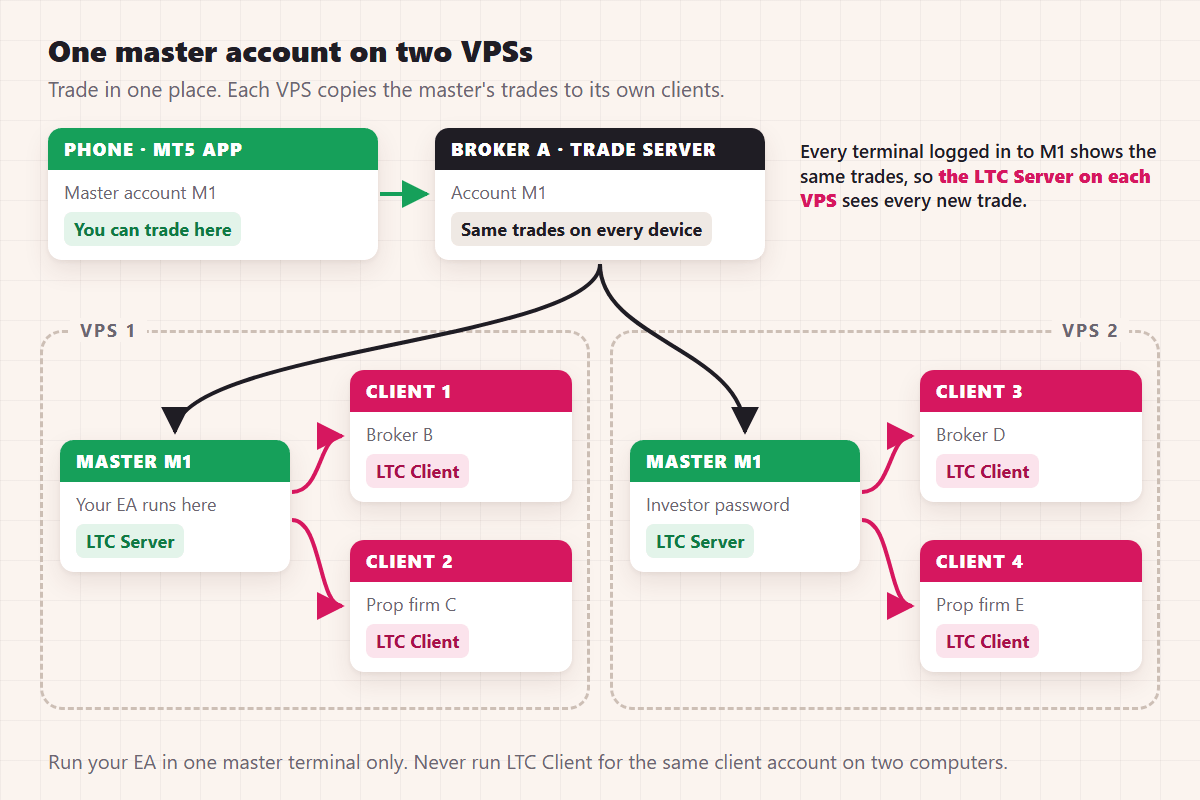
- On VPS 2, install a terminal for the master account and log in with the same login. The investor password is enough: LTC Server only reads the master, and nobody can trade it there by mistake.
- Install LTC Server on VPS 2 and attach it to one chart, as on VPS 1.
- Install the new client terminals and LTC Client on VPS 2. If you use SPIDs, use the same one as on VPS 1.
- Trade the master in one place only. If an EA trades the master, run it in one master terminal only; in two, it would open every trade twice. Trades you place by hand can come from VPS 1, your phone or your PC, because they all land on the same account.
Each VPS copies to its own clients, so the copies on VPS 2 can open at slightly different prices from those on VPS 1. Never run LTC Client for the same client account on two computers: both would open the copies, and every trade would be doubled.
The same setup also splits clients by region, for example client accounts at London brokers on a London VPS and the rest on a New York VPS, with the master logged in on both.
How is Local Trade Copier licensed when you add computers?
By the computer, not by the account. Every plan copies to unlimited accounts on each PC/VPS: PERSONAL covers 1 PC/VPS, MANAGER 5 and VIP 15 (pricing). A setup with the master on two VPSs needs a plan for two computers or more, such as MANAGER. Licence transfers are unlimited, so moving to a new or a bigger VPS costs nothing extra.
Checklist
- A Windows VPS near your brokers’ trade servers, with enough memory for every terminal
- Remote Desktop: close the window to disconnect, never sign out
- A shortcut to every terminal in the Startup folder
- Windows updates installed at the weekend
- Alerts on, at least “Alert when Client EA stops”, sent to your phone
- Several VPSs: the master logged in on each, its EA running in one terminal only
- No client account with LTC Client on two computers
Some accounts come with rules of their own. Chapter 9 covers prop firms, US FIFO accounts and MT5 netting accounts.
← Chapter 7: Control what gets copied
Next: Chapter 9: Prop firms, US FIFO rules and MT5 netting accounts →
All 10 chapters of the guide
The Definitive Guide to Forex Trade Copying: contents
- What trade copying is and how a trade copier works
- How to choose a trade copier: 12 questions
- Run several MT4 and MT5 terminals on one PC or VPS
- Set up a trade copier and copy your first trade
- Lot size and risk: how copied trades are sized
- Symbol mapping between brokers
- Control what gets copied
- Run your copier 24/5 on a VPS, and scale up (you are here)
- Prop firms, US FIFO rules and MT5 netting accounts
- Troubleshooting: why a trade wasn't copied

About the author
Rimantas Petrauskas
Rimantas Petrauskas is a software developer who has built trading tools for MetaTrader traders since 2009. He created Local Trade Copier in 2010 and still develops it today. It copies trades locally between MT4 and MT5 accounts on a trader’s own PC or VPS. He also created the Signal Magician trade copier, FxMagnetic and Equity Sentry EA. Rimantas is the author of two books: “How to Start Your Own Forex Signals Service”, which reached #4 in Amazon’s Forex category in its launch week, and “Trading Mindset Unlocked” (2025), a guide to the psychology of prop and retail traders. He runs Algonexis Technologies, based in Dubai.
Local Trade Copier
Try it on your own demo accounts
Local Trade Copier (LTC) by Algonexis Technologies copies trades between MT4 and MT5 accounts on your own Windows PC or VPS, with unlimited accounts per computer. Start the 7-day trial and copy your first trade between two demo accounts.
Card required. After 7 days the trial continues as the PERSONAL plan (€29 a month, 1 PC/VPS) unless you cancel. 30-day conditional money-back guarantee on your first purchase.