
The Definitive Guide to Forex Trade Copying · Chapter 3 of 10
Run Several MT4 and MT5 Terminals on One PC or VPS
By Rimantas Petrauskas · Updated November 2026 · 7 min read
A MetaTrader terminal is logged in to one trading account at a time, so to copy trades between accounts on one computer you need one terminal per account. Run the installer again for each extra account, click Settings, and give the new installation its own folder name, such as “-2” or “Client 1”. MT4 and MT5 terminals from any brokers can run side by side. A Windows VPS with 4 GB of RAM runs about four terminals, and 8 GB about ten.
Key facts
- One terminal is logged in to one account at a time. Logging in to another account disconnects the first.
- Each extra terminal needs its own installation folder. The installer’s Settings button lets you choose it.
- MT4 and MT5 terminals from different brokers can all run on the same computer at the same time.
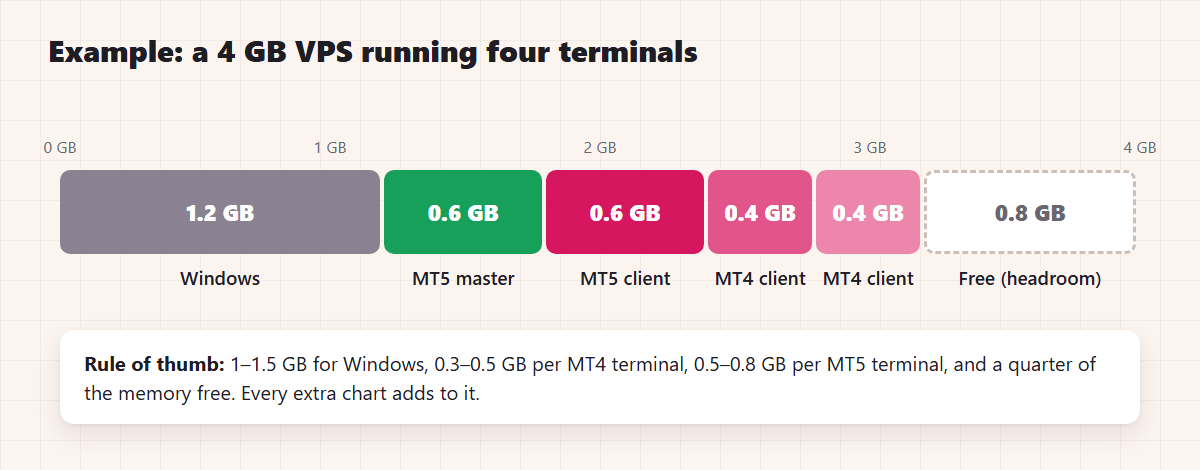
- Plan for about 300–500 MB of RAM per MT4 terminal and 500–800 MB per MT5 terminal, plus 1–1.5 GB for Windows.
- MetaTrader’s built-in VPS runs one account per subscription and blocks DLLs. A regular Windows VPS runs all your terminals for less.
Why does each account need its own terminal?
A MetaTrader terminal connects to one trading account at a time. If you log in to a second account (File > Login to Trade Account), the first one disconnects, and the Expert Advisors in that terminal stop seeing its trades. A trade copier needs the master and every client online at the same moment, so each account gets its own terminal, and all of them run at once.
The terminals don’t have to come from the same broker or even be the same platform. A typical setup is an MT5 master at one broker, two MT5 prop firm accounts and an MT4 account at another broker, all on one VPS.
How do you install a second MT4 or MT5 terminal?
The trick is in the installer. By default it installs into the same folder every time, so running it again only updates the terminal you already have. Here’s how to get a separate one:
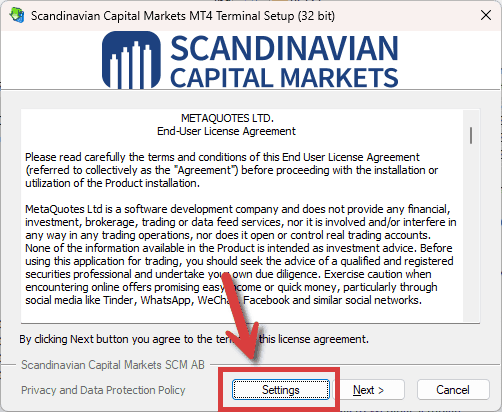
- Download the installer from your broker, or run the one you already have. Each broker’s installer carries its own logo, but they all work the same way.
- On the first screen, click Settings before you click Next.
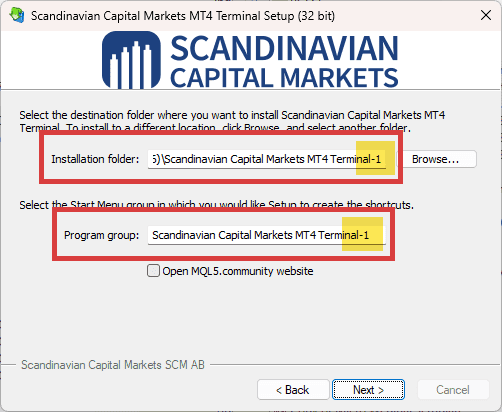
- Add a number or a name to the Installation folder and the Program group, for example “-2” or “Client 1”. This gives you a separate installation and its own Start menu entry.
- Click Next and let the installation finish. The new terminal usually starts by itself.
- Log in: File > Login to Trade Account, then enter the login, password and server. Tick the box that saves the password, so the terminal reconnects by itself after a restart.
- Repeat for each account.
Installers from different brokers already use different folders, because each includes the broker’s name. You only need the Settings step for a second account at the same broker, or a second copy of the plain MetaQuotes terminal. Numbering everything anyway keeps the setup tidy. The same steps work for MT4 and MT5.
Can you copy a terminal folder instead?
Yes. Close the terminal, copy its whole installation folder, for example from “MetaTrader 5” to “MetaTrader 5 – Client 2”, and start terminal64.exe (MT5) or terminal.exe (MT4) in the new folder. Windows treats the copy as a separate terminal with its own settings. It’s quick when you need many terminals from the same broker. You then create the desktop shortcuts yourself.
A terminal started with the /portable switch (add it to the shortcut, after terminal64.exe) keeps its data inside its own installation folder instead of under your Windows user profile. That makes backups, and moving a whole setup to another computer, a lot easier.
How do you keep many terminals organised?
- Name each terminal by its role: “MT5 Master – Broker A”, “MT5 Client 1 – Prop firm B”. The name appears in the Start menu and in the taskbar, so you always know which window is which.
- Rename the desktop shortcuts the same way.
- Know where each terminal keeps its files: File > Open Data Folder shows the folder with that terminal’s Expert Advisors, logs and settings.
- Keep one chart for the copier: a trade copier needs one chart in each terminal. Every extra chart uses memory.
How many terminals can one PC or VPS run?
Memory runs out first. MT4 uses about 300–500 MB of RAM per terminal and MT5 about 500–800 MB, depending on the number of charts, symbols and history. Windows itself needs about 1–1.5 GB. Leave a quarter of the memory free so Windows never has to swap to disk. Our VPS sizing guide has the details and the sources.
| RAM | Terminals (rule of thumb) | Example setup |
|---|---|---|
| 4 GB | Up to 4 | 1 master and 3 clients |
| 6 GB | Up to 7 | 1 master and 6 clients |
| 8 GB | Up to 10 | 2 masters and 8 clients |
These are the ratings of the VPS plans we recommend. MT4 terminals with one chart each use less, so a 4 GB machine often runs more MT4 terminals than MT5. For the processor, 2 cores are enough for a few terminals; use 4 or more cores from about four terminals up.
To fit more terminals on the same machine:
- Keep one chart open per terminal.
- Lower the maximum number of bars in a chart (Tools > Options > Charts).
- Switch off the news feed (Tools > Options > Server, untick Enable news).
Should the terminals run on your PC or on a VPS?
Your own PC is fine for testing, and for copying while you’re at your desk. For copying 24 hours a day, five days a week, use a VPS. It stays on when your PC sleeps, restarts for updates or loses its internet connection, and you can rent it in a data centre close to your broker’s servers. Chapter 8 covers choosing a location and keeping a VPS running.
Why not MetaTrader’s built-in VPS?
MT4 and MT5 can rent a virtual server from inside the terminal. It suits one Expert Advisor on one account, but it can’t run a trade copier. Its rules say that “one rented terminal can work only with one User’s trading account” and that “no DLLs are allowed on a Virtual terminal”, and you get no desktop to log in to (MetaTrader VPS rules). A trade copier needs several accounts on the same machine, and local copiers such as Local Trade Copier (LTC) by Algonexis Technologies use a DLL to pass trades between the terminals.
For more than one account, a regular Windows VPS is the better deal anyway:
| MetaTrader built-in VPS | Regular Windows VPS (example: VPSForexTrader Smart) | |
|---|---|---|
| Accounts | 1 per subscription | One terminal per account, as many as the memory allows (rated for 4) |
| Price | USD 10–15 a month, per account | USD 19–32 a month for the whole server |
| Cost for 4 accounts | USD 40–60 a month | USD 19–32 a month (USD 4.80–8 per account) |
| Desktop | None: the virtual terminal has no user interface | A full Windows desktop over Remote Desktop |
| DLLs and other software | Not allowed | Anything you install |
| Terminals | Copies of the terminal you rent it from | Any MT4 and MT5 terminals, from any broker |
Prices were checked on 2 November 2026 on mql5.com and vpsforextrader.com. The lower figures need a longer term: 12 months for MetaTrader’s VPS, 24 months for the Windows VPS. The VPS we use and recommend is VPSForexTrader (partner link). Its plans run from 4 GB (up to 4 terminals) to 8 GB (up to 10), in New York, London, Amsterdam and Hong Kong, with a 14-day money-back guarantee.
Can you run MetaTrader terminals and a copier on a Mac?
Yes. MetaQuotes’ Mac versions of MT4 and MT5 run the Windows program inside Wine, a compatibility layer, and Expert Advisors run there as well. Local Trade Copier runs on a Mac via Wine too: customers and our support team have confirmed it. Install and log in to every terminal first, then add the copier, and test the whole setup on demo accounts before you go live, because Wine doesn’t behave exactly like Windows.
For copying around the clock, a Windows VPS is still the simplest choice, because a Mac that sleeps or restarts stops copying like any other computer. You open the VPS from the Mac with Microsoft’s free Windows App, and it runs all your terminals 24/5.
Can terminals in different Windows user accounts copy to each other?
Yes, if the copier supports it. A local copier normally works between the terminals of the Windows user it runs under. If you run terminals under several Windows users on one computer, for example to keep accounts apart, check that the copier supports it. Local Trade Copier copies across Windows user profiles on the MANAGER and VIP plans.
Checklist before you install a trade copier
- One terminal per account, each in its own installation folder
- Every terminal logged in, with the password saved, and showing a live connection in the bottom right corner
- The master logged in with the trading or the investor password; every client with the trading password
- Terminals named by role (master, client 1, client 2)
- Enough memory: about 0.5 GB per MT4 terminal and 0.8 GB per MT5 terminal, plus Windows
- A PC that never goes to sleep, or a VPS
With the terminals ready, chapter 4 installs the copier and copies the first trade.
← Chapter 2: How to choose a trade copier: 12 questions
Next: Chapter 4: Set up a trade copier and copy your first trade →
All 10 chapters of the guide
The Definitive Guide to Forex Trade Copying: contents
- What trade copying is and how a trade copier works
- How to choose a trade copier: 12 questions
- Run several MT4 and MT5 terminals on one PC or VPS (you are here)
- Set up a trade copier and copy your first trade
- Lot size and risk: how copied trades are sized
- Symbol mapping between brokers
- Control what gets copied
- Run your copier 24/5 on a VPS, and scale up
- Prop firms, US FIFO rules and MT5 netting accounts
- Troubleshooting: why a trade wasn't copied

About the author
Rimantas Petrauskas
Rimantas Petrauskas is a software developer who has built trading tools for MetaTrader traders since 2009. He created Local Trade Copier in 2010 and still develops it today. It copies trades locally between MT4 and MT5 accounts on a trader’s own PC or VPS. He also created the Signal Magician trade copier, FxMagnetic and Equity Sentry EA. Rimantas is the author of two books: “How to Start Your Own Forex Signals Service”, which reached #4 in Amazon’s Forex category in its launch week, and “Trading Mindset Unlocked” (2025), a guide to the psychology of prop and retail traders. He runs Algonexis Technologies, based in Dubai.
Local Trade Copier
Try it on your own demo accounts
Local Trade Copier (LTC) by Algonexis Technologies copies trades between MT4 and MT5 accounts on your own Windows PC or VPS, with unlimited accounts per computer. Start the 7-day trial and copy your first trade between two demo accounts.
Card required. After 7 days the trial continues as the PERSONAL plan (€29 a month, 1 PC/VPS) unless you cancel. 30-day conditional money-back guarantee on your first purchase.