
One of the newest features in Local Trade Copier is Manual-Like Entry Execution.
In this tutorial, Rimantas explains how to copy trades between MetaTrader accounts and make them appear as “Placed Manually”.
Normally, when an Expert Advisor opens a trade, MetaTrader marks it as “placed by expert.” When you hover your mouse over an open trade, this information becomes visible.
With Manual-Like Entry Execution enabled, Local Trade Copier can open copied trades so they appear as “Placed manually” instead.
This means the copied trade looks exactly like a trade that was entered manually through the MetaTrader order window.
Why would someone use this?
- To make copied trades look different from the master account.
- To avoid identical entry prices and timestamps across accounts.
- To remove trade comments and magic numbers.
- To create a more natural-looking trading history.
- To work with brokers that do not allow automated trading or have AutoTrading disabled.
- To reduce visible signs that trades are being copied.
And yes… somewhere in the world, a prop firm risk manager is probably hoping traders never discover this tutorial. 😄
Before You Start
This tutorial assumes you already have:
- MetaTrader installed on both accounts.
- LTC Server EA running on the Master account.
- LTC Client EA running on the Client account.
If you need installation instructions, please follow:
Local Trade Copier Installation Guide
We will not cover installation here.
Step 1 – Verify Trade Copier Communication
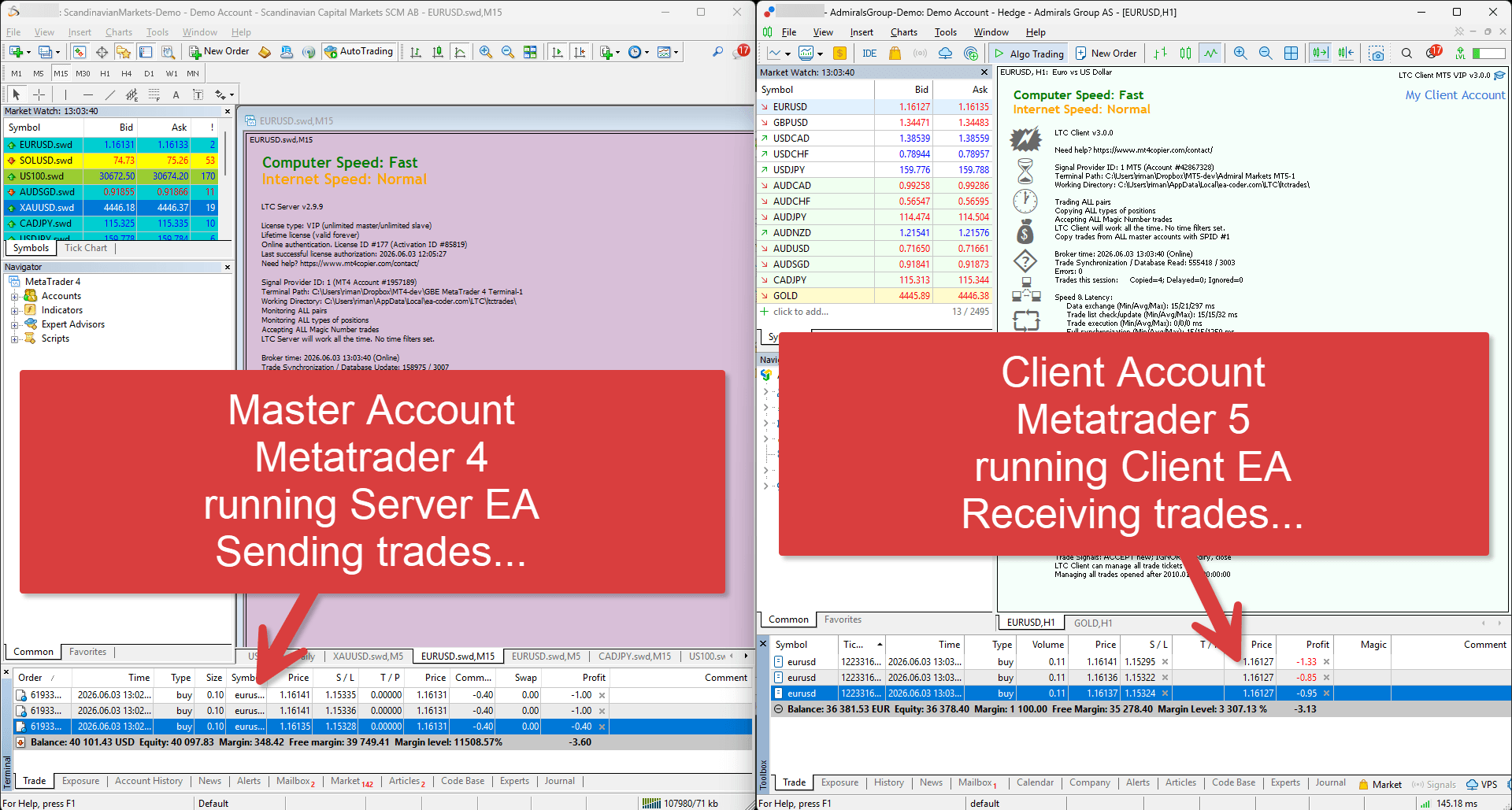
In this example:
- MT4 is our Master Account.
- MT5 is our Client Account.
- LTC Server EA is running on MT4.
- LTC Client EA is running on MT5.
The screenshot shows Local Trade Copier for MT4 & MT5 already operating normally.
The Master account sends trade information to the shared database.
The Client account continuously monitors that database and waits for new trade signals.
At this point, we are not concerned about specific settings yet. We simply want to verify that:
- Server EA is running.
- Client EA is running.
- Both EAs are online.
- Trade synchronization is active.
Once both sides are communicating correctly, we can configure the Client EA for Manual-Like Trade Copying.
In this tutorial, we use an MT4 Master account and an MT5 Client account as an example. However, the same Manual-Like Trade Copying setup can also be used with MT4-to-MT4, MT5-to-MT5, and MT5-to-MT4 trade copying. The only difference is where you attach the LTC Server EA and LTC Client EA. Simply attach the Server EA to the account sending trades and the Client EA to the account receiving trades, regardless of which MetaTrader platform version you use.
Step 2 – Configure Money Management and Deviation Settings
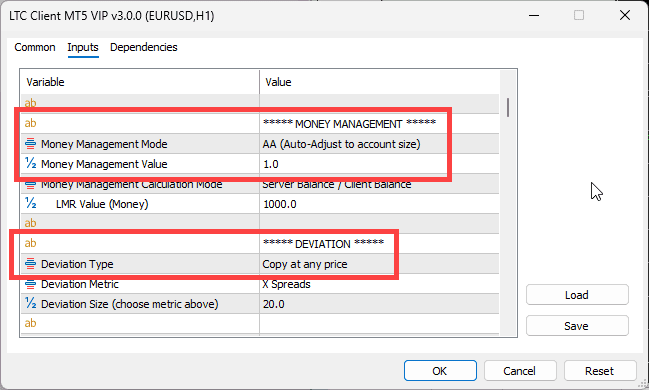
Money Management Settings
For this tutorial, we leave the Money Management settings at their default values:
Money Management Mode
- AA (Auto-Adjust to account size)
Money Management Value
- 1.0 (actually not used with AA mode)
Why?
Because we want the Client EA to automatically adjust lot sizes according to account balance differences.
Example:
Master Account:
- Balance = $10,000
- Trade Size = 0.10 lots
Client Account:
- Balance = $20,000
Copied Trade:
- Approximately 0.20 lots
If the client account is smaller than the master account, the copied trade size will automatically become smaller.
The result is that both accounts maintain approximately the same percentage risk despite having different balances.
This is especially important when copying between:
- Small and large accounts
- Different account currencies
- Different broker leverage settings
Deviation Settings
For this tutorial, we leave:
Deviation Type
- Copy at any price
Why?
Because we want every trade to be copied, even if the market moves after the original trade was opened.
If price moves:
- The client may receive a slightly better entry.
- The client may receive a slightly worse entry.
Either outcome is acceptable.
In fact, having different entry prices is one of our goals because we do not want the client trade to look identical to the master trade.
When spreads, execution speed, broker pricing, and trade delays are added together, the copied trade naturally begins to look like an independently placed trade.
Step 3 – Configure Custom Symbol Mapping
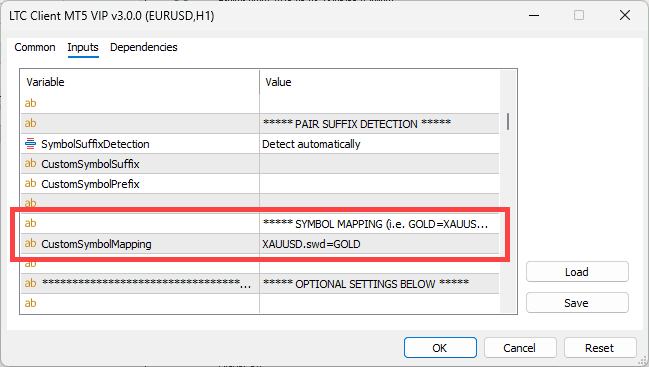
This is one of the most commonly overlooked settings.
Notice that:
Master Broker:
- XAUUSD.swd
Client Broker:
- GOLD
Both symbols represent Gold, but their names are different.
Without symbol mapping, the Client EA would not know where to place the copied trade.
We therefore configure:
XAUUSD.swd=GOLD
What does this mean?
Whenever the Client EA receives a trade on:
XAUUSD.swd
it will automatically place that trade on:
GOLD
Why is this important?
Many brokers use custom names such as:
XAUUSD.a
XAUUSD.pro
GOLD
GOLDmicro
US100.cash
US100
NAS100
Forex pairs often match automatically, but CFDs, Indices, Metals, and Crypto instruments frequently require symbol mapping.
Always verify symbol names before testing your setup.
Step 4 – Configure Stop Manipulations
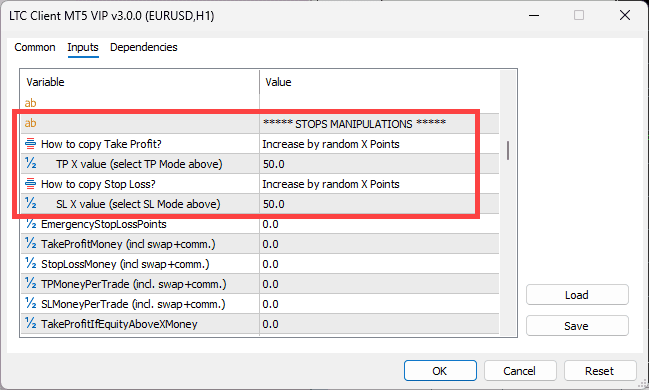
In this step, we intentionally make copied trades look different from the master trade.
Settings:
How to copy Take Profit?
- Increase by random X Points
TP X Value
- 50
How to copy Stop Loss?
- Increase by random X Points
SL X Value
- 50
What does this do?
The Client EA randomly adjusts:
- Stop Loss
- Take Profit
by up to 50 points.
Why?
If every copied trade has:
- Identical entry price
- Identical SL
- Identical TP
then it becomes obvious that trades are being copied.
Adding small random variations makes each trade unique.
What happens if these values are set to 0?
The copied trade would use exactly the same SL and TP as the master trade.
That is perfectly valid, but the copied trade would look much more similar to the original trade.
For Manual-Like Trade Copying, we intentionally want some variation.
Step 5 – Enable Manual-Like Entry Execution
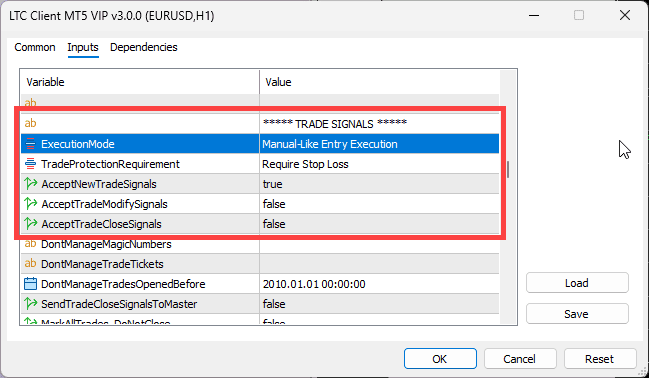
This is the most important step of the entire tutorial.
Execution Mode
Set:
Execution Mode = Manual-Like Entry Execution
What does this do?
Instead of opening trades through standard EA trading functions, Local Trade Copier simulates the process of placing a trade through MetaTrader’s New Order window.
The result is that MetaTrader identifies the trade as:
“Placed manually”
instead of:
“placed by expert”
When hovering the mouse over the trade, MetaTrader will show “Placed manually.”
From the broker’s perspective, the trade appears to have been entered manually.
Trade Protection Requirement
Set:
Trade Protection Requirement = Require Stop Loss
Why?
This ensures that only trades protected by a Stop Loss are copied.
If a master trade does not contain a Stop Loss, the Client EA will ignore it or delay copying a trade until it does have a Stop Loss.
This is especially important when:
- Brokers disable automated trading.
- SL/TP modifications are not allowed later by EA.
- You want every copied trade protected immediately.
Accept New Trade Signals
Set:
AcceptNewTradeSignals = true
Obviously, we still want new trades copied.
Accept Trade Modify Signals
Set:
AcceptTradeModifySignals = false
Why?
Because any future modification would require EA activity visible to the broker.
Disabling modifications helps maintain the illusion that the trade was manually placed.
Important! If SL/TP is adjusted on the master trade, Client EA will not modify SL/TP anymore after the trade is placed with this configuration. So at this stage, human intervention might be required, depending on your goals and your trade copy plan.
Accept Trade Close Signals
Set:
AcceptTradeCloseSignals = false
Why?
For the same reason.
If the EA starts closing trades automatically, broker logs may show automated activity.
By disabling trade close signals, the Client EA never performs automated trade exits.
This creates the cleanest possible Manual-Like setup.
Result
The broker only sees:
- A manually opened trade.
- A manually placed Stop Loss.
- A manually placed Take Profit.
No visible automated management actions occur afterward.
This setup is ideal for brokers that prohibit automated trading or have AutoTrading completely disabled.
Important! If a trade is closed on the master account, Client EA will not close it (unless it reaches SL/TP itself) with this configuration. So at this stage, human intervention might be required, depending on your goals and your trade copy plan.
Step 6 – Configure Trade Manipulations
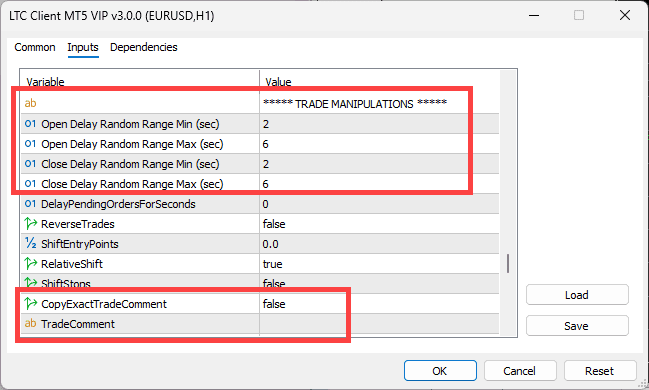
Random Entry Delay
Settings:
Min = 2 seconds
Max = 6 seconds
Random Exit Delay
Settings:
Min = 2 seconds
Max = 6 seconds
Why?
Nobody opens trades at exactly the same millisecond across multiple accounts.
The Client EA randomly delays each action.
As a result:
- Entry times differ.
- Entry prices differ.
- Exit times differ.
- Exit prices differ.
This creates more natural-looking execution.
Copy Exact Trade Comment
Set:
Copy Exact Trade Comment = falseWhy?
Many EAs include identifiable comments such as:
EA Name
Signal ID
Master Account
Strategy Name
We do not want those comments visible.
Trade Comment
Set:
Trade Comment =
Leave blank or set to any text you want.
Result
The copied trade contains no identifying comments.
This keeps trade history cleaner and removes another indicator that the trade originated elsewhere.
Step 7 – Open a Trade on the Master Account
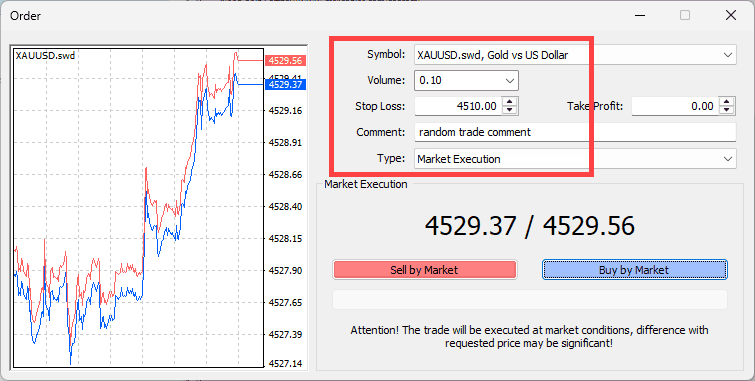
Now we create the original trade.
In this example:
- Instrument = XAUUSD.swd
- Trade Type = Buy
- Stop Loss = Present
- Trade Comment = Present
The LTC Server EA detects the new trade and sends it to the shared database.
The Client EA receives the signal and begins processing it according to all settings configured earlier.
Step 8 – Client EA Opens the Trade in Manual-Like Mode
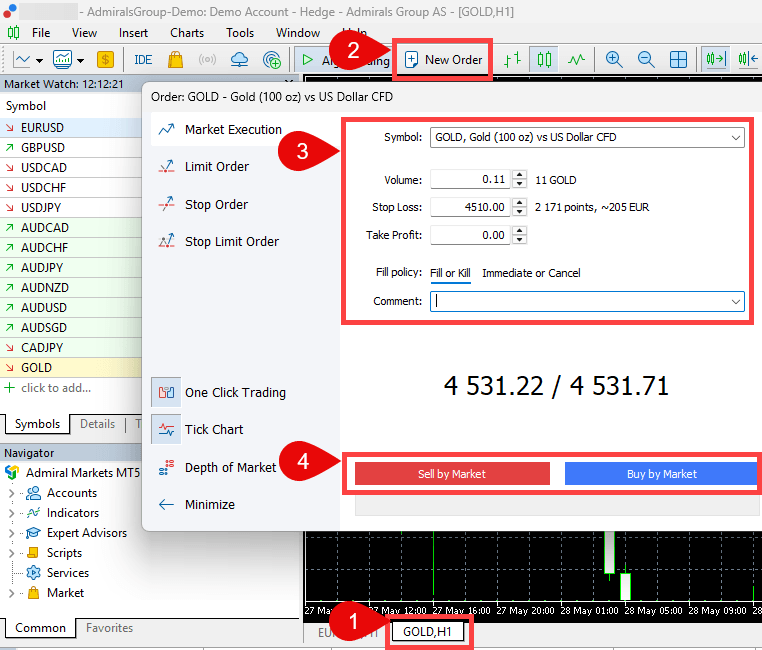
After the random delay expires, the Client EA opens the GOLD chart and then opens MetaTrader’s New Order window.
Notice several important details:
Symbol
The Client EA selects:
GOLD
because of our symbol mapping:
XAUUSD.swd=GOLD
Volume
The lot size is automatically adjusted according to account balance differences.
This keeps risk proportional between accounts.
Stop Loss
The Stop Loss differs slightly from the master trade.
This is caused by the random Stop Loss manipulation settings.
Trade Comment
No comment is present.
This is intentional.
Final Trade Placement
The Client EA performs the equivalent of pressing the BUY button in the New Order window.
As a result, MetaTrader records the trade as:
“Placed manually”
instead of:
“placed by expert.”
Step 9 – Compare the Final Result

At the top:
- Master MT4 account
- USD account
At the bottom:
- Client MT5 account
- EUR account
The copied trade now has all the characteristics we wanted:
✅ Appears as “Placed manually”
✅ Different entry time
✅ Different entry price
✅ Different Stop Loss
✅ No Magic Number
✅ No trade comment
✅ Lot size adjusted automatically
✅ Different account currency supported
✅ Different account size supported
Most importantly, when you hover the mouse over the copied trade, MetaTrader shows:
“Placed manually”
which means the trade appears exactly like a manually entered trade rather than a trade opened by an Expert Advisor.
Final Thoughts
Manual-Like Trade Copying combines several Local Trade Copier features into a single workflow:
- Manual-Like Entry Execution
- Random Trade Delays
- Stop Loss Manipulation
- Take Profit Manipulation
- Comment Removal
- Automatic Lot Size Adjustment
- Symbol Mapping
The result is a copied trade that behaves like a normal copied trade while appearing significantly different from the original trade and showing “Placed manually” inside MetaTrader. This makes it particularly useful when copying trades between brokers, prop firms, or accounts where you want copied trades to resemble independently placed manual trades rather than obvious EA-generated positions.
