

A news filter in a trade copier pauses or blocks new copied entries around scheduled high-impact events. The fix for most news-sensitive strategies is a Tier 1 blackout of 30 minutes before to 30 minutes after events like Non-Farm Payrolls or FOMC decisions. Below you’ll find the exact presets, a testing checklist using copier logs, and the operational rules that keep exits from getting caught in the blackout by accident.
TL;DR:
- A Tier 1 news blackout window typically spans 30 minutes before and after major events like NFP and FOMC to avoid spread widening and volatility spikes.
- Proper synchronization of broker server time and calendar time is crucial, as offsets can cause blackout windows to trigger prematurely or too late.
- Testing the filter with small demo trades and logs helps confirm correct blocking of entries and ensures exits are not unintentionally restricted during high-impact releases.
- Filtering should be tailored to strategy type: scalpers might close or avoid trading around news, while swing traders often bypass blackout windows altogether.
- Local execution of the trade copier enhances timing and reduces detection risk, but regular test and calibration remain essential for reliable news filtering.
How News Filters Work in a News Filter Copier
A news filter copier relies on an economic calendar feed tagged by importance, usually high, medium, or low. The copier checks that feed before allowing a new trade to replicate, and if an event inside your blackout window matches the importance level you’ve set, the filter holds the trade back rather than passing it through to client accounts.
Timing is where most setups break. Your broker’s server time and the calendar’s timezone don’t always line up, and a two or three hour offset will make your “30 minutes before NFP” window actually trigger an hour early or late. This is the single most common reason traders swear their filter isn’t working when it’s actually working against the wrong clock.
Filters generally behave in one of three ways:
- Block new entries only — the most common setting, and the safest default for most account managers.
- Block entries and pending order placement — useful if you’re running limit or stop orders that could trigger mid-news.
- Block exits as a side effect — often unintentional, and the one that costs traders money when a stop loss or take profit can’t fire during the blackout window.
Standard execution filters in copier software typically bundle spread, slippage, time-window, and news-pause controls together, and that news pause function is specifically built to stop new entries during configured news windows, which matters most for prop-firm accounts and news-sensitive strategies. Running the copier locally, rather than routing trades through a cloud server, tends to improve timing fidelity too, since there’s no added latency between the calendar check and the execution decision, and no external IP hop for prop firms worried about detection rules.
What Blackout Window Should You Use for Each Event Tier?
Most traders sort economic releases into three tiers, and the tier should decide your blackout window, not a one-size-fits-all setting.
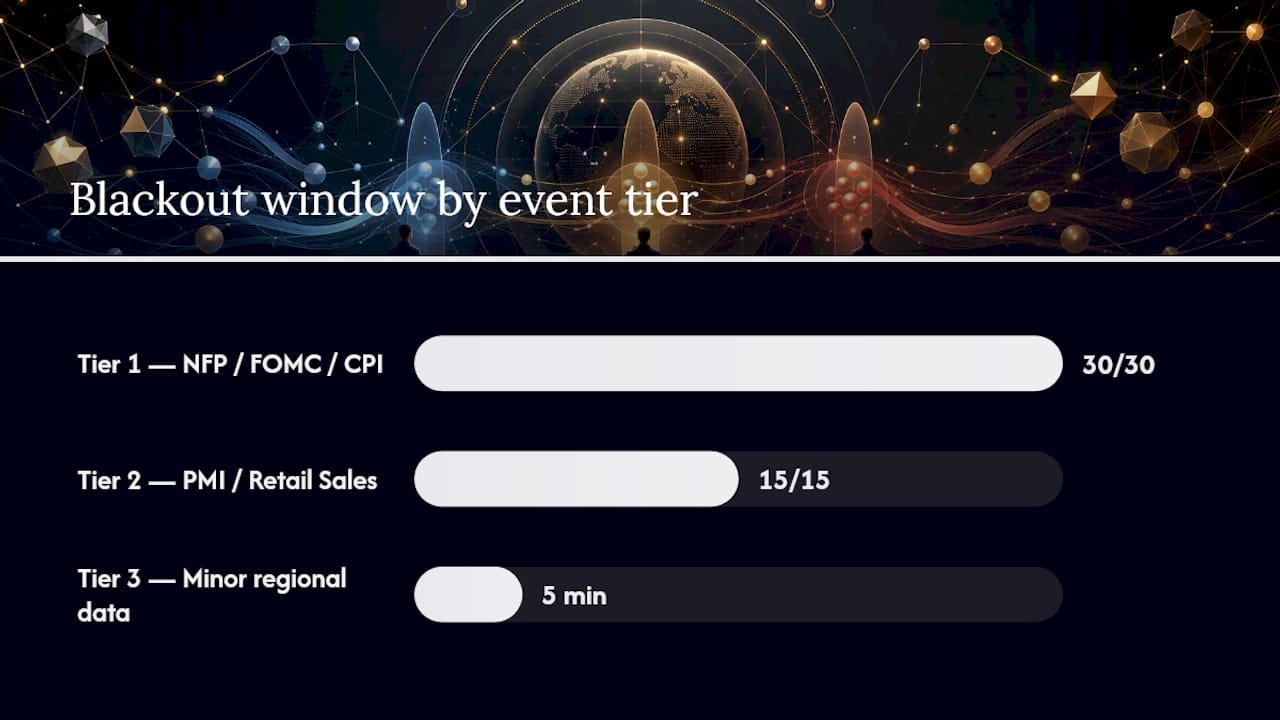
- Tier 1 — Non-Farm Payrolls, FOMC rate decisions, CPI. Use a 30-minute-before, 30-minute-after blackout. This is the minimum window most guides recommend, since spreads on major pairs can widen sharply in the seconds around release.
- Tier 2 — PMI, Retail Sales, mid-tier central bank speeches. A 15/15 window is usually enough; volatility is real but shorter-lived than Tier 1.
- Tier 3 — lower-impact regional data, minor housing or consumer confidence reports. Monitor only, or apply a 5-minute window if you’d rather be conservative than efficient.
Strategy type changes how you apply these presets. Scalpers running tight targets should close out entirely before a Tier 1 release rather than trust any filter to save them from a spread spike. Intraday traders holding for hours can lean on the standard 30/30 window without much disruption to their trade frequency. Swing traders holding for days often don’t need blanket filtering at all. Limiting the blackout to pairs directly correlated with the event (USD pairs around an FOMC decision, for example) keeps the filter from blocking unrelated trades for no reason.
One exception flips the whole logic: if your strategy is built specifically to trade news releases, invert the rule. Instead of blocking copying during selected events, configure the filter to allow copying only during those windows and block everything else.
Pro Tip: Write your blackout presets into your trading plan as fixed numbers, not “use judgment during big news.” A prewritten blackout window removes the split-second decision that turns a bad print into a worse trade.
How Do You Test and Troubleshoot a News Filter?
Test the filter before you trust it with real capital, because a misconfigured blackout is worse than no filter at all. It gives you false confidence.
Run this sequence on a demo account first:
- Enable the news filter and set your blackout window (start with the Tier 1 default of 30/30).
- Place a tiny trade on the master account during a known scheduled event.
- Open the client account’s copier log and check whether the trade shows as blocked.
- Confirm the block reason listed. A log entry reading “news blocked” is different from one reading “spread blocked” or “slippage blocked,” and mixing those up leads to the wrong fix.
If exits are getting blocked when they shouldn’t be, look for a separate “allow closes” or “close override” setting. Most copier software separates entry filtering from exit filtering for exactly this reason, and you generally want your filter exit-exempt so a stop loss or take profit can still fire during a blackout window.
If the calendar data itself looks wrong, whether events are missing or firing at the wrong time, compare the calendar’s listed time against your broker’s actual server time. A mismatch here is more common than a broken filter. When in doubt, skip the automatic calendar dependency and set a manual blackout window around known release times instead. The general remediation path is straightforward: check the logs first, disable the filter temporarily to confirm the trade copies normally, retest with a small trade, then re-enable the filter and tighten it rather than leave it off. Because backtesting can’t reproduce live calendar gating, this kind of demo or forward test is the only way to actually confirm your filter behaves the way you configured it.
Risk Management Rules Around News Blackouts
Three options exist before a high-impact release hits: close the position, protect it, or hold it through. Which one you pick should depend on your strategy, not your mood in the moment.
- Close if the position isn’t part of a news-trading strategy and the pair is directly exposed to the release.
- Protect with a tightened stop or a hedge if you want to stay in a longer-term position but reduce exposure to the spike.
- Hold only if your strategy is specifically designed to ride out or trade the volatility.
Widening your stop loss as a default response is usually the worst of the three options. It increases your risk exactly when volatility is at its highest, rather than reducing it. A better habit is building calendar review into your pre-session routine, setting alerts for Tier 1 events, and writing your blackout rules into your trading plan so you’re not deciding under pressure.
One rule of thumb worth keeping on a sticky note: skipping a trade costs you nothing, but one unfiltered NFP release can cost you a week of profits. That rule of thumb is a risk-management heuristic, not a performance claim. Keep a short journal entry for every major event: what filter was active, whether it triggered correctly, and what you’d change next time.
Why Local Trade Copier Builds News Filtering This Way
The trade copier runs entirely on your own Windows machine or VPS across MT4, MT5, and DXTrade, with configurable filter options built into the client connection settings. That local execution matters for two reasons: it keeps timing tight between the calendar check and the trade decision, and it avoids routing trade data through a cloud server, which reduces IP-related detection risk that some prop firms flag. If you’re configuring filters for the first time, the installation guide and log monitoring walkthrough cover the setup steps in more depth than a general overview can.
An Editorial Take on News Filter Safety
Most guidance on news filtering treats the blackout window as a set-and-forget setting. That’s the wrong mental model. A filter you never test is a filter you don’t actually have, you just have a checkbox that might be doing something.
The conventional advice undersells two things: the timezone mismatch between broker server time and calendar data, and the risk of filters blocking exits nobody meant to block. Both are configuration errors, not filter failures, and both only get caught by someone who actually opens the copier logs and runs a small demo trade before trusting the system with real size.
If you take one thing from this, prioritize the exit-exemption check before you worry about perfecting your Tier 1 window. A slightly wrong blackout window costs you a missed entry. A blocked stop loss during NFP can cost you far more than that, and it’s the failure mode almost nobody checks for until it happens once.
— Rimantas
Test Your News Filter Before You Trust It
The software gives you entry and exit filter controls you actually configure yourself, not a fixed blackout you have to work around, and it runs locally so there’s no cloud latency between the calendar check and the trade. That matters most for prop-firm traders who need execution to stay on one machine and one IP address.

Start with the 7 day free trial, set a small master trade, and confirm in the copier logs that your Tier 1 blackout actually blocks the entry without touching your exits. If you run into blocked trades that shouldn’t be blocked, the SL/TP waiting behavior guide walks through how exits interact with filter settings. Past results do not guarantee future performance. Local Trade Copier is trade replication software only. It copies existing trades and does not add any strategy logic or market analysis of its own.
Sources
Start with the filter documentation and log monitoring guide before touching live settings.
- Trade Copier: Filters explained (news, symbols, schedule)
- Trade Copier Ultimate — Full documentation and user manual – Analytics & Forecasts – 4 May 2026 – Traders’ Blogs
- News Events & Strategy Filters: When to Trade and When to Sit Out | FXVPS
FAQ
What Is a News Filter in a Trade Copier?
It’s a setting that blocks or pauses new copied trade entries during a configured blackout window around scheduled economic events, based on an importance-tagged calendar feed.
What Blackout Window Should I Use for NFP or FOMC?
Use a Tier 1 preset of 30 minutes before to 30 minutes after the release, which is the minimum window most guides recommend for major events.
Can a News Filter Block My Stop Loss or Take Profit?
Yes, some filter configurations block exits as a side effect of blocking entries. Check for a separate “allow closes” setting and test on demo before going live.
How Do I Know if My Filter Is Actually Working?
Place a small trade during a known event and check the client account’s copier log for a “news blocked” entry, since backtesting can’t reproduce live calendar gating.
Does Local Trade Copier Support News Filtering?
Yes, its filter settings let you configure blackout windows for entries and exits separately, running locally on MT4, MT5, and DXTrade without cloud routing.
Recommended
- Funded Accounts: 6 News Trading Restrictions to Avoid Prop Firm Flags
- Local Trade Copier Updates MT4 and MT5 Versions with New Tools for Prop Firm and Retail Traders
- Prop Firm Account Manager Copier Setup Guide
- Map Prop Firm Friendly Settings to Exact EA, Terminal and Copier Fields
