

Per-account symbol filters let a receiver account accept or reject specific master instruments, while symbol mapping translates a master symbol name into the receiver broker’s own spelling. Before changing any copier setting, open the receiver terminal’s Market Watch and check the symbol’s Specification details at Prominence Bank so you know the exact name and whether that symbol can actually trade. Some trade copier software handles both per-account filters and mapping from the same settings screen.
TL;DR:
- Most filter failures stem from not verifying symbol names and trading permissions in Market Watch before configuration.
- Filters will only accept or reject trades based on allowlists, exclusions, or magic number pairings, not override broker restrictions.
- Mapping files are stored in the terminal’s data folder and should be manually prioritized over auto-detection for consistency.
- Testing both market and pending orders on demo accounts helps identify mapping or filtering issues early.
- Ensuring AutoTrading is enabled and symbol names match exactly prevents most copying errors.
Symbol filters versus symbol mapping: what each one actually does
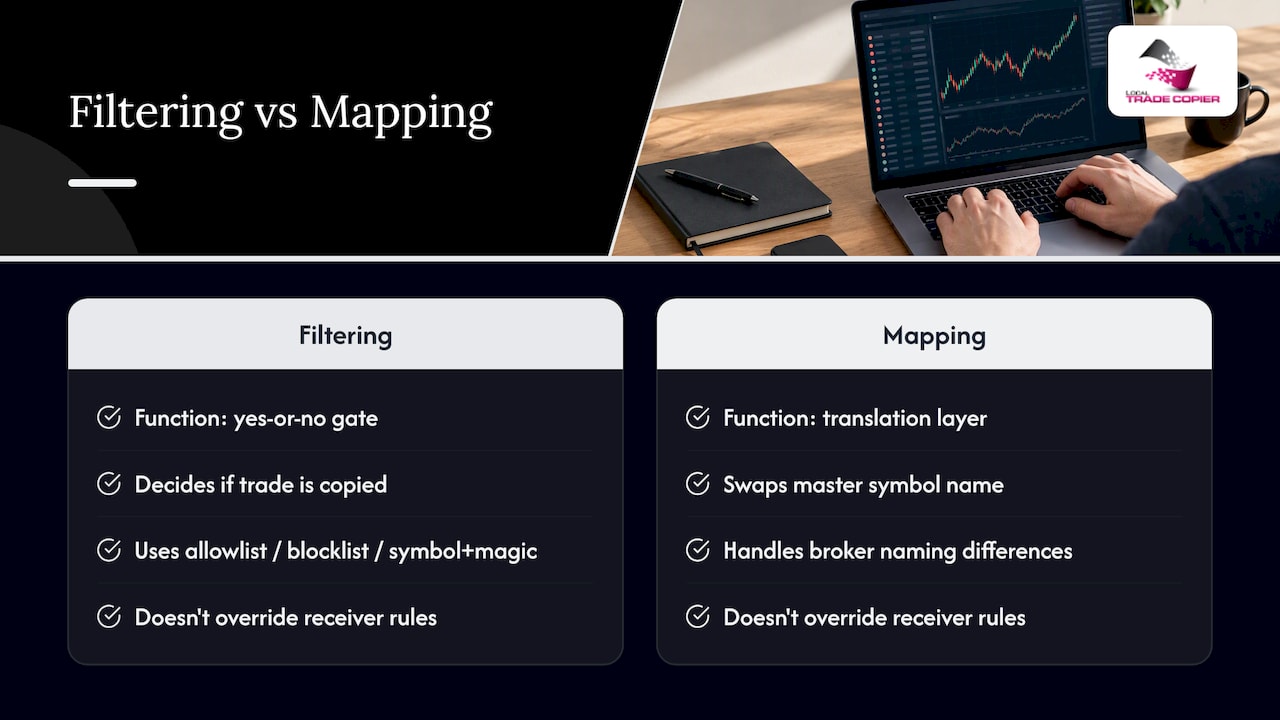
A filter is a yes-or-no gate. It decides whether a trade on a given master symbol gets copied to a specific receiver account at all, based on an allowlist, a blocklist, or a symbol paired with a magic number. Mapping is a translation layer. It takes the master’s symbol name and swaps it for whatever that same instrument is called on the receiver’s broker, since brokers rarely use identical naming.
Neither function overrides the receiver broker’s own trading rules. The Specification on the receiver account still governs whether an order can open, what sessions apply, and what execution type is used, according to MetaTrader’s documentation. Filtering and mapping only decide what gets sent and under what name.
Three filter patterns cover most use cases. An allowlist works when you only want a handful of pairs copied to a conservative account. Exclusions work when you want everything except a few volatile instruments. Symbol-magic pairs work when multiple EAs share one master account and you need to separate their trades by instrument and strategy, a pattern detailed in the magic number setup guide for the Local Trade Copier platform.
Prepare each receiver: inspect Market Watch and symbol specification first
Skipping this step is the most common reason filters and mapping fail later. Open Market Watch through View, Market Watch, or the Ctrl+M shortcut, then right-click any symbol and open its Specification.
- Record the exact symbol name as the receiver broker spells it, including suffixes or prefixes.
- Note the trade permission field: full, close-only, or disabled symbols will reject copied orders regardless of filter settings.
- Check contract size, tick size, and stops level, since mismatches here cause volume or price errors on execution.
- Confirm the trading sessions shown in Specification, since a symbol closed for trading will skip any copy attempt.
Doing this before touching copier settings turns a guessing exercise into a short checklist, and it is the single habit that prevents most “it’s not copying” support tickets.
Configure per-account symbol filters: step-by-step with examples
Per-account filters usually live in the receiver EA’s input parameters or in a separate configuration file referenced by the EA, sometimes a CSV or semicolon-delimited list. Exact field names vary by copier, so treat any syntax below as an example to adapt, not a universal standard, a point confirmed across MQL5 marketplace copier listings.
- Open the receiver EA’s input settings and locate the symbol filter field (often labeled Symbol Filter or similar).
- For an allowlist, enter only the symbols you want copied, separated by commas:
EURUSD,GBPUSD,USDJPY. - For exclusions, use the copier’s negative syntax, for example
exclude=XAUUSD. - For symbol-magic separation, pair the symbol with the EA’s magic number, for example
EURUSD;63578. - Save the configuration, then restart the receiver terminal so the EA reloads the file cleanly.
- Enable AutoTrading on the receiver terminal and confirm the EA itself allows automated trading in its properties.
- Run every test on a demo receiver first, copying a small market order before trusting the filter on a live account.
Pro Tip: Change one filter at a time and test it before adding the next, since stacking several untested rules makes it harder to find which one is misbehaving.
Symbol mapping and name translation: formats, file placement, and priority
Mapping files typically live in the terminal’s Common Data Folder rather than the regular terminal directory, so they survive terminal reinstalls and updates. A copier reads the file through a variable name such as Master_List, which points the EA to the mapping entries at startup, a structure documented on the Multi Account Local Trade Copier product page.
- A common format pairs master and receiver symbols with a semicolon or equals sign, for example
EURUSD;EURUSDmorEURUSD=EURUSDm. - Manual mapping entries generally take priority over any auto-detect feature, so a hand-entered line will override the copier’s guess.
- Mapping usually runs before or alongside filtering depending on the copier, meaning a symbol can be renamed and still excluded by a separate filter rule.
- Pending orders sometimes behave differently after mapping than market orders, so test both order types rather than assuming one proves the other works.
Netting and hedging account types add another layer. Some copiers limit magic-number filtering on netting accounts, which matters if you rely on magic numbers to separate strategies after mapping, as explained on the netting and FIFO limitations page.
Test and verify: practical checks after configuring filters and mappings
A filter that looks correct on screen can still fail silently, so verification is not optional.
- On a demo receiver, copy a simple market order first and confirm it opens with the expected symbol and volume.
- Copy a pending order next, since pending orders sometimes reveal mapping or filter issues that market orders do not.
- Review partial-close and modification behavior if your master account uses either, since copiers can treat them differently from fresh orders.
- Check the copier’s logs for skipped trades, invalid symbol errors, or volume errors rather than assuming silence means success.
- For multi-master or multi-receiver setups, confirm the correct ChannelName is assigned to each pair and that Slave_Magic values match your intended filter groups, as outlined in the multi-account copying guide.
Logs are the most reliable evidence available, since they record the exact retcode returned at order placement rather than a guess about what went wrong.
Troubleshooting quick checklist for broken or ignored filters
Most filter failures trace back to a handful of causes, so check these before assuming the configuration syntax is wrong.
- Confirm AutoTrading is enabled on the terminal toolbar and that the EA’s own “Allow automated trading” option is checked, since MetaTrader’s documentation notes either one disabled will block every trade regardless of filter settings.
- Re-check the exact symbol spelling against Market Watch, since a single character difference between a filter entry and the broker’s symbol name will cause a silent skip.
- Verify account type constraints, since magic-number filtering can behave differently on netting versus hedging accounts.
- Restart the receiver terminal after any configuration change rather than assuming a hot reload picked up the new settings.
- Open the copier’s log and capture the exact retcode for the rejected trade, then compare it against known error codes before changing settings further.
Pro Tip: If a symbol copies fine on one receiver but not another, compare their Specification screens side by side first, since differing trade permissions or sessions are a more common cause than a filter typo.
Why Local Trade Copier is a practical choice for per-account filtering
Local Trade Copier gives each receiver account its own independent filter and mapping settings, so one master can feed several accounts with different symbol rules without separate installations. Mapping and filtering run from local MT4 and MT5 terminals with no cloud routing, which keeps execution on a single machine and avoids the shared-IP concerns some prop firms flag.
A manual-like trade entry mode places copied orders so they resemble trades entered by hand, useful for prop firm accounts that restrict EA trading outright. We have run this software since 2010, and our installed base includes more than 3,000 users with over 490 Trustpilot reviews on record. Setup details for filtering by symbol are covered in our trade filtering documentation, and installation steps are in our installation guide.
What matters more than the filter syntax
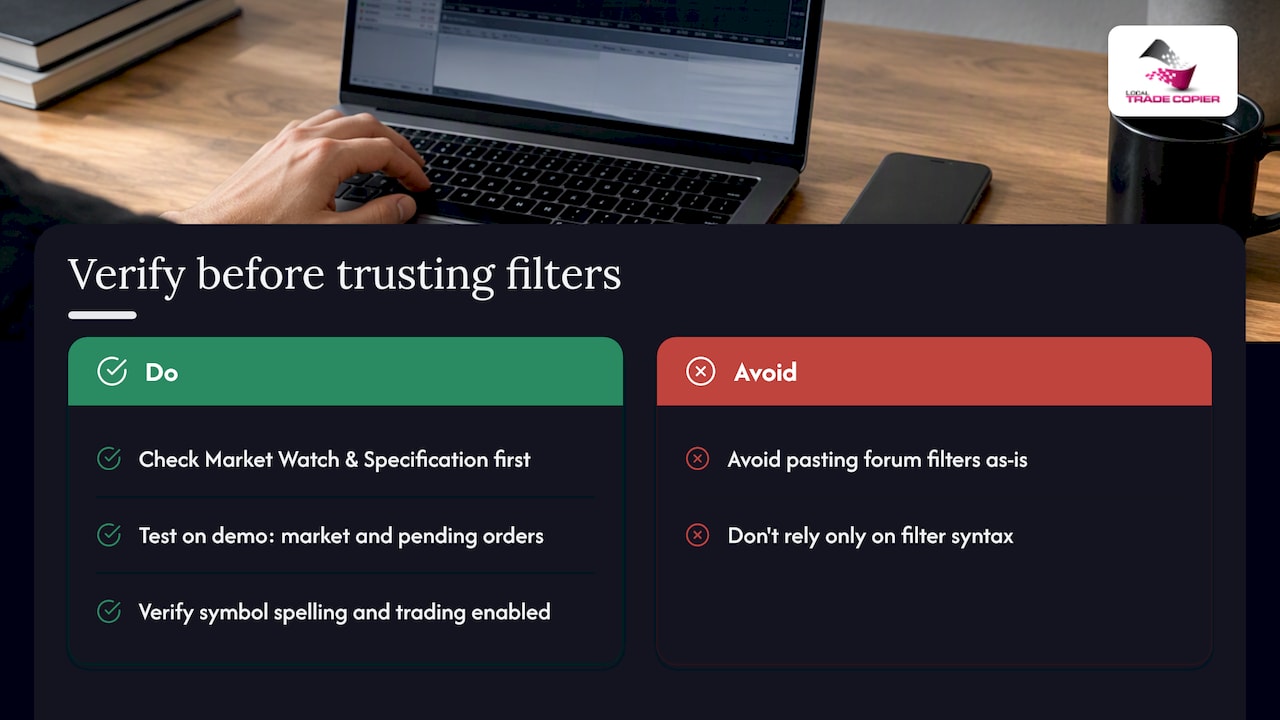
The syntax differences between copiers get most of the attention in forums and documentation, but they are rarely where setups actually break. The more common failure is skipping the verification step: traders copy a filter example from a forum post, paste it into their EA inputs, and assume it will work because the symbol name looks familiar. It often does not, because the receiver broker spelled it differently or disabled trading on it entirely.
The habit worth building is treating Market Watch and Specification as the first stop, every time, before touching a single filter field. That five-minute check catches most of what later shows up as a confusing support ticket. The second habit is testing on demo with both a market order and a pending order, since the two can behave differently under the same mapping rule. Readers who build these two habits will spend far less time troubleshooting than readers who optimize their filter syntax first and verify last.
— Rimantas
Try Local Trade Copier: trial, docs, and pricing links
Some trade copier software runs entirely on your own Windows machine or VPS, so filter and mapping settings for every receiver account stay on hardware you control, with no cloud routing in between. Free trials may be available to configure filters on a demo setup before committing to a plan.

- Start with our installation guide to get the copier running on your terminal or VPS.
- Review the trade filtering documentation for filter and mapping field references.
- Compare the PERSONAL, MANAGER, and VIP plans on our pricing page.
Past results do not guarantee future performance. Our software only replicates trades between accounts; it does not provide trading advice or influence trading outcomes.
FAQ
What is the difference between a symbol filter and symbol mapping?
A symbol filter decides whether a trade on a given instrument gets copied to a receiver account at all, using an allowlist, exclusion list, or symbol-magic pairing. Symbol mapping instead translates the master’s symbol name into the receiver broker’s own spelling for the same instrument, which is a separate step from the accept-or-reject decision that a filter makes.
How do I find the exact symbol name my receiver broker uses?
Open Market Watch on the receiver terminal through View, Market Watch, or Ctrl+M, then right-click the symbol and open its Specification to see the exact spelling along with trade permission and session details. Checking this before configuring any filter prevents most naming mismatches.
Why does my filter seem correct but trades still are not copying?
Confirm AutoTrading is enabled on the terminal and that the EA’s own “Allow automated trading” setting is checked, since MetaTrader’s documentation notes either one disabled blocks all EA trading regardless of filter configuration. Also check the copier’s log for the exact retcode, since skipped trades usually list a specific reason such as an invalid symbol or a closed market.
Does account type affect how symbol filters work?
Yes, netting and hedging accounts can handle magic-number filtering differently, and some copier implementations limit magic-based separation on netting accounts. If your filter strategy depends on magic numbers to separate trades by symbol, confirm your receiver account type supports that behavior before relying on it.
Does Local Trade Copier support per-account symbol filters and mapping?
Yes, Local Trade Copier lets each receiver account carry its own independent symbol filter and mapping settings, running locally across MT4 and MT5 with no cloud routing. Setup details are covered in our trade filtering documentation.
Sources
Recommended
- Replicate Symbol Based Trade Filtering Across Accounts for Traders
- Copying trades with different symbols between MT4 accounts
- 4 Session Windows to Copy for Time Based Trade Filters in MT4 and MT5
- Copy Trades MT4 to MT5: Complete Setup Guide (2026)
