
Run a Windows VPS close to your broker’s servers, install separate MT4/MT5 terminals for each account, and use a local trade copier EA with DLL imports enabled. That combination minimizes copy latency and keeps every trade on one machine under your control. Your next move: pick a VPS sized for your terminal count, in a data center near your broker, and build from there.
TL;DR:
- VPS with 4 GB RAM and fast CPU cores is suitable for up to eight MT4/MT5 terminals, with a buffer for updates and background processes.
- Matching the VPS region with the broker’s server hub is crucial to minimize trade execution delay and optimize fill speed.
- Installing and configuring separate terminal instances on a Windows VPS takes about 20 minutes, provided the setup steps are followed systematically.
- For reliable trade copying, regularly monitor logs for symbol mismatches, disconnections, or DLL permission resets, especially when running more than six terminals on one VPS.
- Local trade copier software offers sub-0.5 second execution and cross-platform support but requires DLL imports and on-machine setup, making it ideal for low-latency, control-focused trading environments.
Trade Copier VPS Setup: Choosing the Right Specs and Data Center
The terminal count drives everything else. A single light MT4 or MT5 instance runs fine on 2 GB of RAM, but that number climbs fast once you’re running a master terminal plus several client accounts, and vendors recommend scaling toward 4 GB or more for multiple instances. Build in a buffer of 15 to 20 percent above whatever the math says you need, because Windows updates, background processes, and antivirus scans all eat into available memory during market hours.
CPU clock speed matters more than core count here. MetaTrader terminals are largely single-threaded per process, so a VPS with fewer, faster cores usually outperforms one with many slow cores. SSD storage isn’t optional either. Slow disk I/O shows up as sluggish chart rendering and delayed log writes, both of which make troubleshooting a nightmare when you’re trying to figure out why a copy failed.
Here’s a rough sizing guide for planning purposes:
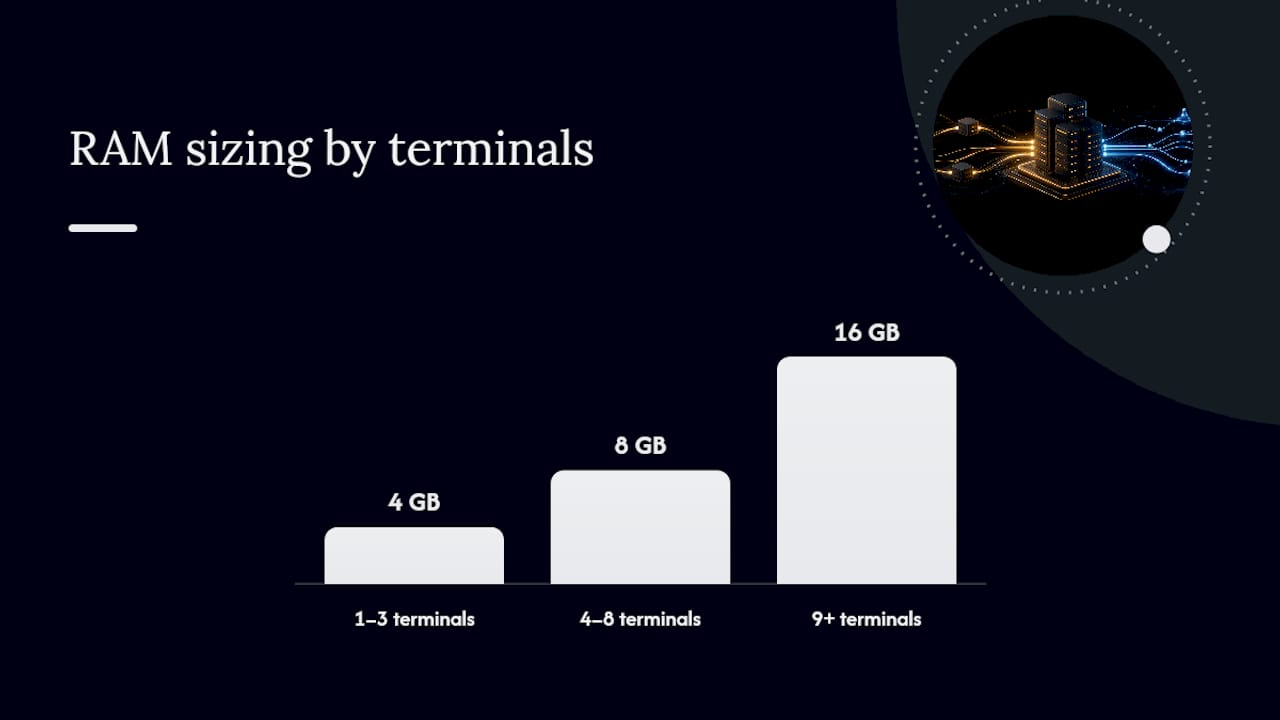
- 1 to 3 terminals: 4 GB RAM, 2 vCPU, SSD storage, Windows Server or Windows 10/11 Pro
- 4 to 8 terminals: 8 GB RAM, 4 vCPU, SSD storage, business or enterprise-grade Windows license
- 9+ terminals: 16 GB RAM, 6+ vCPU, and consider splitting the load across two VPS instances
Location matters as much as specs. Match your VPS region to your broker’s server hub, whether that’s NY4, LD4, or TY3, since round-trip time between your terminal and the broker’s server is what actually determines fill speed. Local trade copying is fast internally, but it can’t shrink the distance between your VPS and the exchange.
Setting Up a Trade VPS: From Provisioning to Live Terminals
Getting from an empty VPS order to live, logged-in terminals takes about 20 minutes if you follow the sequence in order.
- Provision the VPS. Choose a region near your broker, select RAM and vCPU based on your terminal count, and confirm SSD storage. You’ll get an IP address and administrator credentials by email.
- Log in for the first time. Connect, run Windows Update immediately, set the correct time zone (matching your broker’s server time if possible), and reboot once updates finish.
- Connect over RDP. Windows users open Remote Desktop Connection and enter the VPS IP. Mac users need Microsoft Remote Desktop from the App Store. Mobile traders can use the RDP client apps available for iOS and Android, though a full connection from a laptop is far more practical for setup work.
- Install MT4/MT5. Download the installer directly from your broker’s client portal or from MetaQuotes, and install a completely separate instance for every account you plan to run, each in its own folder.
- Log into each account. Enter the login, password, and server for each terminal individually, and confirm the connection status shows green in the bottom right corner.
This basic sequence, provisioning, RDP connection, and installer download from the broker, mirrors what most MetaTrader VPS setup guides recommend, and it holds whether you’re running one master account or a dozen client terminals.
Pro Tip: Name each terminal shortcut with the account number, not just “MetaTrader 4.” When you’ve got eight terminals open on one desktop, generic icons turn a five-second glance into a five-minute hunt.
How Do You Configure a Local Trade Copier EA?
Attach the server-side EA to your master terminal and the client-side EA to every slave terminal, giving each client a unique ID so the copier knows which account gets which trades. Skip this step and you risk cross-wiring accounts, which is a fast way to send the wrong lot size to the wrong client.
DLL imports have to be enabled twice, once globally in the terminal’s options and once on the individual EA when you attach it. A local copier EA typically depends on DLL calls to communicate between terminals in real time, which is also why MetaQuotes’ own MQL5 Virtual Hosting explicitly does not support DLL imports or local interprocess communication. If you’re planning to run a local copier, that rules out MQL5’s cloud-hosted virtual environment entirely. A full Windows VPS with terminals installed side by side is the only setup that supports this architecture.
Symbol mapping is where most new setups break. If your master runs on a broker using “EURUSD” and a client account uses “EURUSD.a” or “EURUSDm,” the copier needs an explicit mapping table or it simply won’t recognize the pair. Check every symbol in Market Watch on both terminals before you go live, not after.
For lot sizing, you’ve got three practical approaches:
- Proportional-by-equity: scales the copied lot to match the ratio between master and client account balances
- Fixed-lot override: copies every trade at a set lot size regardless of what the master traded
- Account-balance scaling: recalculates lot size dynamically as account equity changes over time
Set a maximum slippage or deviation threshold on each client EA too, along with clear rules for what happens when a copy gets rejected, whether that’s a retry, a log entry, or both. Local copy architecture that pairs master and slave terminals on the same machine is built specifically to minimize the delay between those steps, since everything happens through internal replication rather than an external relay.
How Do You Test a Trade Copier Before Going Live?
Never scale into real size before running a full test sequence. Here’s the order that catches the most problems:
- Open a small test trade, 0.01 lots if your broker allows it, on the master and time how long it takes to appear on each client terminal.
- Modify the stop loss or take profit on that same trade and confirm the change propagates to every slave account.
- Close the trade manually on the master and verify every client closes at the same time.
- Check the copier’s log files, typically found in the terminal’s MQL4/Files or MQL5/Files folder, for any “copy failed” entries or symbol mismatch warnings.
- If you’re on a funded or prop account, confirm the test respects that firm’s copy-trading and multi-account rules before you scale up.
Record the results of that first test run somewhere you can reference later. If latency creeps up after adding more terminals, you’ll want a baseline to compare against.
Why Do Trades Stop Copying? Troubleshooting and Monitoring
Most copy failures trace back to one of three causes: a slave terminal that went offline, a symbol mapping table that wasn’t updated after a broker changed its suffixes, or DLL imports that got disabled after a Windows update reset EA permissions.
Build monitoring into the setup from day one:
- Enable MT4’s built-in email alerts so a disconnected terminal notifies you immediately.
- Check EA logs daily during the first week, then weekly once the setup proves stable.
- Disable Windows sleep mode and set Windows Update’s active hours to cover your full trading session, since an unexpected reboot mid session will silently stop every EA.
- Add MetaTrader shortcuts to the Windows Startup folder so terminals relaunch automatically after any restart.
Pro Tip: If you’re running more than six terminals on one VPS and copy times start drifting past your test baseline, that’s usually a RAM or CPU contention problem, not a copier bug. Add resources or split the workload across a second VPS before you troubleshoot the software.
What Does Local Trade Copier Actually Deliver?
Local Trade Copier is an Expert Advisor based copier for MT4, MT5, and DXTrade that runs entirely on a local Windows machine or VPS, with no cloud routing involved. That architecture matches everything covered above: separate terminals, DLL imports enabled, one IP address for every account in the chain.
On the product side, it offers sub-0.5-second local execution, 18 lot size and risk management options, and cross-platform copying between MT4, MT5, and DXTrade, all running from a single machine rather than relaying through external servers. It has been active since 2010 and has gathered many users and reviews. Full installation steps are documented for both MT4 and MT5 if you want to see exactly how the server and client EAs attach.
A Short Take on Local Versus Cloud Copying
Local copying wins when you need absolute control over execution and the lowest possible latency between terminals on one machine. That said, broker fill times remain the final word on execution speed. No copier, local or cloud, changes what happens once the order reaches the exchange side.
— Rimantas
Getting Local Trade Copier Running on Your VPS
Local Trade Copier is built for exactly the setup this article walks through: master and client terminals on one Windows VPS, DLL imports enabled, and every trade replicated on-machine instead of through a third-party server. That matters most for prop traders who need to avoid cloud IP detection, and for account managers running client funds across several terminals at once, since one IP address and no external routing means fewer variables between your master trade and the copy.

The subscription covers the copier for multiple platforms under one plan, with a free trial to test the configuration covered in this guide before committing. Watch the demo video to see the copy behavior in real time, then follow the full installation guide to get your master and client EAs attached correctly. Past results do not guarantee future performance, and Local Trade Copier is trade replication software only. It also copies existing trades and does not generate signals, analyze markets, or influence trading outcomes in any way.
Sources
- MetaTrader VPS setup: run MT4/MT5 on a forex VPS 24/7 | ColossusCloud
- Copy Trading Setup on VPS: Master and Slave Configuration | FXVPS
FAQ
How Much RAM Do I Need for a Trade Copier VPS?
Plan on 4 GB for one to three terminals and 8 GB or more once you’re running four to eight, with a 15 to 20 percent buffer above your calculated minimum for Windows updates and background processes.
Can I Run a Local Copier EA on MQL5 Virtual Hosting?
No. MQL5 Virtual Hosting migrates your terminal settings but does not support DLL imports or local interprocess communication, which most local copier EAs, including Local Trade Copier, require to function.
Why Does My Trade Copier Sometimes Fail to Copy?
The most common causes are an offline slave terminal, an unmapped symbol suffix between broker accounts, or DLL imports getting disabled after a Windows update reset your EA permissions.
What’s the Difference Between Local and Cloud Trade Copying?
Local copying keeps master and client terminals on one machine for near-instant internal replication, while cloud based relays route trades through an external server, which typically adds noticeable delay to the process.
Does Local Trade Copier Work With DXTrade Accounts?
Yes, Local Trade Copier supports cross-platform copying between MT4, MT5, and DXTrade accounts, all included under the same subscription with a 7-day free trial.
Recommended
- Local Trade Copier DEMO on MT4 and MT5
- Improve MetaTrader 4 speed on multi-core CPU VPS servers
- Fast Trade Copier on MetaTrader 4 (10 orders in 1 second)
