
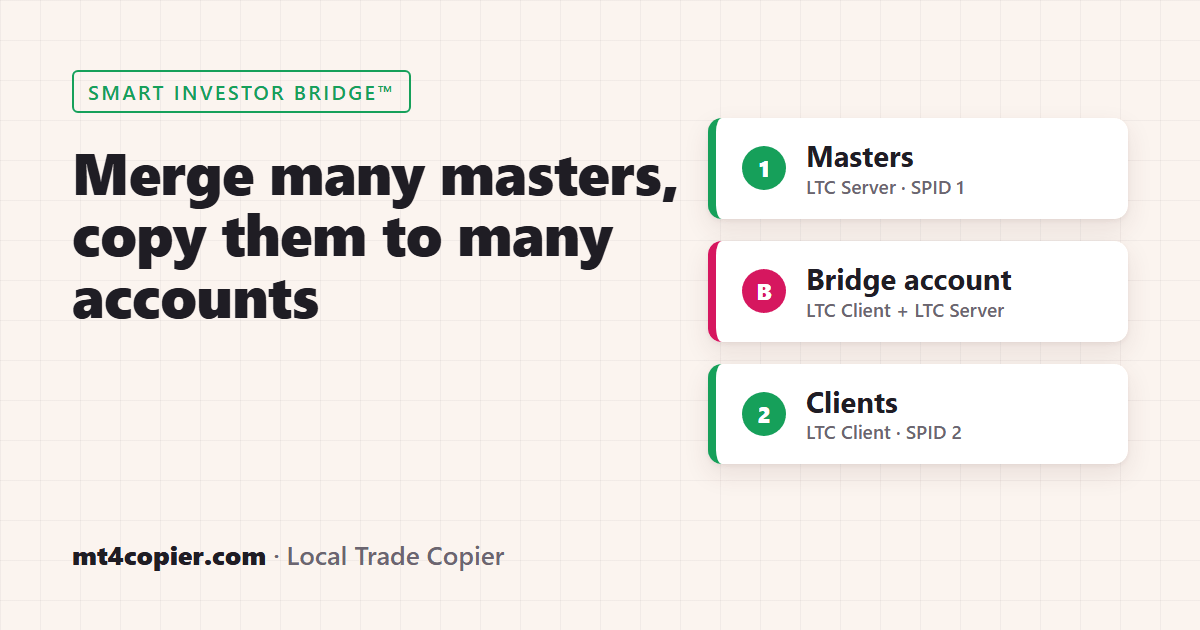
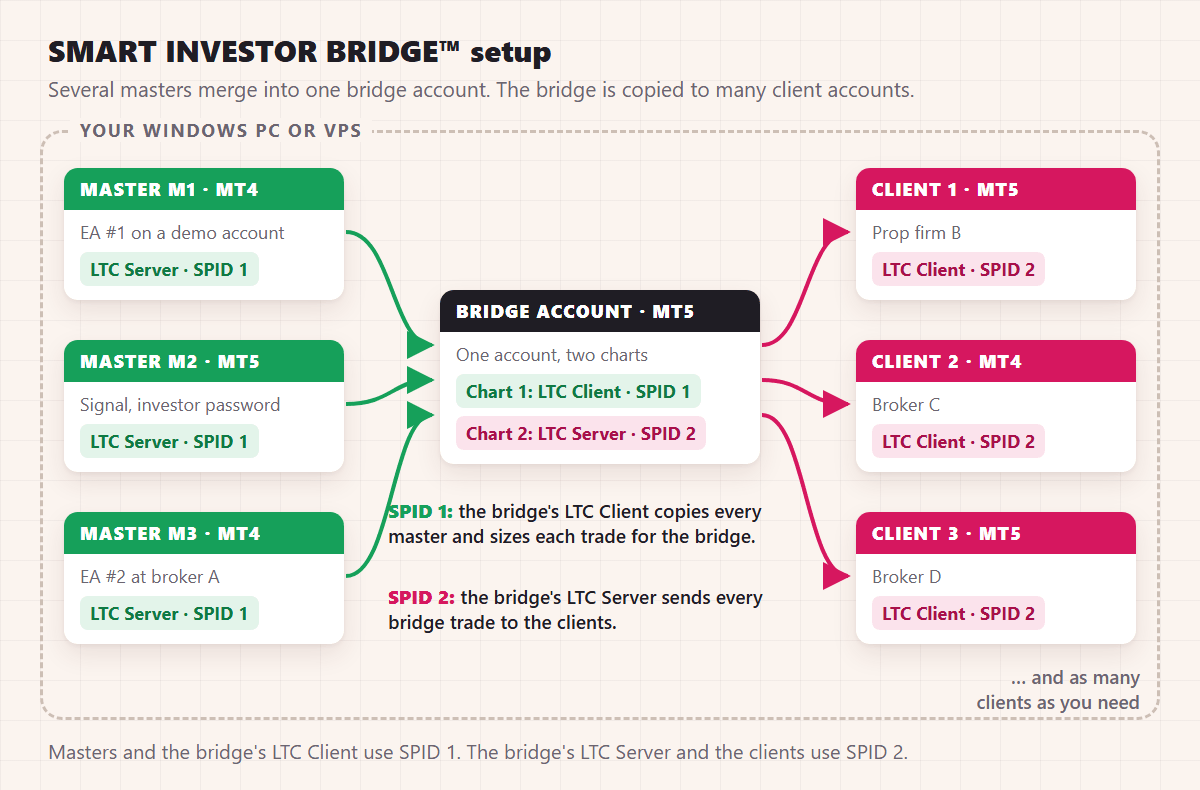
Short answer: SMART INVESTOR BRIDGE™ is a three-layer setup in Local Trade Copier (LTC) by Algonexis Technologies, mt4copier.com: several master accounts, then one “bridge” account, then many client accounts. The bridge account runs LTC Client and LTC Server at the same time, on two charts. Its LTC Client copies the masters with Signal_Provider_ID (SPID) 1. Its LTC Server sends the merged trades on to the client accounts with SPID 2. All the accounts run in MT4 or MT5, in any mix, on one Windows PC or VPS.
What the bridge is for
Use it when you want to merge trades from several sources into one portfolio, then copy that portfolio to many accounts. Three typical jobs:
- Signal aggregation: two EAs on two demo accounts, plus a signal account you can see with its investor password, all merged into one account.
- Portfolio blending: you decide on the bridge how big each source is in the mix.
- Structured trade distribution: each client account follows one account, the bridge, instead of every master.
Why not copy every master straight to every client?
You can. That is a many-to-many setup, and Local Trade Copier does it by default: every client copies every master on the same computer. The bridge adds one layer, and that layer pays off as the setup grows:
- You set the mix in one place. Change a master’s weight, add a master or remove one on the bridge, and every client follows. Without a bridge, you change it on every client.
- The bridge shows the blend’s results. Its balance and trade history are the portfolio’s own track record, in one account.
- Clients stay simple. Each LTC Client copies one account, with one money management setting.
Key takeaways
- The bridge account runs both EAs: LTC Client on one chart, LTC Server on another.
- Two SPID groups keep the layers apart. The masters and the bridge’s LTC Client use SPID 1. The bridge’s LTC Server and the clients use SPID 2.
- Lots are sized twice. The bridge’s LTC Client sizes each master trade for the bridge. Each client’s LTC Client then sizes the bridge trade for that client.
- New trades, pending orders, SL/TP changes, partial closes and closes pass through both layers.
- It works with MT4 and MT5 in any mix, on every LTC plan, including Personal, with unlimited accounts per PC/VPS.
The settings at a glance
| Account | Expert Advisor | Signal Provider ID | Other settings |
|---|---|---|---|
| Masters M1, M2, M3 | LTC Server | 1 (the default) | Defaults. Optional: LotMultiplier to change one master’s weight. |
| Bridge, chart 1 | LTC Client | 1 | Copy From These Master Accounts = “All accounts with active Server EA on this PC”. Money Management Mode = AAM (Auto-Adjust and Multiply by X), Money Management Value = 0.33 for three masters. |
| Bridge, chart 2 | LTC Server | 2 | Defaults. |
| Clients C1, C2, C3 … | LTC Client | 2 | Money Management Mode = AA (Auto-Adjust to account size), the default. |
LTC Server shows this setting as Signal Provider ID. LTC Client shows it as Signal_Provider_ID (SPID). It is the same setting. An LTC Client only sees LTC Servers with the same number.
Step-by-step setup
Step 1: Install one terminal per account
Every account needs its own MT4 or MT5 terminal, installed in its own folder and logged in on the same PC or VPS. Three masters, one bridge and three clients make seven terminals. Then install Local Trade Copier into each terminal.
- The bridge must be logged in with its trading password, because LTC Client opens trades on it.
- A master can be logged in with its investor (read-only) password. LTC Server only reads its trades. See copying from an investor password account.
Step 2: Start LTC Server on each master
Open any chart in each master terminal and attach LTC Server. Leave Signal Provider ID at 1. Give each one a ChartName, for example “M1 Trend EA”, so you can tell the masters apart.
Step 3: Start LTC Client on the bridge (layer 1)
In the bridge terminal, open a chart of one of the bridge broker’s own symbols, with its suffix if it has one. Attach LTC Client and set:
- Signal_Provider_ID (SPID) = 1.
- Copy From These Master Accounts = “All accounts with active Server EA on this PC”. To copy only some of the masters, choose “Selected accounts (comma-separated list below)” and enter their account numbers in List of Specific Master Accounts, for example
51234,51235,90210. - Money Management Mode and Money Management Value: see step 4.
Step 4: Decide the mix on the bridge
One LTC Client uses one money management setting for every master it copies. Pick the one that matches your plan:
- Equal weight, total risk of one master: AAM (Auto-Adjust and Multiply by X), with a Money Management Value of 1 divided by the number of masters. For three masters, 0.33. Each master trade is first sized to the bridge’s balance, then multiplied by 0.33. If all three masters are in a trade at the same time, the bridge carries about the risk of one master.
- Full weight for each master: AA (Auto-Adjust to account size), the default. Each master trade is copied at that master’s own risk, in percent of the balance. Three masters in a trade at once means three times the risk of one.
- One master bigger or smaller than the rest: set
LotMultiplierin that master’s LTC Server, for example 0.5. LTC Server then sends its trades at half size. In this setup the bridge is that master’s only client, so only that master’s weight in the mix changes.
Example with AAM 0.33: master M1 has a 10,000 balance and opens 1.00 lot. The bridge also has a 10,000 balance. AA gives 1.00 lot, and 1.00 × 0.33 gives 0.33 lot on the bridge. The money management guide explains all eight modes.
Watch the smallest lots. With the same balances, a 0.01-lot master trade becomes 0.0033 lot, below the usual 0.01 minimum. LTC raises a lot to the broker’s minimum only up to MaxMinLotUpsize times (default 2), so it skips that trade. Give the bridge a bigger balance than each master (with three masters, three times a master’s balance keeps 0.01 lot as 0.01 lot), or let the masters trade at least 0.02 lots.
Step 5: Start LTC Server on the bridge (layer 2)
In the same bridge terminal, open a second chart, of any symbol. Attach LTC Server and set Signal Provider ID = 2. The bridge account now runs two EAs: LTC Client with SPID 1 and LTC Server with SPID 2. LTC Server sends every trade on the bridge account, including each trade that LTC Client has just copied there.
Step 6: Start LTC Client on each client account
In each client terminal, attach LTC Client and set Signal_Provider_ID (SPID) = 2. Leave Copy From These Master Accounts at “All accounts with active Server EA on this PC”. With SPID 2, the only master these clients can see is the bridge.
With the default AA mode, each copy is sized to the client’s balance. In our example, the bridge’s 0.33 lot becomes 1.65 lots on a client with a 50,000 balance (0.33 × 50,000 / 10,000). Each client can use its own mode.
Step 7: Check the text on each chart
Each EA prints its group on its chart:
- LTC Client on the bridge: “Signal Provider ID: 1” and “Copy trades from ALL master accounts with SPID #1”. If you chose “Selected accounts”, the second line is “Copy trades from these master accounts:” followed by your list.
- LTC Server on the bridge: “Signal Provider ID: 2”.
- LTC Client on each client: “Signal Provider ID: 2” and “Copy trades from ALL master accounts with SPID #2”.
Step 8: Test with a pending order
On master M1, place a BUY LIMIT far below the current price, so it can’t fill. It should appear on the bridge as a pending order, then on every client. Move it: the new price is copied through both layers. Delete it: it disappears everywhere. Repeat with each master. Run this test on demo accounts first.
Things to know
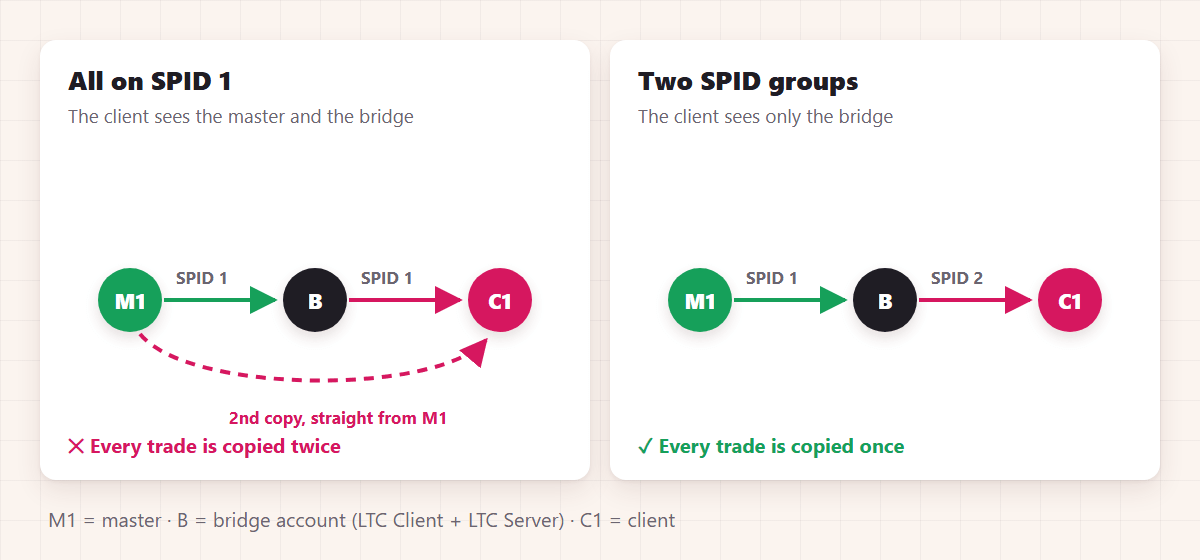
Use two SPIDs, never one
If every EA stays on SPID 1, each client sees the masters and the bridge at the same time. It then copies every trade twice: once straight from the master, and once from the bridge.
Keep AllowCopyTradesFromMyself = false
This is the default. If the bridge’s LTC Client could see the bridge’s own LTC Server, it ignores those trades and logs “IGNORED: Trade #… ignored to avoid the Copy Trade Loop and protect your account.” With two SPID groups this never happens, but the default is your safety net.
What closes a trade on the bridge closes it on the clients
The bridge’s LTC Server treats every bridge trade as a master trade. A manual close on the bridge, a stop loss hit at the bridge’s broker, or a protection setting of the bridge’s LTC Client (such as Max Daily Loss) closes the copies on every client too.
More things to know
- Each layer is one more copy step. A trade reaches the clients a moment after it reaches the bridge.
- Magic number filters belong on the bridge. With
MagicNumber= 0, the default, the bridge’s LTC Client gives each copy the master trade’s ticket number as its magic number. So filter a master EA’s magic number (FilterMagicNumber,ExcludeMagicNumber) in the bridge’s LTC Client. The same filter on the client accounts finds nothing. - Symbols are mapped at each layer. The bridge’s LTC Client maps each master’s symbol names to the bridge broker’s names. Each client then maps the bridge’s names to its own. See copying between different symbol names.
- Open trades stay where they are when you start. An LTC Client doesn’t copy trades that are already open on its masters when it starts, unless
CopyExistingMasterTradesOnStart= true. Set up the bridge first, then let the masters trade. - Clients on a second VPS: log the bridge account in on that VPS too, and run only LTC Server with SPID 2 there. Never run the bridge’s LTC Client on two computers, or every master trade is copied into the bridge twice. Two computers need a plan for two or more PCs/VPSs (Manager or VIP).
- The bridge can be a demo account. Local Trade Copier copies from demo accounts just as it does from live ones. The clients open their copies at their own brokers’ prices. The bridge’s balance still matters, because AA on each client compares the client’s balance with the bridge’s.
FAQ
What is the SMART INVESTOR BRIDGE™ setup?
It is a Local Trade Copier setup where several master accounts are copied into one bridge account, and the bridge account is copied to many client accounts. The bridge runs LTC Client (SPID 1) and LTC Server (SPID 2) at the same time.
How is it different from MANY-TO-ONE COPYCAT™ and ONE-TO-MANY COPYCAT™?
It is both, one after the other. Many-to-one merges the masters into the bridge. One-to-many copies the bridge to the clients.
Do I need a special plan or version?
No. Signal_Provider_ID and Copy From These Master Accounts are in every Local Trade Copier plan, including Personal, in MT4 and MT5. All the accounts run on one PC or VPS, and every plan allows unlimited accounts per PC/VPS.
Can the masters, the bridge and the clients use different platforms?
Yes. MT4 and MT5 work in any mix, for example MT4 masters, an MT5 bridge, and MT4 and MT5 clients at different brokers.
Can a client see which master a trade came from?
Yes. On the bridge’s LTC Client, set CopyExactTradeComment = false and TradeComment = M{SANUMBER}. Each bridge trade then carries the master’s account number in its comment, and the clients copy that comment by default. TradeComment works only while MagicNumber is 0, the default. On MT4, a partial close gives the remaining part of a trade the broker’s comment “from #…”, so that part loses the label.
Is there a video of this setup?
Yes. The Trade Copier Hacking Secrets Masterclass is a set of recorded sessions that comes as a bonus with Local Trade Copier. One recording covers the SMART INVESTOR BRIDGE™ setup.
Related guides
- MOBILE-TO-MANY COPYCAT™: copy trades from the MT4 and MT5 mobile app
- LTC Client EA settings and parameters explained
- Money management settings in Local Trade Copier
- Copy trades from an investor password account
Don’t have Local Trade Copier yet? Try it free for 7 days on your own PC or VPS.
