

Yes, you can run MetaTrader 5 on a Mac with Wine, and you do not have to configure Wine yourself. MetaQuotes ships an official macOS installer that installs and configures Wine and then installs MT5 inside it. This guide walks through that route, the PlayOnMac alternative, what to check when MT5 will not start, and what changes if you also want to copy trades between accounts.
TL;DR
- MT5 has no native Mac build. The official installer wraps it in Wine, a layer that lets Windows programs run on macOS.
- You need macOS Catalina 10.15.7 or later. MetaQuotes states support for Apple processors from M1 onward.
- Download the installer from MetaQuotes, accept the Wine Mono and Gecko prompts, and the installer builds the environment for you.
- If MT5 will not start or connect, check the Wine version in the startup log. Below 8.0.1, reinstall.
- Wine is not guaranteed to be perfectly stable. For always-on or multi-account setups, a Windows PC or VPS is the safer base.
What Wine Does for MetaTrader 5 on a Mac
MT5 was built for Windows. Wine is free software that runs Windows programs, including 32-bit and 64-bit executables, on Unix-like systems. It does this by translating Windows API calls into their Unix or macOS equivalents, so there is no Windows installation and no virtual machine to maintain.
The practical result: MT5 opens as a window on your desktop, with charts, indicators, the Market Watch panel and order entry. The WineHQ compatibility database says that basically everything works, including charts, indicators and timeframe changes, with a few windows that depend on web views being the exception. That means occasional rough edges in places like embedded web content, not a broken terminal.
Requirements Before You Install
Check these four items first. They solve most failed installs before they happen.
| Item | What you need |
|---|---|
| macOS version | Catalina 10.15.7 or later |
| Processor | Intel, or Apple silicon from M1 onward, per MetaQuotes |
| Wine version | 8.0.1 or later; the installer fetches the latest automatically |
| Internet | Required during installation so the installer can download Wine and its components |
MetaQuotes’ own page lists these in its Mac installation guide for advanced users. If you already ran MT5 on a Mac a while ago, the Wine version matters. We cover how to check it in the troubleshooting section below.
Install MT5 on macOS With the Official Installer
This is the route we suggest for most people, because MetaQuotes maintains it. In its 9 November 2023 announcement, MetaQuotes explained that the installer identifies your system, downloads the latest Wine, configures it and installs the platform. It is available from the MetaTrader website and from the platform’s Help menu.
- Download the macOS installer from the MetaTrader 5 website, or from the Help menu of an existing terminal.
- Open it like any Mac app. If macOS asks you to confirm that you want to open a file downloaded from the internet, confirm.
- Follow the wizard. It sets up the Wine environment and the MT5 installation in one pass.
- Accept Wine Mono and Gecko when prompted. These are components Wine uses for .NET-style and web-based content, and MetaQuotes’ guide tells you to accept them.
- Log in with your broker’s demo or live account details, and pick your broker’s server from the list.
The whole process normally takes a few minutes. When it finishes, MT5 appears in your Applications folder and starts like any other app.
Where the files live
With the official installer, MT5 keeps its data inside a Wine prefix in your user library. To find your Experts and Files folders, open MT5 and choose File, then Open Data Folder. That is the quickest way to reach them, and it avoids hunting through hidden Library folders by hand.
The Alternative: PlayOnMac
Before the official installer, many traders used PlayOnMac, a graphical front end for Wine. One broker’s Mac guide describes PlayOnMac installing Wine, creating a separate virtual drive and opening the MT5 installer, with optional shortcuts for the terminal and MetaEditor. Its data folder sits under Library/PlayOnMac/WinePrefix/MetaTrader_5_/Drive C/Program Files/MetaTrader 5.
PlayOnMac can be useful if you want to manage several Wine versions or keep separate virtual drives for different brokers. If you only need one MT5 terminal, the official installer is simpler and is the path MetaQuotes documents.
Does It Work on Apple Silicon (M1 and Later)?
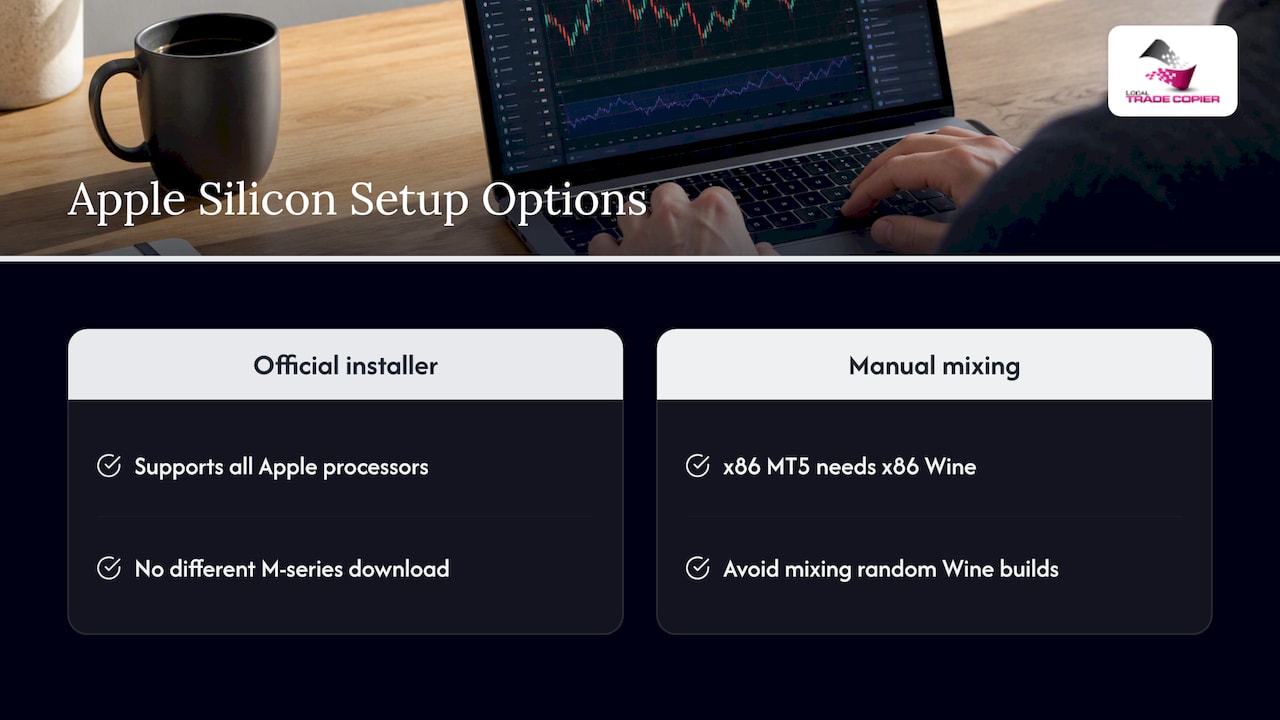
Yes, according to MetaQuotes: its macOS installer supports all Apple processors, from M1 to the latest released versions. You do not need to pick a different download for an M-series Mac.
Under the hood, the situation is more nuanced. MT5 is an x86 Windows program, and Wine developers discussing Apple silicon note that x86 Windows applications generally need Wine built for x86 and run through arch -x86_64, while native ARM64 Wine has substantial constraints. You do not need to handle any of that when you use the official installer, since MetaQuotes has packaged it. It does explain why you should not mix and match random Wine builds from other sources with your MT5 prefix.
Wine Is Not the Only Mac Option
There are other ways to get MT5 onto a Mac, each with trade-offs:
- A commercial Wine-based layer. CodeWeavers rates MetaTrader 5 as “Runs Well” on macOS, last tested with CrossOver 26.3.0 on macOS 15. That is a paid product built on Wine, with its own support.
- A virtual machine running Windows. This gives you a real Windows environment but uses more memory and requires a Windows license.
- A Windows VPS you connect to remotely. Your Mac becomes a screen, and MT5 runs on a machine that stays on around the clock.
- A separate Windows PC. The most conventional option, and the one most software for MetaTrader is tested on.
For simply charting and placing trades, the free Wine installer is a reasonable first step. For anything that must run unattended all day, the last two options are worth weighing.
If MT5 Will Not Start or Connect
Most problems after installation trace back to the Wine version or a damaged prefix. Work through this order.
- Read the Wine version in the log. When MT5 starts, the Journal tab and terminal log show the Wine version. MetaQuotes says that if it is below 8.0.1, it strongly recommends uninstalling the old platform and the Wine prefix, after saving any files you need, then reinstalling and accepting Mono and Gecko.
- Save your files first. Copy your Experts, Indicators, Scripts and templates out of the data folder before you remove anything.
- Reinstall with the current installer. Download a fresh copy rather than reusing an old one, so you get the latest Wine.
- Confirm the broker server name. A “no connection” message is often a wrong server selection or an expired demo, not a Wine problem.
- Retry after a restart. A full Mac restart clears stuck Wine processes that can block a new launch.
One caveat deserves honesty. Wine does not promise perfect behavior with every program. The FXOpen guide cautions that some functions in applications run under Wine may not work correctly, or the application may fail to work. That is not a reason to avoid it, but it is a reason to test before you rely on it.
Test on a Demo Account First
Before you connect any live account to a Wine-based setup, open a demo account with your broker and run it for at least a few sessions. Open and close orders, modify stops, and leave the terminal open overnight. You are looking for freezes, dropped connections and anything unusual in the Journal tab.
Live trading carries the risk of losing capital, and a platform that stalls at the wrong moment can cost you in ways a demo will not show. Past results do not guarantee future performance, and a smooth demo week does not guarantee a smooth live one. It simply lowers the chance of a nasty surprise.
Using a Trade Copier With MT5 on a Mac
Many traders who ask about MT5 on a Mac also want to replicate trades across several accounts. That adds a requirement: the copier has to run on the same machine as your terminals, and those terminals must stay open and connected.
Local Trade Copier is built for this kind of setup. It is an Expert Advisor-based copier that runs on your own machine rather than routing trades through a cloud server. It is compatible with PC, VPS, and Mac via Wine. It copies trades between MT4, MT5 and DXTrade accounts, so a master on one platform can feed clients on another. You can read how that works in our guide to trade copying across MT4, MT5 and DXTrade.
A few practical points for a Mac user:
- Install the terminals first. Get every MT4 and MT5 terminal running and logged in under Wine before adding the copier.
- Follow the installation guide. Our installation page for MT4 and MT5 covers the copier files and where they go.
- Mind the data folders. Each terminal has its own data folder, so use File, then Open Data Folder inside each one rather than assuming a shared path.
- Keep MT4 and MT5 side by side if you need both. Our guide to running MT4 and MT5 in parallel explains how to keep the two from interfering.
Local Trade Copier is replication software only. It copies trades that already exist on a master account. It has no market logic and no strategy layer, and it does not change what you trade or how those trades perform.
Why Local Execution Matters on a Home Machine
A locally installed copier keeps all trade data on one machine and one IP address. There is no external server between your master and your clients, so there is no cloud routing step. For traders with funded or prop firm accounts, that single-machine pattern is the reason many choose a local copier. Check each firm’s rules on copying and automation before you connect anything, because they differ.
For security, whichever machine you use, our page on protecting accounts with a VPS and strong passwords lists the habits worth adopting.
Perspective: Mac Is Fine for Trading, Less So for Always-On Copying
We have supported MetaTrader users since 2010, and the Mac question comes up constantly. Our honest view is that Wine on a Mac works well for what most traders do: charts, analysis and manual orders. The official installer made it far easier than it was when everyone had to assemble Wine by hand.
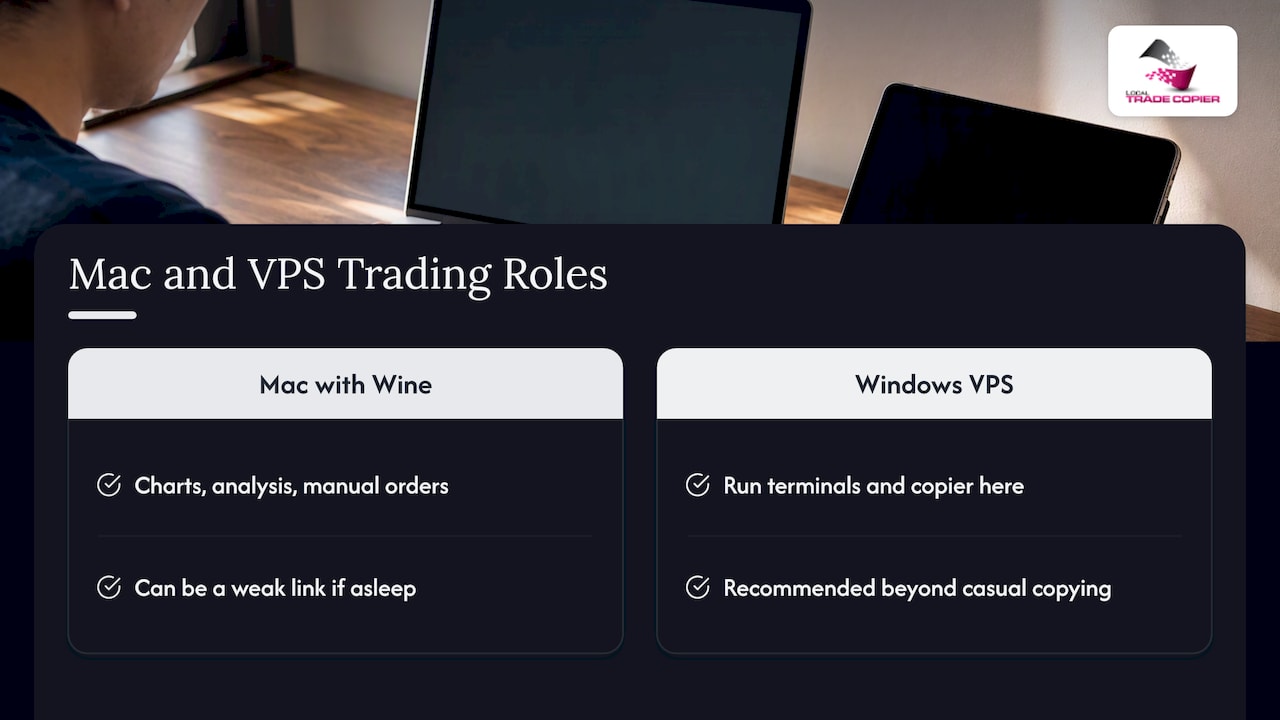
Copying is a different workload. A copier depends on your terminals being open, logged in and responsive every minute the master account trades. A laptop that sleeps, updates itself or closes the lid is a weak link, regardless of the operating system. If you copy for more than a casual setup, we recommend running the terminals and the copier on a Windows VPS, and using your Mac as the place where you watch and manage things.
That said, if a Mac with Wine is what you have, it is a legitimate place to start. Test on demo accounts, keep the Mac awake, and keep the Wine version current.
Try the Copier Before You Commit
Local Trade Copier comes with a 7-day free trial, and one subscription includes both the MT4 and MT5 copier components. Plans on our pricing page are:
| Plan | Monthly | Yearly |
|---|---|---|
| Personal | €29 per month | €290 per year |
| Manager | €89 per month | €890 per year |
| VIP | €199 per month | €1,990 per year |

Start the trial on the machine you actually plan to use, whether that is a Mac with Wine, a Windows PC or a VPS, so you see how it behaves in your real setup before paying. You can also watch the demo video first.
Choosing Between MT4 and MT5 on a Mac
If you are setting up from scratch, decide which platform your broker and your accounts actually need. Some brokers offer only MT4, some only MT5, and some both. The two have different order handling, notably netting versus hedging on MT5 accounts, which matters when copying. Our comparison of MT4 and MT5 differences goes through them, and our release notes for version 3.1.8 describe how the copier handles MT5 netting accounts.
FAQ
Can you run MT5 on a Mac?
Yes. MetaTrader 5 has no native Mac version, but MetaQuotes provides an official installer that sets up Wine and installs MT5 inside it. You need macOS Catalina 10.15.7 or later, and the installer is available from the MetaTrader website and the platform’s Help menu.
Is Wine still supported on Mac?
MetaQuotes continues to document and provide its Wine-based macOS installer, which downloads the latest Wine version automatically. Wine itself is an ongoing open source project. Because the installer fetches current components, rerunning it is the usual way to stay up to date.
Does MT5 with Wine work on M1, M2 and newer Macs?
MetaQuotes says its macOS installer supports all Apple processors from M1 to the latest released versions. You use the same installer as on Intel Macs. Performance and edge-case behavior can differ, so test on a demo account first.
What should I do if MT5 on my Mac will not open?
Check the Wine version in the startup log. If it is below 8.0.1, save your files, uninstall the old platform and Wine prefix, then reinstall with the current installer and accept the Mono and Gecko prompts.
Can I run MetaTrader 4 on a Mac too?
MT4 is also a Windows program, so it needs the same kind of compatibility layer. Check your broker’s download page for a Mac package. Local Trade Copier supports MT4 and MT5 terminals, and is compatible with Mac via Wine.
Sources
- Installation on Mac OS for advanced users, MetaTrader 5 Help
- Download MetaTrader 5 for macOS and Linux, MetaQuotes news
- Wine README, WineHQ GitLab
- MetaTrader 5.x, WineHQ application database
- Apple Silicon compilation, Wine-Devel mailing list
- Will MetaTrader 5 run on Mac or Linux? CodeWeavers
- MetaTrader 5 for Mac OS, FXOpen support
