

Yes, you can run MetaTrader 4 and MetaTrader 5 at the same time on one Windows computer or VPS. They are separate programs with separate installation folders, so they do not conflict. What you cannot do is log into an MT4 account from MT5, or the reverse. This guide covers how to set up both platforms side by side, how to run several accounts on each, what your hardware needs to handle, and how to connect the two so trades flow between them.
TL;DR
- MT4 and MT5 can run together on one PC or VPS. Each terminal needs its own installation folder.
- An account is tied to one platform. An MT4 login will not work in MT5, and an MT5 login will not work in MT4.
- Several terminals of the same platform also work, as long as each sits in a different directory. Each one eats RAM and CPU.
- To move trades between the two platforms, you need a copier that runs inside both terminals. A locally installed one keeps everything on one machine.
- Past results do not guarantee future performance. Copying software only replicates trades you already placed.
Can MT4 and MT5 run at the same time?
They can. The two platforms are independent applications. You can install both from your broker or from the platform developer, open them together, and each will connect to its own server with its own account.
The rule that matters is about folders. According to the MetaTrader help on starting the platform, two copies of the same platform cannot launch from the same installation directory at once. To run more than one instance of MT4 or MT5, you install each in its own distinct directory. The MetaTrader 4 installation guide says the same thing: to work with several accounts at once, install that many terminals in different directories, and each keeps its own individual settings.
In practice, that gives you a simple map:
| What you want | What you need |
|---|---|
| One MT4 and one MT5 account | One MT4 install and one MT5 install |
| Three MT4 accounts | Three MT4 installs in three folders |
| Two MT4 and two MT5 accounts | Four installs, four folders |
Because a broker’s help article on this topic also confirms that multiple instances can run simultaneously when installed separately, this is standard behavior and not a workaround.
Why an MT4 account will not log into MT5
A frequent surprise: you open MT5, type your MT4 login and password, and get an error. That is expected. Trading accounts are platform-specific. As XS’s help center explains, an MT4 account cannot be used on an MT5 platform, and an MT5 account cannot be used on MT4.
The two platforms handle positions differently, which is one reason. MT4 uses a hedging order model, where each trade is its own ticket. MT5 can run in netting mode, where trades on one symbol merge into a single position, or in hedging mode depending on the account type your broker opens. If you want to trade on both platforms, you open one account of each type, usually with the same broker or with two different ones.
For a deeper look at how the platforms differ, see our breakdown of MT4 vs MT5 key differences.
Step by step: installing MT4 and MT5 side by side
- Download each platform from your broker. Use the installer your broker provides so the server list is preloaded.
- Choose a unique folder at install time. On the installer’s settings screen, change the path. A clear naming scheme saves trouble later, for example
C:TradingMT4_Main,C:TradingMT4_Prop,C:TradingMT5_Main. - Log in once per terminal. Each terminal stores its own login, charts, templates and expert advisors.
- Run them as separate windows. Start each from its own shortcut so you always know which account you are looking at.
- Label them. Rename the shortcuts and, inside each platform, use a chart template or color scheme that makes the account obvious. Mixing up a live and a demo window is an expensive mistake.
If you want a visual walkthrough for the second terminal, our guide on installing a second MT5 terminal on the same computer shows each step.
Running several accounts on the same platform
Sometimes the question is less “MT4 and MT5” and more “how do I watch five accounts at once?” You have three common routes:
- Multiple installs. The standard method. Each account gets its own terminal, as described above. The downside is that updates, indicators and expert advisors must be managed separately for every instance.
- MultiTerminal. MetaQuotes makes a tool for MT4 called MultiTerminal that manages several accounts from one interface. According to Exness’s MultiTerminal guide, it is limited to 128 real accounts or 10 demo accounts on the same server. It is an MT4 tool, so it will not put MT5 accounts in the same window.
- Signals subscriptions. The built-in signals service lets one account follow another. More on that below.
A single terminal cannot connect to several accounts at once. If you want to see multiple accounts live, you open multiple terminals or use MultiTerminal.
What your computer or VPS has to handle
Every open terminal uses memory and processor time. How much depends on how many charts you have open, which indicators and expert advisors are attached, and how busy the market is. PulseWatch’s guide to running multiple accounts notes that running several terminals on a local PC or VPS raises CPU and RAM use, so it is worth watching your performance numbers.
Practical habits that keep a multi-terminal machine healthy:
- Close charts you do not need. Ten symbols with three indicators each cost far more than two clean charts.
- Remove unused indicators and expert advisors from terminals that only hold positions.
- Keep Windows updated, but schedule restarts outside market hours.
- Leave headroom. If your task manager shows the machine near its limit at quiet times, a news spike will push it over.
- Use a VPS if you want the terminals running around the clock without depending on your home internet or power.
MetaQuotes also offers a built-in VPS service for the platform. According to MetaQuotes, it can be rented as close to your broker as possible to reduce network costs. A third-party Windows VPS is another route, and it gives you a full desktop where you can install as many terminals as the machine can carry. If you go that way, read our notes on VPS security and strong passwords.
Connecting MT4 and MT5 so trades move between them
Running both platforms in parallel is half the job. Many traders also want a trade opened on one to appear on the other: a master account on MT4 and a client account on MT5, or the reverse. Two approaches exist.
The built-in Signals service
MetaTrader has a signals feature. By the MetaTrader 4 signals settings help, you subscribe to a provider’s signal and enable real-time signal subscription, and the terminal copies that provider’s operations. A few details to know:
- Manual or expert advisor positions and pending orders on your account may require confirmation during synchronization.
- Stop orders may execute at different brokerage companies, so results can differ from the source.
- On MT5, once an account is subscribed to a signal, the platform blocks MQL5 trading functions from Python or other MQL5 programs. The MetaTrader 5 release notes say this is to avoid conflicts during synchronization.
The Signals service is built around the idea of subscribing to a provider in the MQL5 marketplace. Traders who sell signals publish them there, and investors subscribe, as MetaQuotes describes. It works for that purpose, but it is not designed for copying between your own accounts across brokers on your own terms.
A locally installed trade copier
The other approach is an expert advisor that runs inside each terminal and passes trades between them on the same machine. This is what Local Trade Copier does. A master EA sits in the source terminal, a client EA sits in each destination terminal, and trades are replicated locally, with no cloud server in the path. The copier supports MT4 to MT4, MT5 to MT5, and cross-platform pairs in both directions.
Our complete MT4 to MT5 setup guide walks through the whole process. The short version:
- Install both terminals in separate folders on the same PC or VPS.
- Attach the master EA to the account that opens the trades. See the guide on setting up the master account.
- Attach the client EA to each receiving account and set the client account options.
- Test on demo accounts first, then confirm lot sizes before you go live.
If your accounts are all MT5, the MT5-to-MT5 guide covers that case, and the general installation page lists the files you need.
Symbols, lot sizes and other details that trip people up
Running two platforms in parallel exposes differences that single-platform users never see.
Symbol names. One broker may call a pair EURUSD, another EURUSD.m or EURUSDpro. The copier must know how to translate between them. Read our explanation of copying trades with different symbols and the page on instant vs market execution and symbol mapping.
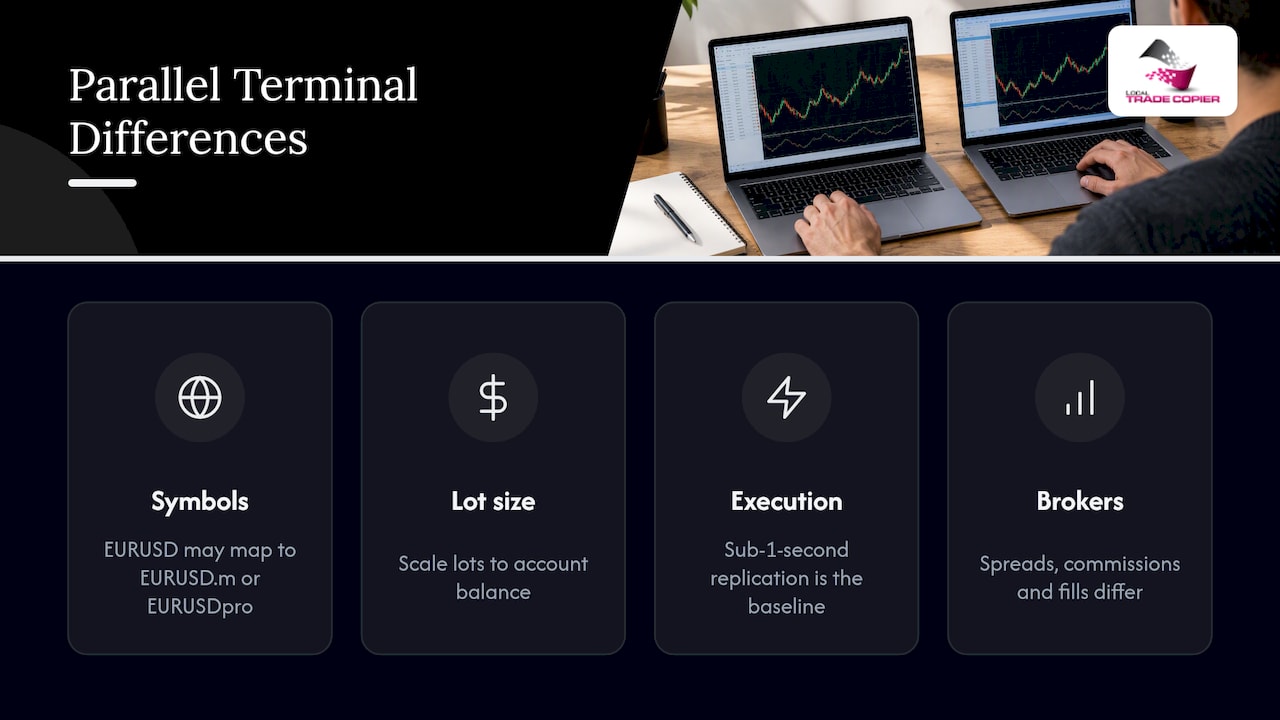
Lot sizes. Accounts rarely have the same balance. A fixed lot is simple, but scaling by account balance is often more sensible when the accounts differ in size. Local Trade Copier offers 8 money management modes and risk limits and can scale lots automatically per client account balance. Whatever you choose, remember that position size determines how much capital is at risk on each trade. Past results do not guarantee future performance, and copying a trade multiplies its exposure across every account that receives it.
Execution speed. Copy delay matters most for short-term styles. Local execution avoids the round trip to a remote server, and in our Nov 2026 VPS test, new trades copied in about 1 second. If you scalp, read about the best scalping and copy trading setup and how to reduce copy slippage.
Different brokers. Parallel terminals often belong to different brokers. Spreads, commissions and fills will differ, so copied trades will not match exactly. Our guide to cross-broker trade copying explains what to expect.
Parallel use for prop firm accounts
Traders with funded accounts often run MT4 and MT5 in parallel because different firms use different platforms. Some firms prohibit automated trading, and some look closely at where orders come from. Because Local Trade Copier runs on your own machine, all copies come from one IP address, the same one your terminals use, not from a cloud provider’s servers. It also has a manual-like execution mode (trade humanization), which opens each copy through MetaTrader’s New Order window, so MetaTrader records it as a manual trade. It changes how a trade is placed, not what an account’s rules allow. Read the details on the manual-like execution mode.
Always read your firm’s rules first. Whether copying is allowed, and between which accounts, is set by each firm, and the rules change. The software cannot decide that for you, and following the firm’s terms remains your responsibility.
Our perspective
We have been building trade copiers since 2010, and the pattern we see most often is simple. Traders do not struggle to start a second terminal. They struggle six weeks later, when five terminals are open, nobody remembers which folder holds which account, and one of them stopped quietly after a Windows update.
So our advice is boring on purpose. Name your folders. Keep one machine, or one VPS, for the whole setup. Put the master and every client on that same machine, so there is one place to check and one IP address involved. We built Local Trade Copier to run locally because we think fewer moving parts beat clever routing. Trade data stays on your computer, and there is no external server between your master and your clients.
We are also clear about what the software is. It copies trades you or your strategy already placed. It has no market logic and does not change the quality of the trades it replicates. If the source trade loses, the copy loses too, on every account that received it. Past results do not guarantee future performance, and good risk settings matter more than any copier feature.
Trying it on your own setup
If you already run, or plan to run, MT4 and MT5 side by side, you can test the copier before paying. Local Trade Copier includes the MT4 and MT5 components in one plan, with a 7-day free trial. Plans on the pricing page are Personal at €29 per month or €290 per year, Manager at €89 per month or €890 per year, and VIP at €199 per month or €1990 per year. It needs a Windows PC or VPS. Start on demo accounts, confirm symbol mapping and lot sizes, then decide.
FAQ
Can I use the same login on MT4 and MT5?
No. Accounts are specific to one platform, so an MT4 login will not open in MT5, and the reverse also fails. If you want both platforms, ask your broker to open an account of each type. Some brokers offer both, while others support only one.
How many MT4 or MT5 terminals can I run on one computer?
There is no fixed number in the platform. The limit is your hardware. Each terminal needs its own installation folder and uses RAM and CPU, depending on its charts, indicators and expert advisors. Start with what your machine handles comfortably and watch performance during busy market hours.
Can I copy trades from MT4 to MT5 without a cloud service?
Yes. A locally installed copier runs as an expert advisor in each terminal on the same PC or VPS, so the trades pass between terminals without leaving the machine. The master account can be MT4 and the client MT5, or the other way around. The MT4 to MT5 guide lists every step.
Do I need a VPS to run MT4 and MT5 together?
Not to start. A home Windows PC works for testing and for sessions you attend. A VPS makes sense if you need the terminals running continuously without relying on your home power and internet. It also gives you a single stable machine for the master and all clients.
Sources
- MetaTrader 5 Help: Platform Start for advanced users
- MetaTrader 4 Help: Install Terminal
- MetaTrader 4 Help: Signals settings
- MetaTrader 5 release notes, build 4570
- MetaQuotes: Signals and built-in VPS
- XS Help Center: using the same account on multiple platforms
- Exness Help Center: MultiTerminal trading guide
- OX Securities: using multiple MetaTrader accounts at the same time
- PulseWatch: running multiple MT4/MT5 accounts on one computer
