
A time-offset setting in a trade copier either delays execution on the client account or shifts how timestamps are matched between master and client terminals. The pragmatic default is to match broker or server time whenever the copier allows it, and when that is not possible, start with a small fixed delay measured in hundreds of milliseconds to a few seconds, then test. Most timing problems trace back to confusion between local terminal time and server time.
TL;DR:
- Exact offsets should be tested by placing multiple trades and comparing timestamps on master and client accounts to measure real lag, typically a few hundred milliseconds on local setups.
- Using
TimeTradeServeris recommended for scheduling and timestamp comparisons because it advances even during quote pauses, unlikeTimeCurrentwhich can appear frozen during quiet periods.- Daylight saving time changes can cause clock drift if brokers do not update their server clocks simultaneously, so check historical data to verify your broker’s DST handling.
- Setting larger delays to fix timing issues often masks underlying connection or clock problems, so proper measurement, logging, and incremental adjustments are essential first steps.
- Delay and offset controls are customizable per client account and should be configured only after thorough demo testing and verification.
How copier time offsets actually work
MetaTrader gives you three distinct ways to read time, and copiers lean on them differently. TimeLocal returns the clock on your PC or VPS. TimeCurrent returns the time of the last received quote, so it stalls when ticks stop. TimeTradeServer is calculated on the client terminal from the last known difference between local and server time, which means it keeps advancing even during quiet periods, according to MQL5’s documentation on local and server time.
That distinction matters for copier logic. A copier that schedules execution off TimeCurrent can appear to freeze when a symbol stops ticking over a weekend or a thin holiday session, while one built around TimeTradeServer keeps a running estimate even without fresh quotes. The MQL5 reference for TimeTradeServer notes the function has two variants and recommends pairing it with GetTickCount when you need millisecond resolution rather than whole-second timestamps. GetTickCount is a counter, not a clock: it tracks elapsed milliseconds since the system started, which is exactly what you want when measuring the gap between a master order and its copy.
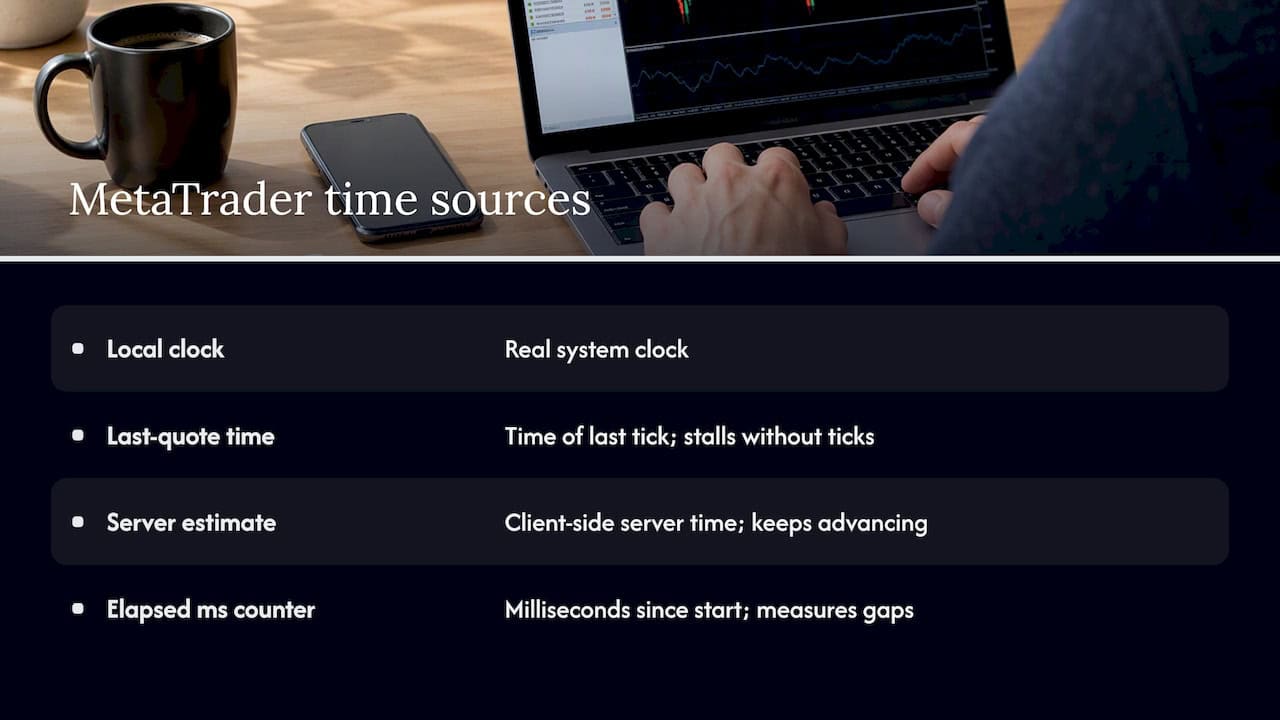
Weekends and holidays create a second wrinkle. When a broker’s feed goes quiet, TimeCurrent can appear frozen while TimeTradeServer keeps estimating. The same bar-based analysis used to infer a server’s time zone can also expose daylight saving time shifts, since brokers do not all apply DST changes on the same calendar date. A copier that assumes a fixed UTC offset will drift by an hour whenever its broker’s DST rule differs from what you configured.
Choosing an offset mode for your situation
Most copiers offer some combination of four modes: following the server timestamp directly, applying a fixed delay, staggering delays per client account, or randomizing small offsets within a range. Which one fits depends on what you are running and why.
- Follow server timestamp: best when master and client sit on brokers with reliable, synchronized server clocks and you want copies as close to simultaneous as possible.
- Fixed delay: simplest option, useful when you need a predictable buffer to avoid race conditions between slightly different broker tick times.
- Per-client stagger: spreads execution across several client accounts by a few hundred milliseconds each, which helps avoid identical fills clustering into one visible spike.
- Randomized small offset: adds a bounded random component on top of a base delay, useful when you want execution timing to vary slightly across accounts rather than fire in lockstep.
Account managers running several client accounts off one master generally want tight synchronization and minimal delay, with server-time matching as the first choice. Prop-firm traders running on-machine execution tend to favor conservative, consistent small delays paired with logging, since local execution already keeps everything on one IP address without cloud routing. Retail traders running multiple personal accounts often do best staggering delays slightly to avoid every account hitting the same price tick at once.
Pro Tip: Start with whatever your copier’s default offset is, change one value at a time, and give each change at least a full trading session before judging it.
Setting offsets step by step in MT4, MT5 and DXTrade
Before touching any offset value, get the basics right.
- Sync your PC or VPS clock to an NTP time source and confirm the correction actually applied.
- Open all master and client terminals and confirm each is connected, with Market Watch symbols actively ticking.
- Check that each terminal’s own time zone setting matches what you expect from its broker.
MT4 and MT5: copier expert advisors typically read TimeTradeServer for scheduling and timestamp comparisons, since it keeps advancing even when quotes pause, and reserve TimeCurrent for confirming a live tick exists before sending an order. Offset or delay parameters usually live in the EA’s input settings or a dedicated configuration panel, expressed in milliseconds or whole seconds. A typical starting value is a few hundred milliseconds.
DXTrade: timestamp handling works differently from MetaTrader’s API model, so check your bridge or copier’s documentation for where delay settings are exposed. Not every DXTrade integration surfaces the same granularity of offset control that MT4 and MT5 do.
Delay and offset values can be set per client account rather than globally, allowing application of different settings to individual accounts. The installation guide walks through where these controls sit in the settings panel. Save your configuration as a named profile once you are satisfied, and keep the timestamp-shift toggle disabled unless you have a specific reason to shift rather than simply delay.
- Test every change on a demo account first, never on a live master.
- Change one parameter at a time and record what you changed.
- Keep copier and terminal logs enabled throughout testing.
A verification plan you can run yourself
Confidence in an offset setting comes from measurement, not guesswork. A short, repeatable test tells you whether your configuration is doing what you think.
- Place a simple market order on the master account and note the exact timestamp it fills.
- Record the timestamp each client account receives its copy.
- Subtract master time from client time on each account to get your actual lag.
- Repeat across a few orders at different times of day, including near a session rollover.
Pull your numbers from TimeTradeServer for broker-side timestamps, GetTickCount for millisecond-level elapsed time, and your copier’s own execution logs, which usually record both. On a local VPS setup where master and client run on the same machine, lag in the low hundreds of milliseconds is typical. Setups with real network latency between terminals will run longer, and that gap is a function of connection quality rather than the copier itself.
One documented behavior worth knowing: TimeTradeServer is calculated on the client side from the last known time difference, according to MQL5’s reference documentation, which is why it can briefly disagree with the broker’s true server clock right after a reconnect. If your logs show a consistent, repeatable offset rather than a stable near-zero gap, something in your configuration needs adjusting before you trust it on a live account. If the gap looks erratic rather than consistent, that points to a connection problem worth raising with your broker rather than a setting worth tweaking further.
Common problems and fixes
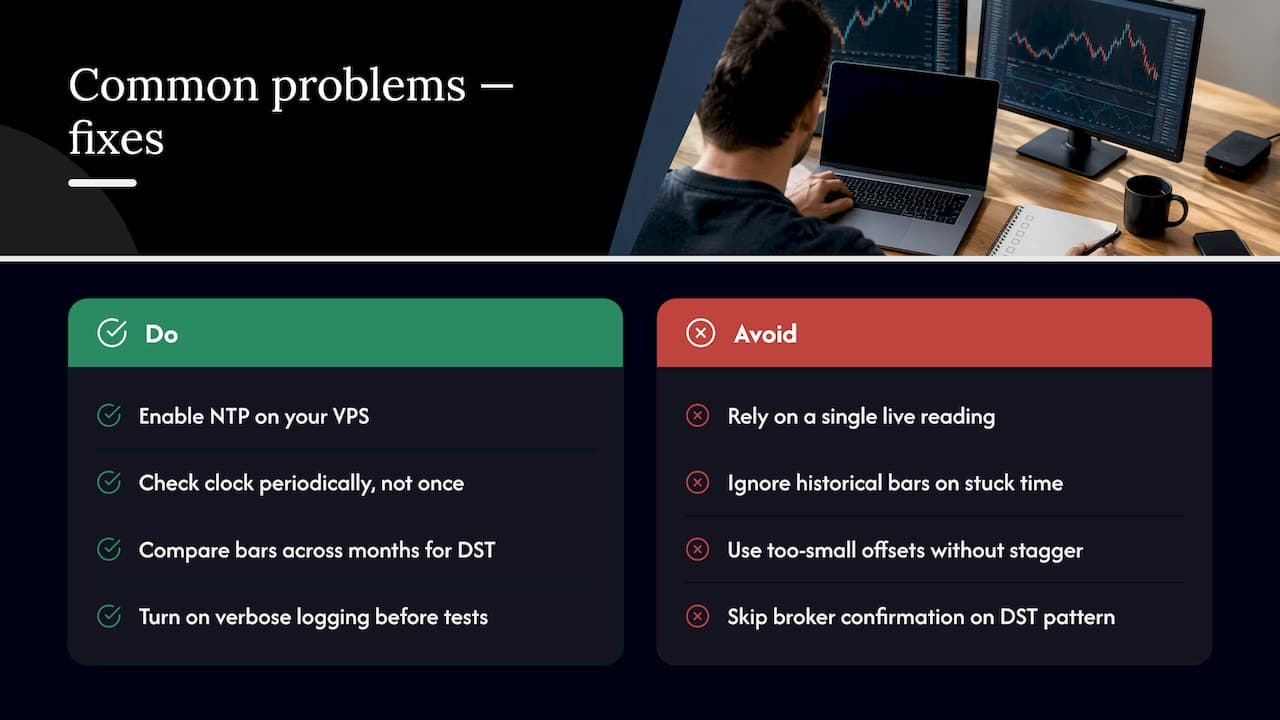
Clock drift: enable NTP on your VPS and check it periodically, not just once at setup. GetTickCount readings that vary wildly between otherwise identical tests usually point to drift.
Frozen server time: if TimeCurrent looks stuck, check CopyTime across historical bars rather than relying on a single live reading, since weekends and thin holiday sessions are the usual cause.
DST and timezone mismatches: run a bar-based comparison across a few months to infer your broker’s actual DST behavior, documented in MQL5’s guidance on daylight saving time, and confirm with your broker’s support desk if the pattern is unclear. A step-by-step approach to identifying a broker’s GMT offset is also covered in this practical guide to fixing MT4 GMT offset issues.
Rejections or slippage from too-small offsets: nudge the delay up slightly or add a small per-client stagger. If ticks stop entirely during a rollover, that scenario is covered separately in the error 133 troubleshooting page.
Pro Tip: Turn on verbose logging before you start testing, not after something breaks. You cannot diagnose a timing issue you did not capture.
What years of configuration questions have taught me
The mistake I see most often is traders treating the offset field as a dial to crank up for safety, when a larger delay just hides timing problems instead of fixing them. Local execution keeps everything on one machine and one IP address, which removes cloud-routing latency as a variable, but it does not remove the need to measure.
My working checklist before going live: sync to NTP, run the configuration on demo for 24 to 72 hours, keep logging on the whole time, and write down the exact offset you set per client account. Past results do not guarantee future performance, and no copier setting changes that: it replicates trades, it does not improve them.
— Rimantas
Where to configure offsets and try it yourself
Some trade copiers provide per-client offset and delay controls, automatic lot scaling, and local execution that keeps trade data on one machine instead of routing through the cloud, which is useful for traders who need execution to stay on a single IP and for account managers requiring predictable timing across multiple client terminals.

The installation guide shows exactly where the timing controls sit, and the demo video walks through the settings panel visually. Test your offset values on a demo account first, then check the pricing page for the PERSONAL, MANAGER and VIP plans and start your 7-day free trial.
FAQ
What does a time offset setting do in a trade copier?
It either delays when a copied order executes on the client account or adjusts how the copier compares timestamps between master and client terminals. The goal is to account for differences between local PC time and the broker’s server time, as described in MQL5’s time documentation.
What is the difference between TimeCurrent and TimeTradeServer?
TimeCurrent reflects the time of the last received quote, so it can appear to stall when a symbol stops ticking. TimeTradeServer is calculated locally from the last known time difference and keeps advancing even during quiet periods, according to MQL5’s reference.
How do I know if my copier offset is set correctly?
Place a test order on the master account, record the timestamp on both master and client, and compare the gap across several trades at different times of day. A consistent, small, repeatable lag is normal; an erratic or growing gap signals a clock or connection problem worth checking with your broker.
Does daylight saving time affect copier timing?
Yes, because brokers do not all shift their server clocks on the same calendar date. Comparing historical bars with CopyTime across a few months, as outlined in MQL5’s daylight saving time guidance, helps confirm how your specific broker handles the change.
Can Local Trade Copier set different offsets for different client accounts?
Yes, Local Trade Copier applies delay and offset values per client account rather than as one global setting, which lets you tighten synchronization on one account while staggering another. Details on where these controls sit are in the installation guide.
