
You can copy trades from MT4 or MT5, including positions opened on mobile, to DXtrade using an on-machine EA-based copier or a broker/cloud copy service. The EA-based route, run locally on a PC or VPS, gives you the lowest latency and the most control over lot sizing and symbol mapping. Whichever method you pick, test it on a demo account first and verify the server mapping before you connect anything live.
TL;DR:
- Using a local EA-based copier on a Windows PC or VPS provides sub-0.5-second execution and full control over lot sizing and symbol mapping, ideal for prop traders.
- Confirm the exact broker-defined DXtrade server name and ensure your account credentials are accessible via desktop or web, not just mobile, before setup.
- Test the connection extensively on a demo account, verifying symbol mapping, SL/TP accuracy, and consistent execution delays, before risking live capital.
- Common issues such as order rejections or connection failures usually stem from incorrect server details, symbol mismatch, or firewall restrictions, which are quick to fix.
- Mobile apps rarely support direct copying, so trades placed on mobile are read and copied via the EA running on a PC or VPS, not on the device itself.
What Are the Best Methods for Mobile to DXtrade Copying?
Three approaches dominate this space, and each fits a different trading setup. Picking the wrong one is the most common reason traders give up on cross-platform copying before they’ve even tested it properly.
An EA-based local copier runs on your own PC or VPS and connects your MT4/MT5 master account to a DXtrade client account. It reads trade events directly off the terminal and pushes them to DXtrade with minimal delay. The tradeoff: you need a Windows machine running continuously, whether that’s a VPS or a dedicated PC left on around the clock.
A cloud or web-based copier skips the local machine requirement entirely. You log into a web dashboard, link your accounts, and the service relays trades through its own servers. That convenience comes at a cost. Cloud relays add a routing hop, which means added latency, and some brokers restrict third-party server-side connections for compliance reasons.
Broker-native copy or social trading features are the fastest to set up if your broker offers them, but they’re usually the most limited. You often can’t remap symbols, adjust lot scaling per account, or filter which trades copy.
- Mobile-only traders who just want their phone-originated trades replicated: an EA-based copier reading from the MT4/MT5 terminal, since the mobile app itself rarely exposes the credentials needed for direct copying.
- Prop firm traders: local execution avoids routing trade data through third-party cloud servers, which matters for firms sensitive to IP-detection and platform compliance.
- Multi-account managers: EA-based tools with per-account lot scaling handle client-size variation far better than broker-native copy tools.
Prerequisites and Quick Checklist Before You Begin
Get these confirmed before touching any configuration screen. Skipping this step is where most setups go sideways.
- Confirm the exact broker-branded DXtrade server name your account uses. Many brokers run a white-labeled DXtrade portal rather than a generic DXtrade login, and entering the wrong server field is one of the most common copier failures.
- Verify whether your mobile app exposes full account credentials or whether you’ll need to log in via desktop or web to retrieve them. Mobile apps frequently don’t expose everything a programmatic connection needs.
- Check VPS or PC availability, your MT4/MT5 build version, and whether EA permissions (specifically WebRequest) are enabled in the terminal’s options.
- Note any firewall or VPN restrictions on the machine that might block outbound requests to the DXtrade server.
- Gather both account numbers and confirm you have the trading password, not the investor-only password, for the master account.
- Fund a demo account and route a handful of test trades through it before anything touches real capital.
Pro Tip: Screenshot your broker’s exact server name and credentials page before you start configuring the EA. Copier support tickets about “connection failed” errors are overwhelmingly caused by a mistyped or outdated server string, not a software bug.
How Do You Set Up MT4 or MT5 to DXtrade Copying Step by Step?
This is the setup path Mt4copier recommends for anyone who wants reliability over convenience. It runs entirely on your machine, so there’s no cloud hop between your master account and DXtrade.
Installation and environment:
- Install your MT4/MT5 terminal on a Windows PC or VPS that stays powered on continuously.
- Place the EA files in the terminal’s Experts folder, then restart the terminal so it registers the new files.
- Confirm “Allow WebRequest for listed URL” is checked in the terminal’s Expert Advisor options.
EA configuration:
- Add the DXtrade base domain only to the WebRequest allow list. Skip trailing paths or extra parameters. Copier connectors generally require the base domain with no extra path fragments to avoid the request getting silently blocked.
- Enter your DXtrade credentials and select the correct broker-branded server. Double-check whether you’re pointed at Live or Demo. This single field causes more failed connections than any other setting.
- Set your instrument mapping. A pair listed as “EURUSD” on MT4 might appear as “EURUSD.a” or “EURUSDpro” on DXtrade depending on the broker’s suffix or prefix convention. Map each symbol manually rather than assuming a default match.
- Configure lot sizing: fixed lot, percentage-based scaling, or balance-proportional scaling per client account. Local Trade Copier offers 18 separate lot and risk management options here, along with optional reverse copying and trade filtering by symbol, magic number, or comment.
- Run a demo test: open a sample order on the master, confirm it lands on the DXtrade demo client, then test a partial close and verify SL/TP levels replicated correctly.
Local execution keeps everything on one machine and one IP address, which is precisely why it’s favored for DXTrade sync setups among prop-firm traders who need to avoid third-party cloud routing. The published performance figure for this approach is sub-0.5-second local execution from master trade event to client account fill, measured on-machine rather than through an external relay.
Watch your logs during every test. Log both the EA’s outgoing request and DXtrade’s server response, since that pairing is what actually catches API rejections and symbol mismatches before they become a live-account problem. A video walkthrough of the full installation covers each of these screens in real time if you’d rather watch than read.
Past performance is historical and does not guarantee future results. This software copies existing trades; it does not carry no market logic or strategy of its own, and it does not influence trading outcomes.
Testing, Verification, and a Safe Go-Live Checklist
Don’t skip straight to live capital because the demo test “looked fine” on the first order. Run enough trades to see the pattern, not just one lucky fill.
- Confirm the connection authenticates cleanly and stays connected for at least an hour without dropping.
- Open, partially close, and fully close several demo trades, checking that lot sizes scaled the way you configured.
- Verify every mapped symbol fills under the correct instrument name on the DXtrade side.
- Check SL/TP parity: if you set a stop-loss on the master, confirm it appears at the matching price on the client account.
- Time the gap between the master trade executing and the client trade landing. Consistent delays under a second are expected with local execution; delays stretching into several seconds are a red flag worth investigating before going live.
Pro Tip: If slippage or delay is inconsistent rather than steady, check your VPS’s network latency to the broker’s server before blaming the copier software itself. A cheap, distant VPS is a common hidden cause.
If anything looks unstable, pause copying, switch to a stop-loss-only monitoring mode, or disconnect entirely until you’ve traced the cause.
Troubleshooting Common DXtrade Copying Issues
Most connection problems trace back to one of four causes, and they’re usually fast to fix once you know where to look.
- Authentication fails immediately: recheck the broker-branded server name and confirm you’re not accidentally pointed at Live when you meant Demo, or vice versa.
- Orders get rejected on the DXtrade side: this is almost always a symbol mapping error. Recheck suffixes and prefixes; a mismatched instrument name will bounce the order rather than silently failing.
- WebRequest errors in the EA log: confirm the base domain is whitelisted with no extra path text, and check that your VPS firewall isn’t blocking outbound HTTPS traffic on the required port.
- Lot sizes replicate incorrectly: revisit your per-account scaling rules. A percentage-based rule set against the wrong base balance will produce sizes that look random but are actually following flawed math.
How Latency and Risk Controls Affect Real Trading Outcomes
On-machine execution avoids the extra hop a cloud relay adds, which matters most during fast-moving markets when a few hundred milliseconds of delay changes your fill price. That’s the practical case for running the copier locally rather than through a web dashboard.
- Set per-account exposure caps so no single client account can take on more risk than its balance supports.
- Enable an overall stop-loss or daily loss limit at the account level, separate from any per-trade stop.
- Use lot-scaling rules tied to account balance rather than fixed lots across accounts of different sizes.
Risk-management guidance for automated and copy-style trading generally recommends conservative per-position caps adjusted for your actual leverage and margin, not a one-size figure borrowed from another market. Past results do not guarantee future performance, and copying trades does not remove market risk. Some brokers and prop firms also restrict or require special permission for third-party copying tools, so confirm your account’s policy before connecting anything live.
Monitoring and Ongoing Maintenance
A copier setup isn’t “install and forget.” Build a short routine and stick to it.
- Daily: check EA logs for connection drops, review open-order parity between master and client accounts.
- Weekly: check for MT4/MT5 terminal and EA updates, and review your VPS’s uptime and latency logs for drift.
- Set alerts, even a simple email or push notification, for failed syncs, sudden slippage spikes, or an account disconnecting unexpectedly.
Catching a disconnect within minutes instead of discovering it a day later is the entire point of this routine.
Step-by-Step Setup Guide for Mobile to DXtrade Copying
If your trades originate on a mobile app, the workflow changes slightly because the phone app rarely exposes the credentials a copier needs to connect directly. Here’s the practical path.
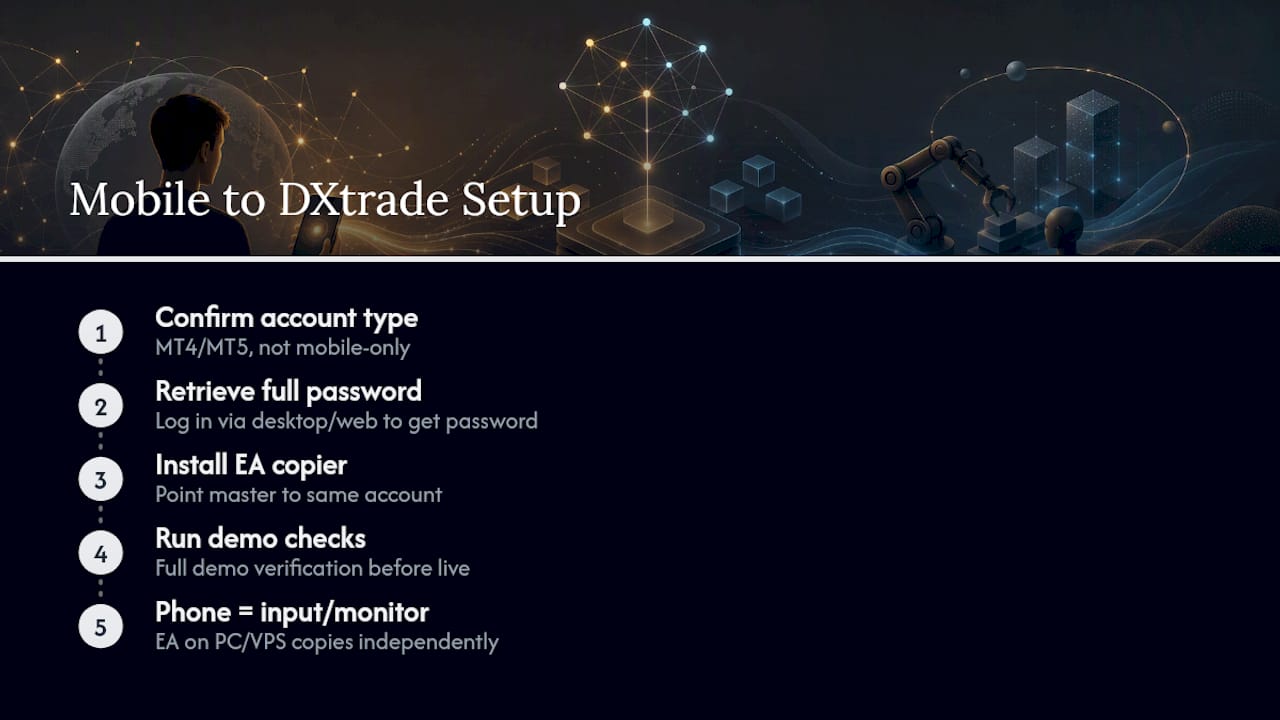
First, confirm your mobile trades are placed through an MT4 or MT5 account, not a standalone mobile-only platform without a desktop terminal counterpart. Second, log into the account via desktop or the broker’s web portal to retrieve the full trading password. Mobile apps sometimes restrict programmatic access, and a mobile-specific permission setting can silently lock out a copier connection.
Third, install the EA-based copier on a PC or VPS as outlined earlier, pointing the master connection at the same account your mobile app trades through. The EA reads trade events from the account itself, not from the mobile app, so any order you place from your phone shows up in the terminal and gets copied the same way a desktop-placed trade would.
Fourth, run the full demo verification checklist before connecting a live account. Fifth, once confirmed, keep your mobile app open only for placing and monitoring trades. The actual copying work happens on the machine running the EA, entirely independent of whether your phone’s screen is on or off.
What Limitations Do Mobile Platforms Have for Trade Copying?
Mobile trading apps were built for placing and monitoring trades, not for running background automation, and that distinction creates real limits.
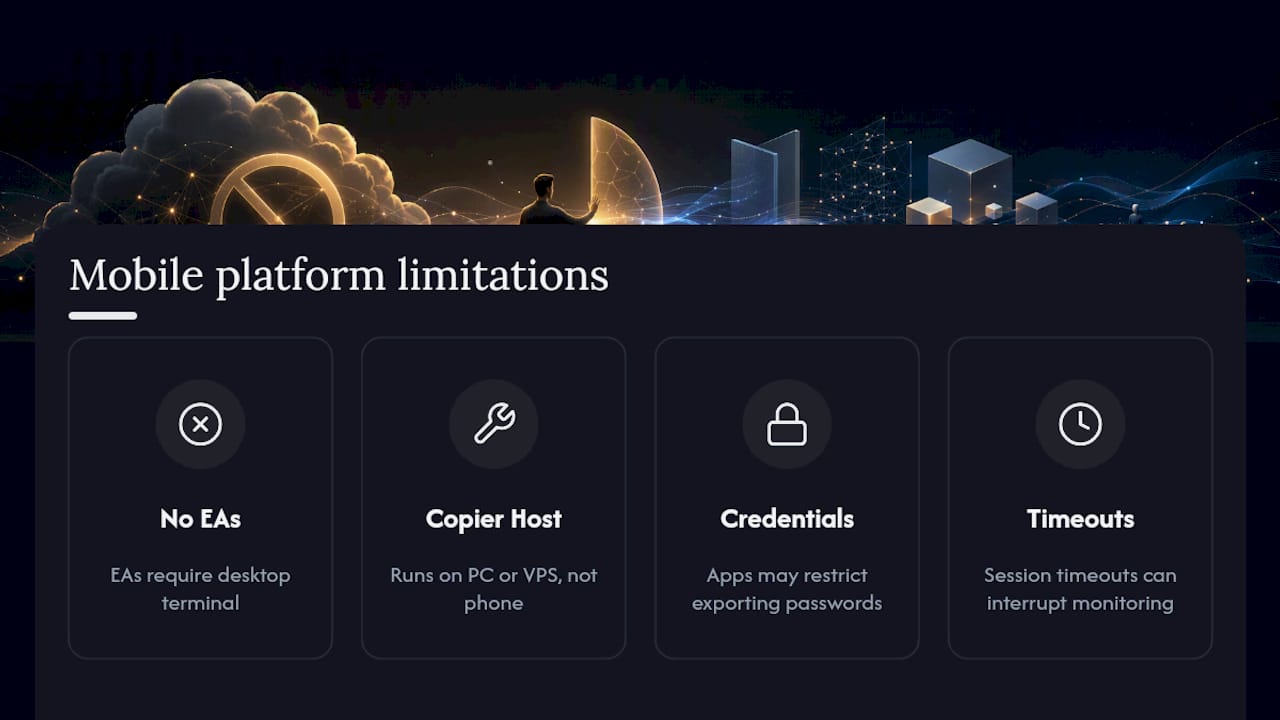
Most mobile MT4/MT5 apps don’t run Expert Advisors at all. EAs require the desktop terminal’s execution environment, so a copier can’t run natively inside the phone app itself, regardless of platform. This is why every reliable mobile-to-DXtrade setup routes through a PC or VPS rather than trying to copy directly from the handset.
Credential exposure is another constraint. Some mobile apps limit what account details you can view or export, which occasionally forces a detour through desktop or web login just to retrieve the trading password. Session timeouts on mobile apps can also interrupt monitoring, though this doesn’t affect the underlying copier connection since that runs independently on your PC or VPS.
Finally, mobile network reliability itself is a soft limitation. If you’re relying on your phone to place the master trades, an unstable mobile connection can delay when a trade actually reaches your account, and that delay happens before the copier is even involved. None of this breaks the copying function; it just means the mobile app is the input device, not the engine doing the work.
Is DXtrade Copying Compatible With Different Mobile Operating Systems?
The mobile operating system itself, Android or iOS, has almost no bearing on whether copying works, because the copier doesn’t run on the phone at all. It runs on your PC or VPS.
Your phone’s job in this setup is limited to placing trades through the MT4 or MT5 mobile app and checking on account status. Both Android and iOS versions of MT4/MT5 connect to the same underlying trading account, and the EA-based copier reads from that account, not from the app installed on your device. So whether you’re running the latest iOS build or an older Android version, the copying pipeline behaves identically, since the operating system differences never touch the part of the system doing the actual work.
Where OS does matter slightly is app stability and notification handling. iOS tends to background-restrict apps more aggressively than Android, which can affect how promptly you see a mobile notification about your account, but again, that’s a monitoring convenience issue, not a copying reliability issue. The trade still gets copied whether or not you saw the push notification in time.
Does Copying Affect Mobile Data Usage or Battery Life?
Barely, and that surprises most people who assume running a copier drains their phone.
Because the actual copying process runs on a separate PC or VPS, your phone isn’t doing any of the computational or networking work involved in replicating trades to DXtrade. Your mobile app’s data usage stays roughly the same as normal trading activity: checking quotes, placing orders, and refreshing account balances. There’s no background sync process running on the phone itself pulling extra data for the copier, because there is no copier process on the phone.
Battery impact follows the same logic. If you leave the MT4/MT5 mobile app open in the foreground to watch prices, you’ll see the normal battery drain any screen-on app produces, but that has nothing to do with the copying setup running elsewhere. Closing the app entirely doesn’t interrupt the copier either, since the EA on your PC or VPS keeps working independently of whether your phone app is open, backgrounded, or closed.
The one indirect factor worth knowing: a spotty mobile connection can delay how quickly a trade you placed from your phone actually registers on your account, which then delays when the copier sees it. That’s a connectivity issue, not a resource-drain issue.
Author Perspective and Practical Tradeoffs
The tradeoff between convenience and control shows up constantly in this niche, and control usually wins for anyone running more than one or two accounts seriously. A local EA gives you visibility into every step: logs, mapping, timing. A cloud dashboard hides all of that behind a “connected” checkmark that tells you nothing when things go wrong.
The most common mistake I see is skipping the demo phase entirely, or mis-entering the broker-branded server field and assuming the software is broken. It usually isn’t. Read the logs before you assume that.
— Rimantas
Get MT4/MT5 to DXtrade Copying Running Without the Cloud Detour
Mt4copier is the direct route for traders who want their MT4 or MT5 master account, including trades placed from mobile, replicating to DXtrade without routing through a third-party cloud server. Local Trade Copier supports cross-platform copying across MT4, MT5, and DXtrade with 18 lot and risk management options, automatic per-account lot scaling, and sub-0.5-second local execution, all running on your own PC or VPS.

That means one IP address, no cloud routing, and no unexplained “connected” status hiding what’s actually happening. If you’re setting this up for the first time, start with the installation guide and run everything on a demo account before touching live capital. A 7-day free trial gives you enough time to complete every test in this article, from symbol mapping to SL/TP parity, before deciding it’s worth running live. This is trade replication software only; it copies existing trades and carries no strategy or market logic of its own, and past results do not guarantee future performance.
