
TL;DR:
- Running identical trades across multiple accounts manually leads to slippage, errors, and costly typos, but a structured workflow mitigates these issues effectively. Proper configuration involves matching symbol names, sharing the same file, enabling AutoTrading, and thorough testing on demo accounts before live deployment, ensuring accurate and safe trade copying. Scaling to multiple receiver accounts is straightforward with a single TX terminal using investor passwords and individual risk controls, but meticulous setup and verification are essential for consistent success.
Running the same trade across three accounts by hand is a recipe for slippage, mismatched lot sizes, and the kind of typo that costs real money. A structured manual trade copying workflow changes that. Whether you manage your own funded accounts or copy trades to clients, the difference between a clean execution and a chaotic one comes down to preparation, the right tools, and a tested process. This guide walks you through every stage: prerequisites, step-by-step configuration, troubleshooting, and scaling safely across multiple MetaTrader terminals.
Key Takeaways
| Point | Details |
|---|---|
| Preparation prevents most failures | Matching symbol names, file paths, and account types before you start eliminates the majority of copy errors. |
| Test with fixed lots first | Always validate your workflow on demo with a fixed small lot before enabling dynamic sizing on live accounts. |
| File access is non-negotiable | Both terminals must read and write the same shared file. A mismatch here causes intermittent stops with no obvious error. |
| Investor password adds security | Running the TX terminal in read-only mode via investor password protects your master account credentials. |
| Filter before you execute | Applying symbol mapping and risk checks before order execution prevents broker-specific parameter mismatches. |
What you need before starting
Before any trade gets copied, your environment needs to be correctly configured. Skipping this stage is the single most common reason workflows fail silently.
Platform and account requirements
You need MetaTrader 4 or MetaTrader 5 installed on a Windows machine or VPS. Both the source (master) terminal and the destination (client) terminal must run simultaneously on the same machine. This is the foundation of any local manual trade copying tutorial. Cloud-based setups route data through external servers, which introduces latency and, for prop firm traders, IP detection risk. Local execution keeps everything on one address.
Broker compatibility matters more than most traders expect. If your master account trades EURUSD and your client account is with a different broker that labels it EURUSD.pro or EURUSDm, the copier will not match the symbol unless you configure suffix mapping. Pull the exact symbol names from both accounts before configuring anything.
Required tools and settings
Here is what you need confirmed before setup:
- MetaTrader terminal(s): MT4 or MT5, both open and logged in simultaneously on the same Windows machine
- Trade copier EA: Installed on both master and client terminals, configured to TX (transmitter) and RX (receiver) modes respectively
- AutoTrading enabled: The green “AutoTrading” button must be active on both terminals, not just one
- Shared file path access: Both terminals must point to the same Windows Common Files folder
- Investor password (optional but recommended): For the master terminal, so it operates in read-only mode
- Demo accounts for testing: Never configure a new workflow directly on live accounts
| Setting | Master terminal (TX) | Client terminal (RX) |
|---|---|---|
| EA mode | Transmitter | Receiver |
| AutoTrading | Enabled | Enabled |
| Channel ID | Must match RX | Must match TX |
| Shared file name | e.g., TradeCopier.csv | Same exact name |
| Lot sizing mode | Source lots | Scaled or fixed |
Pro Tip: Check your Windows file permissions on the Common Files folder before installing anything. If your user account cannot write to that directory, the copier will run without errors but copy nothing.
Step-by-step workflow for MetaTrader accounts
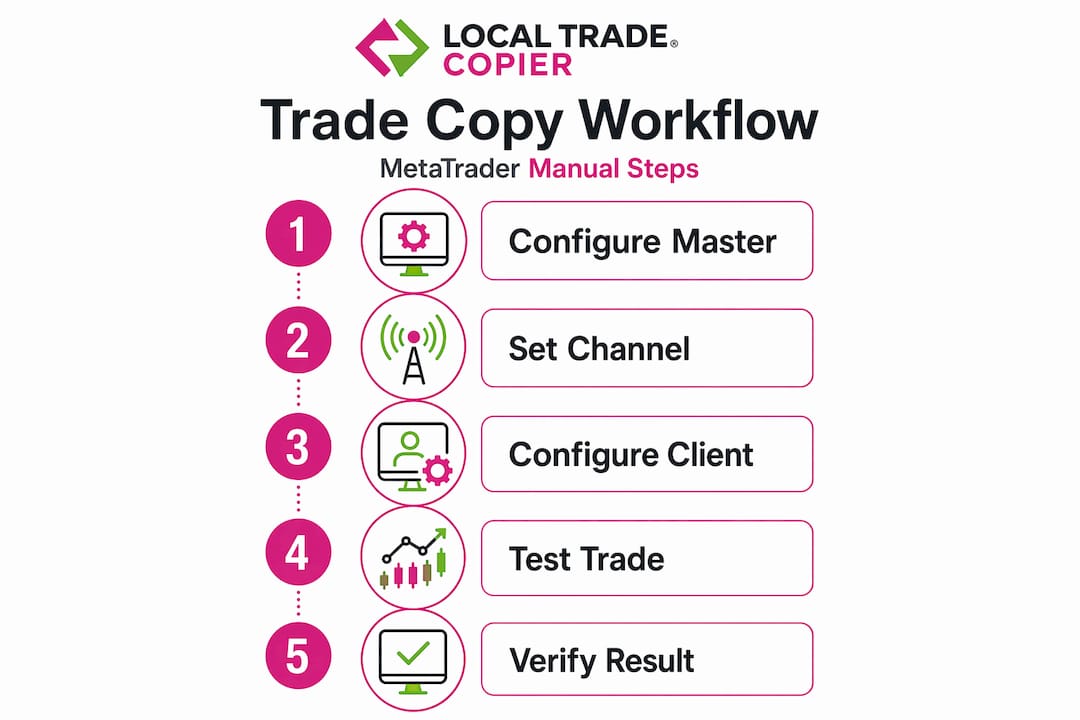
A well-built MT5 manual workflow follows a specific sequence: configure, test, verify, then scale. The order matters.
Step 1: Configure the master terminal (TX)
Open the master terminal and attach the trade copier EA to any chart. Set the mode to TX (transmitter). Assign a Channel ID, which is just a number or string both terminals will share to identify each other. This ID, combined with the TX and RX identifiers, is what routes trade data between terminals. Master/slave configuration requires exact matching on both sides, so write these values down before closing the dialog.
Set the shared file name. This is the communication file both terminals use. Something like TradeCopier.csv works fine. The name itself does not matter. What matters is that it is identical on both terminals, character for character.
Step 2: Configure the client terminal (RX)
Open the client terminal, attach the same EA to a chart, and switch the mode to RX (receiver). Enter the same Channel ID and the matching TX/RX identifiers. Point the file name to the exact same shared file. The shared file access between MT5 terminals must use the Windows Common Files folder. If either terminal points to a different folder path, copying stops intermittently, even though the EA appears to be running normally.
At this stage, configure symbol mapping if the brokers use different naming conventions. Most EAs include a suffix field where you enter the client broker’s symbol suffix. Test it here before placing any trades.
Step 3: Test with a small fixed-lot trade
This is where most traders rush and regret it later. Testing with fixed lot demos and verifying SL/TP synchronization before scaling prevents mystery mismatches. Open a market order on the master terminal using a fixed lot size of 0.01 and confirm it appears on the client terminal. Check the symbol, direction, lot size, and any attached stop loss or take profit.
Pro Tip: Do not move to dynamic lot sizing until you have confirmed that open, modify, and close actions all copy correctly. One test trade is not enough. Run the full verification checklist before touching live accounts.
Step 4: Run the full verification checklist
A recommended test sequence covers every trade event your workflow will encounter in live conditions:
- Open a market order on the master and confirm it copies to the client
- Modify the stop loss and take profit on the master and verify the changes appear on the client
- Place a pending order on the master and confirm it copies correctly
- Modify the pending order and verify
- Cancel the pending order and confirm deletion propagates
- Partially close the master trade and check the client reflects the partial close
- Fully close the trade on the master and confirm the client closes
- Attach the copier EA after a trade is already open (late attach test) and verify it picks up the existing position
If every step passes on demo, you have a workflow ready for live use.
Step 5: Apply pre-execution filters
Before going live, set your risk filters on the RX side. A solid trade copying strategy runs parsing, symbol mapping, and safety checks before sending any order, not after. Configure maximum lot size limits, no-trade filters for symbols you want to exclude, and session time restrictions if you only want copying active during certain hours. These filters prevent a runaway trade from the master account from executing at full size on an underfunded client account.
Common mistakes and how to fix them
Most failures in a manual trade duplication process come from one of five places. Knowing them ahead of time saves hours of troubleshooting.
File name mismatch. This is the most common silent failure. Exact shared file name matching is critical. If the master writes to TradeCopier.csv and the client reads from Tradecopier.csv, nothing copies. The folder path must also be identical.
AutoTrading disabled on the client. Trades will not execute if AutoTrading is off on the RX terminal, even if the EA is attached and running. Check this first before investigating anything else.
Symbol suffix not configured. If your brokers use different symbol names and you have not set suffix mapping, the copier will attempt to open a position on a non-existent symbol and fail silently.
Windows file permissions. The Windows Common Files folder must be accessible to both terminal processes. On some machines, user account restrictions prevent write access. Run MetaTrader as administrator during initial setup to rule this out.
Recovering from a skipped copy event is straightforward. Check the EA journal on both terminals for error codes, verify file access and AutoTrading status, then manually place the missed trade on the client terminal if needed. Do not attempt to re-run the copier mid-session without closing all existing open positions on the client first.
Pro Tip: If you suspect the copier is running but not copying, close and re-open the EA settings dialog on the RX terminal without changing anything, then click OK. This forces a re-initialization and resolves most “stuck” states.
Scaling beyond one client account
Once your core workflow is stable, expanding to multiple receiver accounts follows the same pattern with a few additional considerations.
One master, multiple receivers
The same TX terminal can serve multiple RX terminals simultaneously. Each RX terminal reads the same shared file and applies its own lot sizing rules independently. This is the core of any multi-account manual sharing tutorial: one signal source, multiple execution endpoints, each with its own risk configuration.
Use the investor password workflow for the master terminal. The TX logs in with the investor (read-only) password, which means it can observe and transmit trade data without ever having the ability to place or modify orders. This protects your master account credentials from any configuration mistake on the TX side.
Pro Tip: Label each RX terminal’s EA with the client account number in the chart comment field. When running four or more terminals, this prevents you from accidentally modifying the wrong account’s settings.
Safety controls worth enabling
| Safety feature | What it does |
|---|---|
| Basket stop loss | Closes all copied trades when combined account drawdown hits a set threshold |
| No-SL filter | Blocks any trade that does not include a stop loss from copying |
| Max lot cap | Prevents the receiver from opening positions above a defined lot size |
| Session filter | Restricts copying to specific trading hours per receiver |
The proper parameter conversion at the point of execution separates reliable workflows from fragile ones. Run your full verification checklist on each new RX terminal before switching it to live. Past results do not guarantee future performance, but consistent process discipline does reduce the frequency of execution errors.
My honest take on manual trade copying
I’ve spent years watching traders set up copying workflows in the worst possible order: live accounts first, testing later. The mindset is usually “I’ll just fix it if something goes wrong.” But a missed stop loss on three accounts at once is not a fixable moment. It’s a costly one.
What I’ve learned is that the workflow itself is rarely the hard part. The hard part is the 20 minutes of tedious verification before you go live. Most traders skip the partial close test and the late-attach test because they seem unlikely. Those are exactly the events that expose broken configurations during volatile market hours.
Broker symbol mismatches catch more experienced traders off guard than beginners, because beginners read the documentation more carefully. When you’ve done this ten times, you start assuming your setup is correct. That assumption is where the errors live.
My advice: treat each new account as if it’s your first. Run the full checklist. Use a fixed 0.01 lot on demo until every event on the verification list passes cleanly. Only then switch to live and scale lot sizing. The ten minutes that saves is not worth the hour you spend recovering.
— Rimantas
Ready to stop copying trades by hand?
If this workflow resonates with you but you’d rather not manage CSV files and folder permissions manually, Mt4copier was built specifically for this problem. The Local Trade Copier runs entirely on your Windows machine or VPS, copies trades in under half a second, and handles symbol mapping, lot scaling, and session filters without external servers or cloud routing.
You can get started with the full installation guide for MT4 and MT5, which walks through every configuration step with screenshots. If you run into copying failures, the trade copier troubleshooting guide covers the most common causes and fixes. For position sizing across accounts of different sizes, the account size allocation guide explains how to scale lots per client balance. A 7-day free trial is included on every plan, so you can validate the full workflow on demo before committing.
FAQ
What is a manual trade copying workflow?
A manual trade copying workflow is a structured process for replicating trades from one trading account to one or more destination accounts, using a configured EA or copier software rather than re-entering each trade by hand.
Why does my trade copier copy nothing even though the EA is running?
The most common cause is a mismatch in the shared file name or folder path between the master and client terminals, or AutoTrading being disabled on the receiver terminal. Check both before investigating further.
Do I need the same broker for master and client accounts?
No, but you must configure symbol suffix mapping if the brokers use different naming conventions. Without it, the copier will attempt to open trades on symbols that do not exist in the client account.
How do I test a copying workflow safely before going live?
Use demo accounts with a fixed lot size of 0.01, then run a full verification checklist covering market orders, pending orders, modifications, partial closes, full closes, and late-attach behavior before switching to live.
Can one master account copy to multiple client accounts at once?
Yes. A single TX terminal can broadcast to multiple RX terminals simultaneously. Each receiver applies its own lot sizing and risk settings independently, which is the standard approach for account managers handling multiple clients.
Recommended
- Boost Trading Efficiency with Automated Trade Copying
- The Definitive Guide to Forex Trade Copying
- MT4 to MT5 copy guide: replicate trades across platforms
- Local Trade Copier on MAC and MetaTrader 4
