

TL;DR:
- Automation tools like Expert Advisors and trade copiers streamline trade replication across multiple student accounts.
- Proper setup, demo testing, and disciplined rule enforcement are essential for safe and effective forex education automation.
- Using automation shifts educators’ focus from manual execution to system management and strategic teaching.
Running a forex education program across multiple student accounts is genuinely hard work. Every time you place a trade, you face the same problem: replicating it manually across five, ten, or twenty student accounts introduces delays, errors, and inconsistent risk settings. One student gets filled at a different price. Another has the wrong lot size. A third misses the trade entirely. Automation tools, specifically Expert Advisors (EAs) and trade copier software, solve all three problems at once. This guide walks you through what those tools are, how to set them up, and how to scale your teaching program safely without sacrificing student outcomes.
Key Takeaways
| Point | Details |
|---|---|
| Automation boosts efficiency | Using automation tools allows educators to manage groups without manual intervention and improves consistency. |
| Demo testing is critical | Always test new EAs and copier setups on demo accounts before involving student live funds. |
| Standardized risk settings | Automated tools help educators enforce standardized risk management and protect students from large drawdowns. |
| System mindset matters most | The best results come from disciplined, process-driven automation—not just chasing new software. |
Understanding forex automation and its importance for educators
Forex automation, in an educational context, means using software to execute, replicate, and manage trades without requiring manual input every time. Instead of you placing a trade and then repeating it across every student account, an automated system handles distribution in under a second.
Three terms matter here. An Expert Advisor (EA) is a program that runs inside MetaTrader 4 or MetaTrader 5 and can analyze the market, place trades, and manage positions automatically based on coded rules. A trade copier is software that mirrors trades from one master account, typically yours as the educator, to multiple student accounts in real time. Risk templates are preconfigured settings inside these tools that control lot sizes, stop-losses, and take-profits per account.
Educators primarily work with MT4 and MT5 platforms because they support EAs natively. MT4/MT5 platforms with EAs support automated execution, backtesting, and risk tools like ATR-based stop-losses and news filters. That combination is exactly what you need to run a structured teaching environment.
Trade copier applications extend that further by letting you push your trades to every student account simultaneously, with each account using its own lot size scaled to its balance.
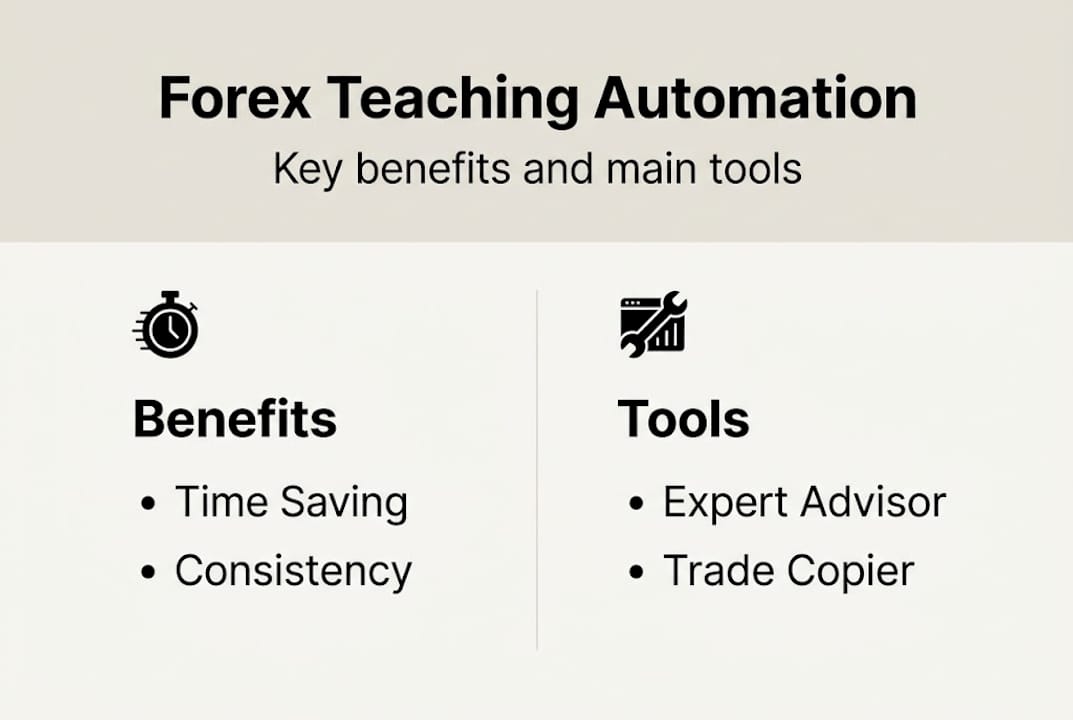
Infographic showing forex automation benefits and tools
Manual vs. automated approach: a quick comparison
| Factor | Manual approach | Automated approach |
|---|---|---|
| Execution speed | Seconds to minutes | 1 second or faster (normal conditions) |
| Risk consistency | Varies per account | Standardized per template |
| Scalability | Limited by time | Handles 20+ accounts |
| Error rate | High with volume | Near zero |
| Teaching focus | Consumed by admin | Freed for analysis |
The practical benefits for educators are direct. You save time you would have spent re-entering trades. You standardize risk across every student’s account. You can manage remote students without being present at every terminal. And when something goes wrong, your logs show exactly what happened and when.
One important note on risk: even well-regarded EAs carry real drawdown risk in live conditions. Performance varies significantly by account, settings, and market environment, and past performance is not indicative of future results. Careful setup and demo testing are essential before any live funds are involved.
Prepping your teaching program for automation
Before you connect a single student account, your environment needs to be properly configured. Rushing this step creates problems that are hard to diagnose later.

Instructor reviews forex automation checklist
Setup checklist for educators and students
| Item | Educator | Student |
|---|---|---|
| MT4 or MT5 installed | Required | Required |
| Trade copier software | Master role | Client role |
| Demo account access | Yes | Yes (start here) |
| Risk settings configured | Per program | Per account balance |
| Compliance disclaimers | Provided | Acknowledged |
| EA files loaded | Yes | Not required |
Once you have confirmed every item on that list, follow these steps to build the environment:
- Install MT4 or MT5 on your Windows machine or VPS. Students do the same on their own machines.
- Install the trade copier software. The trade copier installation process involves placing EA files into the correct MetaTrader data folders and restarting the platform.
- Configure your master account. Set your default lot sizes and risk parameters inside the copier settings.
- Connect student demo accounts as client accounts inside the copier dashboard.
- Load your chosen EA onto the educator’s master chart if you plan to use one for strategy delivery.
- Run a test trade on your master account and confirm it appears on all student demo accounts within seconds.
Pro Tip: Always run your full setup on demo accounts for at least two weeks before touching live funds. This gives students time to understand how the system works and gives you time to catch configuration issues without financial risk.
EA drawdown performance varies significantly by account settings, broker conditions, and market environment — any figures published by vendors reflect specific conditions that may not apply to a classroom setup. Real classroom environments introduce additional variables, which is exactly why demo testing is non-negotiable. Understanding how trade copiers work before you scale helps you anticipate those variables.
How to automate lessons: A step-by-step walkthrough
With your environment ready, the actual lesson automation process is straightforward. The goal is to have your trades appear on every student account automatically, so you can focus on explaining the why rather than managing execution logistics.
- Activate the trade copier on your master account terminal. Confirm the copier shows a green status indicator.
- Link all student demo accounts as client terminals. Each student opens their MT4/MT5 instance with the client-side copier EA running.
- Add your chosen EA to the educator’s master chart, or execute trades manually if you prefer to teach discretionary methods.
- Place a test trade on your master. Check that it populates on every student account within 1 second. The copier setup demo shows exactly what this looks like in real time.
- Confirm lot sizes are scaled correctly per student account balance, not mirroring your account size.
Once the basic copy flow is confirmed, configure these features carefully:
- Order types allowed: Choose whether students receive market orders, pending orders, or both.
- Risk settings per account: Use percentage-based lot sizing so a student with a $1,000 demo account does not receive the same raw lot size as your $10,000 master.
- Frequency filters: Limit the number of simultaneous open trades per student account to match their skill level.
- Cross-platform routing: If some students use DXTrade, the MT4 to DXTrade setup guide covers that bridge configuration separately.
Pro Tip: Enable news filters inside your EA or copier settings to pause trade copying during major economic releases. Unexpected volatility during a lesson can be confusing and costly for students who do not yet understand how to manage it.
On EA performance: Flex EA backtests at 99% modeling quality using tick data, with live account results available on Myfxbook. Waka Waka has recorded over 70 consecutive profitable months on a verified live account. Both are well-established in the EA community. However, both involve grid or martingale elements that can produce significant drawdowns during sustained market trends — Waka Waka in particular has documented drawdown episodes exceeding 40% during adverse conditions. Past performance is not indicative of future results. Neither should be used with student live funds, and educators should explain the strategy’s drawdown risk profile to students before any student account is connected to these systems.
Verifying, maintaining, and safely scaling your automation process
Setting up the system is only half the job. Verifying that it works reliably, and keeping it working as your class grows, is where most educators either succeed or quietly give up.
Follow these steps after each session to confirm everything ran correctly:
- Review trade logs on both the master and client terminals. Every trade on the master should appear in every student log with matching entry prices and timestamps.
- Compare lot sizes across accounts to confirm scaling is functioning as configured.
- Check trade results for each student against the master. Slippage differences are normal; missing trades are not.
- Identify demo-to-live readiness. Only move a student to live funds after at least 30 consistent demo sessions with no configuration errors.
Common mistakes educators make, and how to fix them:
- Wrong lot sizes on student accounts: Recheck the lot scaling mode inside the copier. Use balance-proportional scaling, not fixed lots.
- Copier disconnections mid-session: These usually come from internet interruptions or MetaTrader auto-updates. Run on a dedicated VPS to minimize this. The copier troubleshooting videos cover the most common disconnect scenarios.
- Risk misconfiguration: If a student’s max drawdown setting is too loose, a single bad trade can wipe a demo account. Set per-account drawdown limits before each session.
Safety warning: Always use demo accounts for practice before involving student real funds, as even top EAs require extensive demo verification before live deployment.
When you are ready to scale, add accounts one at a time. Test each new student connection individually before running a full group session. Use advanced copier features like comment filters and magic number routing to manage multiple strategy groups without overlap.
Why true automation is more about mindset than tools
Here is an observation from watching educators build automated programs over the years: the ones who succeed are not the ones who chase the newest EA or the most complex copier setup. They are the ones who use automation to enforce a system.
Most educators install a trade copier and immediately ask, “What’s the best EA to add?” That is the wrong first question. The right question is, “What rules do I want every student to follow, every single time, without exception?” Automation is only valuable when it locks in discipline. A copier that copies inconsistent trades just spreads inconsistency faster.
Educators who document their entry criteria, risk rules, and session protocols before touching any software end up with better student retention and less personal burnout. The teaching benefits of trade copiers become real when the process is sound. When the process is vague, no software in the world saves you. Start with your rules. Then automate them.
Take your forex teaching to the next level with automation
If this guide has shown you anything, it is that the right tools make scaling your forex program genuinely manageable. Local Trade Copier has supported over 3,000 traders and educators since 2010 with locally installed trade execution of 1 second or faster under normal market conditions, across MT4, MT5, and DXTrade.
Start with the MT4 Copier installation guide to get your master and client accounts connected. Explore the trade copier SL/TP features to understand how stop-loss and take-profit settings transfer across accounts. When you are ready to see the full picture, the complete trade copier solution includes MT4, MT5, and DXTrade components under one subscription with a 7-day free trial.
Frequently asked questions
What is the safest way to introduce automation to student accounts?
Start with demo accounts and verified EAs requiring demo testing before any live funds are considered. Monitor results across at least 30 sessions before progressing.
Which platforms are most suitable for automated forex teaching?
MetaTrader 4 and MetaTrader 5 are the preferred choices because MT4/MT5 platforms support automated execution, backtesting, and built-in risk tools that make structured teaching environments practical.
How do I verify that trades are being copied correctly to student accounts?
Check that all student trades match the educator’s account entry price and direction, then review trade history logs on both terminals to catch any discrepancies.
What common mistakes should new educator-automators avoid?
Avoid using live funds before extensive demo testing, and always configure risk settings individually per account. Top EAs require demo verification before live use, and the same rule applies to your entire automated teaching setup.
Recommended
- How to automate forex trading with MetaTrader platforms
- Optimize automated trading workflow: forex replication guide
- The Definitive Guide to Forex Trade Copying
- Algorithmic Trading in Forex: Automating Your Success
- How trade copiers empower educators to teach forex
- Top forex trading educator resources for multi-account strategies
