
Short answer: To move an MT4 expert advisor to a new broker, copy the EA file (and any indicators or DLLs it uses) from your old terminal’s MQL4 data folder into the new broker’s MT4, save your EA inputs as a .set file and load them there, then check the symbol suffix, server time and lot rules before you switch AutoTrading on. Trades that are already open stay at the old broker. If you can’t or don’t want to move the EA, Local Trade Copier (LTC) by Algonexis Technologies can keep it running on the old account and copy its trades to the new broker, even to an MT5 account.
Key facts
- An MT4 EA is a file:
.ex4(compiled) and sometimes.mq4(source). It works in any broker’s MT4. - Your settings don’t travel with the file. Save them as a
.setfile first. - Open trades don’t move. The EA on the new account only manages trades it opens there.
- An MT4 EA can’t run in MT5. If the new broker only offers MT5, you need an MT5 version of the EA, or you copy the EA’s trades from MT4 to MT5.
- Most problems after a move come from 4 broker differences: symbol names, server time, lot rules and stop levels.
Option 1: move the EA, step by step
- Find the EA files in the old terminal. In the old broker’s MT4, click File → Open Data Folder, then open
MQL4\Experts. Copy your EA’s.ex4file (and.mq4, if you have it). If the EA uses custom indicators, also copy them fromMQL4\Indicators. If it uses DLLs, copy them fromMQL4\Libraries.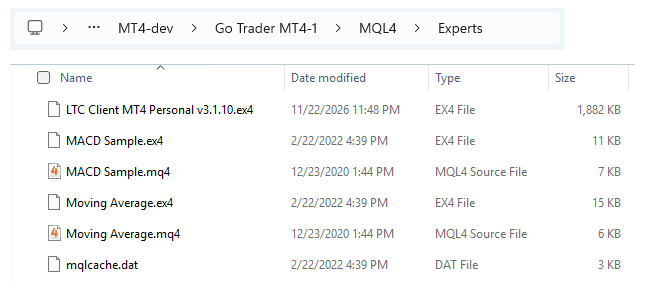
The EA files live in MQL4\Experts. Copy the .ex4 (and .mq4 if you have it).
- Save your EA inputs. On the chart where the EA runs, press F7 (or right-click → Expert Advisors → Properties), open the Inputs tab and click Save. MT4 saves a
.setfile. Write down the chart symbol and timeframe too.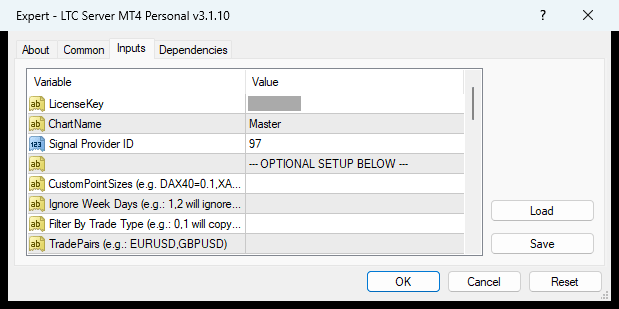
Inputs tab: Save writes your settings to a .set file; Load reads them back in the new terminal.
- Install the new broker’s MT4. Download it from the new broker and install it into its own folder, so it doesn’t overwrite the old terminal. Log in to your new account.
- Paste the files into the new terminal. In the new MT4, click File → Open Data Folder and paste each file into the same subfolder (
Experts,Indicators,Libraries). Then restart MT4, or right-click Expert Advisors in the Navigator and choose Refresh. - Open the right chart. Open the same symbol and timeframe. Check the new broker’s symbol name in Market Watch: many brokers add a suffix such as
EURUSD.morEURUSD+. If your EA has a symbol or suffix input, change it to match. - Attach the EA and load your settings. Drag the EA onto the chart. On the Common tab, tick Allow live trading (and Allow DLL imports if the EA needs DLLs). On the Inputs tab, click Load and choose your
.setfile. - Check what’s different at the new broker.
- Server time: if the EA has trading-hours inputs, they usually use broker server time. A broker on GMT+2 and one on GMT+3 are an hour apart, so shift the hours.
- Lots: check the minimum lot, the lot step, the account currency and the leverage. A fixed lot of 0.10 risks more on a smaller account.
- Stops and digits: check the minimum stop distance and whether prices have 5 or 3 decimals. EAs that count pips or points can place stops at different distances.
- Switch AutoTrading on and watch the first trades. Click AutoTrading in the toolbar. A smiling face in the chart’s top-right corner means the EA is running. Watch the Experts and Journal tabs for errors on the first trades. A demo account at the new broker is the safest place to start.
What about trades that are still open at the old broker? They stay there, and the EA on the new account won’t manage them. Either let the old EA keep running until they close, or close them yourself. Just make sure that only one copy of the EA opens new trades, unless you want it trading on both accounts.
Option 2: keep the EA where it is and copy its trades to the new broker
Sometimes moving the EA isn’t the best choice:
- the EA only runs on your old account number;
- the new broker only offers MT5, and your EA is MT4-only;
- you want to try the new broker side by side before you switch;
- you want the same EA’s trades on several accounts at different brokers.
Then leave the EA running on the old account and copy its trades with Local Trade Copier. LTC copies trades between MT4 and MT5 accounts on your own Windows PC or VPS, usually in about 1 second.
- Run both terminals on one computer. Install the new broker’s MT4 or MT5 on the same PC or VPS as the old terminal. LTC copies between terminals on the same computer.
- Add LTC Server to the old account. Attach the LTC Server EA to any chart in the old terminal, where your EA keeps trading.
- Add LTC Client to the new account. Attach the LTC Client EA to a chart in the new broker’s terminal.
- Leave symbol mapping on Automatic.
Symbol Mapping Mode= Automatic (the default) reads the new broker’s suffix from the Client’s chart. For names that differ completely, add them toCustomSymbolMapping, for exampleGOLD=XAUUSD. - Choose the lot size. The default
Money Management Modeis AA (Auto-Adjust to account size): a new account half the size gets half the lot. You can also use a fixed lot, a multiplier or risk % (8 modes in total). - Copy only the EA’s trades (optional). If the EA uses a magic number, put it in
FilterMagicNumber. Then only that EA’s trades are copied, not your manual trades or other EAs’ trades. - Bring over trades that are already open (optional). Set
CopyExistingMasterTradesOnStartto true. LTC Client then also copies the EA’s open trades when it starts.
Stop loss, take profit, pending orders, partial closes and closes are copied too. When you’re happy with the new broker, you can move the EA itself (Option 1) or keep copying. For a full cut-over plan (demo test first, then switch and reconcile), see broker migration by copying in 5 stages.
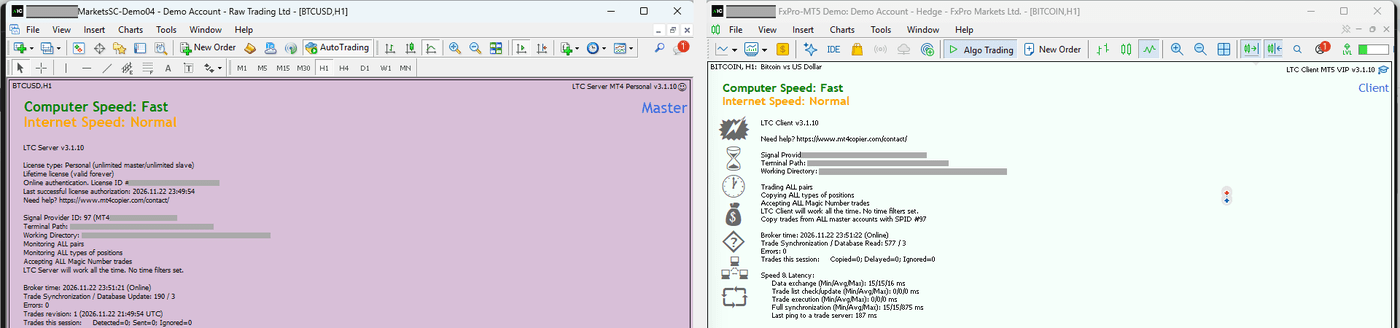
One PC: the old broker’s MT4 runs LTC Server (left), the new broker’s MT5 runs LTC Client (right). Demo accounts, 22 November 2026.
Common problems after moving an EA
- The EA doesn’t trade, and there’s no smiling face. AutoTrading is off, or Allow live trading isn’t ticked on the Common tab.
- “Invalid stops” (error 130). The new broker’s minimum stop distance is larger, or the EA calculates pips for a different number of digits.
- “Invalid trade volume” (error 131). The lot is below the new broker’s minimum, or doesn’t fit its lot step.
- The EA trades at the wrong times. The new broker’s server time is different. Shift the EA’s hour inputs.
- The EA doesn’t show in the Navigator. The file went into the wrong folder. Check
MQL4\Expertsin the new terminal’s data folder, then refresh. - “Cannot load DLL”. The DLL is missing from
MQL4\Libraries, or Allow DLL imports is off.
FAQ
Can I copy an MT4 EA file to another broker?
Yes. An .ex4 file runs in any broker’s MT4. Copy it into MQL4\Experts in the new terminal’s data folder and refresh the Navigator.
Will my open trades move to the new broker?
No. Open trades belong to the old account. They close there, either by the old EA or by you. With Local Trade Copier and CopyExistingMasterTradesOnStart, you can open copies of them on the new account.
Can I run an MT4 EA at a broker that only offers MT5?
Not directly. An MT4 EA doesn’t run in MT5. Ask the EA’s developer for an MT5 version, or keep the EA on an MT4 account and copy its trades to the MT5 account with Local Trade Copier.
Do I need to change my EA settings at the new broker?
Often, yes. Check the symbol suffix, the trading hours (server time), the lot size and the stop distances. The other inputs usually stay the same.
Can I run the same EA at two brokers at once?
Yes. Install two MT4 terminals in separate folders and attach the EA in both. Or run it once and copy its trades to the second account with Local Trade Copier, so both accounts get the same trades.
Want to try Option 2 with your own EA? Local Trade Copier has a 7-day trial, and plans start at €29 a month for 1 PC or VPS with unlimited accounts.
