

A DXtrade bridge setup has two parts. First, you get your DXtrade login from your broker or prop firm. Second, you connect that account to the platform you trade from, usually MetaTrader 4 or 5, with a copier that runs on your own Windows PC or VPS and passes each order across. DXtrade does not run MetaTrader Expert Advisors, so something has to translate orders from one platform to the other. This guide walks through that process in order, from credentials to your first test trade.
TL;DR
- DXtrade is hosted by Devexperts for each broker, so your login details and web terminal URL come from your broker or prop firm, not from DXtrade itself.
- A local bridge reads orders from your MT4 or MT5 terminal and sends them to your DXtrade account from one machine and one IP address.
- Test first on a demo or evaluation account with the smallest lot size, and check lot size, margin rate and trading hours before going live.
- Our Local Trade Copier supports MT4, MT5 and DXTrade under one subscription, with a 7-day free trial.
- Check your prop firm’s rules on automation before you connect anything.
What a DXtrade bridge actually is
People use “bridge” for two different things, and the confusion costs time.
On the broker side, DXtrade setup includes configuring liquidity provider (LP) connections. A broker can connect directly to an LP or use a company that aggregates several LPs, and trading settings remain the broker’s responsibility. You never touch any of that as a trader.
On the trader side, a bridge is a small program that listens to one trading account and repeats its orders on another. In this article, “bridge” means that: the link between a MetaTrader terminal, where you or your robot place trades, and a DXtrade account, where the orders need to land. This is the part you control.
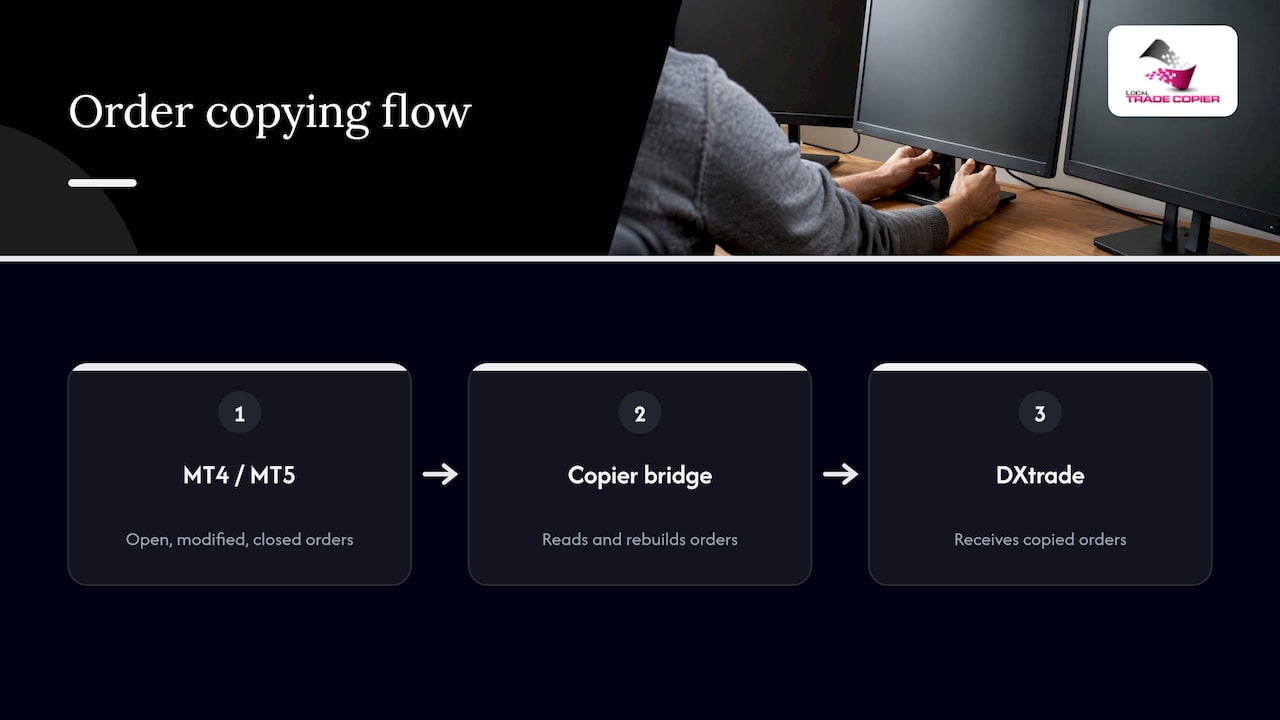
The two platforms were not built to talk to each other. MetaTrader uses its own order system and Expert Advisors. DXtrade is a web and mobile platform with its own API. A copier sits between them, reads open, modified and closed orders on the source side and rebuilds them on the destination side.
What you need before you start
Gather these items first. Most failed setups come down to one of them being missing.
- A DXtrade account. DXtrade is delivered as a fully hosted platform, with a separate instance for each broker, and each broker gives its users a specific URL. That URL is not interchangeable between firms.
- Your credentials. You need the username and password from your broker, plus the broker’s web terminal URL or dedicated mobile app. Many prop firms also show them in a trader dashboard and email them.
- A MetaTrader 4 or 5 terminal with the source account logged in. This can be a manual account, a robot account, or an account you trade from your phone.
- A Windows PC or VPS. Mac works through Wine, but Windows is the simplest route.
- The copier software installed on the same machine as the MetaTrader terminals.
If you plan to run around the clock, a VPS keeps everything online when your home computer is off. Our page on using a VPS and strong passwords covers how to lock that machine down.
Step 1: Log in to DXtrade and confirm the account works
Do this before involving any software. If you cannot log in by hand, no bridge will fix it.
- Open the web terminal URL your firm gave you, or the dedicated mobile app. Log in with your account credentials.
- Check that the account type shown matches what you bought: demo, evaluation or funded.
- Note the exact username format. Some firms use an email, others a numeric ID.
The most common login failures are trivial. A wrong URL, a mistyped password, or a trailing space copied along with the password. Type the password by hand once, or paste it into a plain text field to see whether a space came along. If the firm sent you a link, use that link rather than a search result.
After you enter credentials for an account the first time, DXtrade stores them securely so you can switch accounts without retyping. That is convenient in the browser, but it does not mean a copier can reuse that saved login. The bridge needs its own entry of the same credentials.
Step 2: Check the account settings that affect copied orders
A copier can only send what the destination account accepts. Before connecting, open the account preferences and instrument details. The manual points to reference currency, lot size, margin rate, trading hours, swaps, and Stop Loss and Take Profit options as the settings to review.
Here is why each matters for a bridge:
| Setting | Why it matters when copying |
|---|---|
| Lot size and step | A 0.01 lot on MetaTrader may not map one to one to the instrument’s size on DXtrade. Orders outside the allowed step get rejected. |
| Margin rate | Lower leverage on the destination can reject orders the source account accepted. |
| Trading hours | An order sent outside the session is refused, which looks like a bridge fault but is not. |
| Symbol names | Suffixes and naming differ between platforms and firms, so symbols need mapping. |
| Stop Loss and Take Profit options | Some accounts limit how protective orders can be attached. |
| Reference currency | Affects how balance-based lot scaling compares two accounts. |
Spend ten minutes on this table now and you avoid an afternoon of rejected orders later.
Step 3: Install the local copier and link both sides
The exact screens depend on your version, so follow the in-app guidance and our DXTrade sync page for the current steps. The overall sequence is the same for any local bridge:
- Install the copier on the machine that runs your MetaTrader terminal. Our Local Trade Copier runs entirely on your own Windows PC or VPS, with no cloud routing.
- Attach the source (master) side to your MT4 or MT5 terminal. This is the account where trades originate, whether you click them, a robot opens them, or you place them from your phone.
- Add the DXtrade account as the destination (client). Enter the web terminal URL from your firm and the username and password from Step 1.
- Map symbols if names differ, for example if one side adds a suffix.
- Set lot sizing for the destination. Choose a fixed lot, a multiplier, or automatic scaling by account balance. We offer 8 money management modes and risk limits, so you can match the size to the destination account.
- Save and let the copier connect. Confirm in the copier that the DXtrade account shows as connected.
If your source is a robot, the MT5 robot to DXTrade account guide and the page on syncing MetaTrader bots with DXTrade cover that case. If you were moved to DXtrade by your firm and want to keep your MetaTrader workflow, this overview for traders forced to switch explains the options.
Why local matters for prop accounts
With a local setup, every order leaves one machine through one IP address. There is no third-party server in the middle that might send your orders from an address your firm has never seen. Some firms watch for that. Others restrict automation altogether, which is the next point.
Step 4: Read your firm’s rules on automation
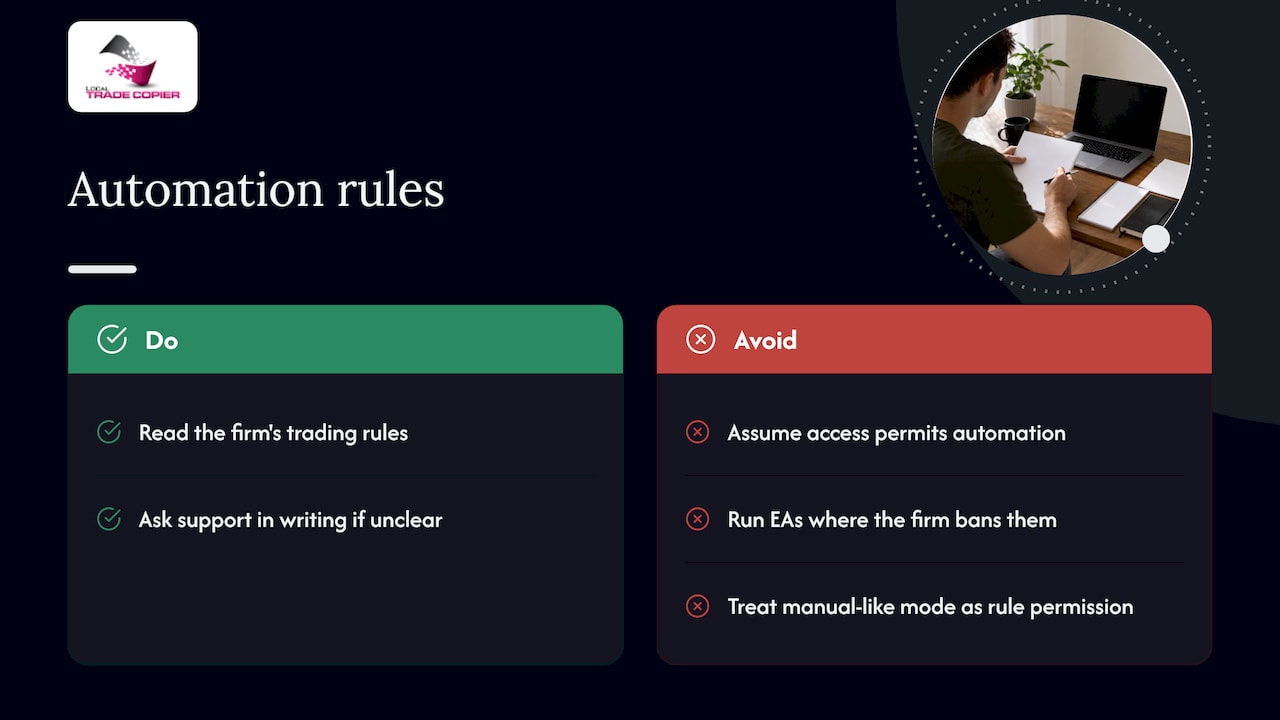
Platform access and permission to automate are two separate questions. Some prop firms allow copiers, some allow them only on your own accounts, and some ban any Expert Advisor activity. Read the trading rules page of your firm before you connect, and ask support in writing if the wording is unclear.
Where a firm does not allow EA trading, our software includes a manual-like entry mode, so copied orders look like a human placed them by hand. That is a way to replicate your own trades across your own accounts. It does not replace your obligation to follow your firm’s rules, and you remain responsible for what you run on each account.
Step 5: Test the connection safely
Never make your first test on a live funded account.
- Use a demo or evaluation account as the destination. Devexperts recommends paper money accounts for high-volume test trades, because its charges are volume-related.
- Place one small market order on the source terminal at the minimum lot size.
- Watch DXtrade. The order should appear within about a second. DXtrade supports Market, Limit, Stop and OCO orders and trading from charts, so test at least a market and a pending order.
- Modify the order. Move the stop loss or take profit on the source and confirm the change arrives.
- Close it on the source and confirm it closes on the destination.
- Compare the lot size on both sides against what you configured.
Our demo video shows what a healthy copy looks like on MT4 and MT5. If an order does not appear, our trade copier errors guide lists causes and fixes. If an order fails and you are tempted to resend it, read the safe retry guide first so you do not create duplicate fills.
Trading leveraged products carries risk of loss, and copying an order also copies its risk. Past results do not guarantee future performance. Keep test sizes small until you have seen several orders copy correctly.
Common problems and quick fixes
| Symptom | Likely cause | What to do |
|---|---|---|
| Login fails in the copier but works in the browser | Wrong URL for your firm, or a space in the password | Use the firm’s own link and retype the password |
| Order appears on source only | Symbol not mapped, or market closed on destination | Check symbol names and trading hours |
| Order rejected on DXtrade | Lot size outside the allowed step, or insufficient margin | Adjust lot sizing and review margin rate |
| Copy arrives late | Slow VPS or overloaded terminal | Reduce the number of terminals on the machine and check VPS resources |
| Stop loss missing on destination | Protective order options differ | Check the account’s SL/TP settings |
| Duplicate orders | Manual resend after a failed copy | Wait for the copier to report status before retrying |
A second tip: keep a short log of the exact error text. Support teams, whether yours or your firm’s, can solve a problem quickly when they see the message instead of a description.
Do you need the API instead?
Most traders do not. DXtrade publishes its XT API specifications, including FIX trading, REST, notifications and administrative REST APIs, at the platform address ending in /specs. Whether you can use them depends on your broker enabling them for your account. Building your own bridge means writing code, handling authentication, reconnects, symbol mapping and error recovery, and keeping it running. If you are not a developer, a ready-made local copier saves that work.
A note on our approach
We have built trade copiers since 2010, and the pattern we see with DXtrade is consistent. Traders do not struggle with the idea of a bridge. They struggle with the details around it: which URL belongs to which firm, why lot sizes differ, and whether an automated setup is acceptable on a prop account.
That is why we chose local execution. Everything runs on one Windows machine or VPS, so your trade data stays with you and your orders leave through a single IP address. There is no cloud relay to configure, and nothing between your terminal and your destination account that you did not install yourself.
Our software is trade replication only. It has no strategy layer and makes no market decisions: it copies the trades you or your robot already place. With 10,000+ licenses sold and 500+ reviews on Trustpilot and Forex Peace Army combined, we have seen most of the setup problems traders run into, and we have designed the lot sizing and filtering options around them.
Rimantas
Try it with the 7-day free trial
If you want to link MT4 or MT5 to DXtrade without writing code, Local Trade Copier is built for it. One subscription includes the MT4 and MT5 copier components, and you can run it on a Windows PC or VPS. Plans are published on our pricing page: Personal at €29 per month or €290 per year, Manager at €89 per month or €890 per year, and VIP at €199 per month or €1990 per year. Every plan starts with a 7-day free trial, which is enough time to run the full test sequence above on a demo account.

If you are comparing setups first, our guides on cross-broker trade copying and prop firm account management explain the wider workflow. You can also read about the MetaTrader to DXTrade integration launch and the MT4 and MT5 compatibility update.
A setup checklist you can reuse
Print this or keep it beside your screen the first time you connect an account, and again each time a new firm gives you a new login.
- Web terminal URL from the firm saved, and it opens in a browser.
- Username and password confirmed by logging in by hand.
- Account type confirmed: demo, evaluation or funded.
- Firm’s automation and copying rules read.
- Lot size, margin rate, trading hours and SL/TP options reviewed.
- Copier installed on the same machine as MetaTrader.
- Source and destination linked, symbols mapped, lot sizing set.
- One small market order, one pending order, one modification and one close tested on a demo.
- VPS or PC set to stay on, with strong passwords.
Work through the list in order, and each failure points to one cause instead of several tangled together.
FAQ
Can MetaTrader Expert Advisors run directly on DXtrade?
No. DXtrade does not run MetaTrader Expert Advisors. To use an MT4 or MT5 robot with a DXtrade account, you run the robot in MetaTrader and have a copier repeat its orders on the DXtrade account.
Where do I find my DXtrade URL and login?
Your broker or prop firm provides them. DXtrade is hosted separately for each broker, and each broker gives users a specific URL. Check your firm’s trader dashboard or welcome email, and use that link rather than searching for one.
Does the bridge work if I trade from my phone?
Yes, if your source trades are placed on a MetaTrader account that the copier reads. Orders you place from the mobile app on that account appear on the terminal, and the copier repeats them. Keep the PC or VPS running.
Is a local copier better than a cloud one for prop accounts?
Local execution keeps everything on one machine and one IP address, which avoids a third-party server sending your orders. It does not change your firm’s rules, so check those first. Past results do not guarantee future performance.
Do I need a Windows PC?
Windows or a Windows VPS is the standard setup. Mac users can run it through Wine. A VPS is the better choice if you want the bridge online all day.
