
Running a production-ready, audit-friendly trade replication workflow across MetaTrader 4, MetaTrader 5, and DXTrade comes down to one thing: completing every step in the right order before a single live trade copies to a student account. This checklist for trading educators covers that sequence from client consent through daily log exports, with Local Trade Copier as the recommended locally installed tool.
Immediate action items for you or your ops assistant:
- Collect signed client consent and data-sharing agreements
- Confirm your Windows PC or VPS is running and accessible
- Install MetaTrader 4, MetaTrader 5, and DXTrade terminals
- Configure Local Trade Copier with master (TX) and client (RX) roles
- Whitelist WebRequest URLs in each terminal
- Run one demo test trade and verify it copies correctly
- Export the first execution log as CSV or PDF
- Schedule daily execution-log auditing as a recurring task
Key Takeaways
A trading educator’s multi-account replication workflow requires signed client consent, a Windows PC or VPS, correct TX/RX configuration, a structured demo test window, and daily execution-log exports before any live copying begins, without specifying a number or period.
| Point | Details |
|---|---|
| Consent before configuration | Collect signed client agreements and access authorizations before touching any terminal. |
| Demo test window is mandatory | Run all test cases across at least three trading days and export logs as your pre-live audit package. |
| Daily log export | Export CSV/PDF execution logs every session; include timestamps, account IDs, and error messages. |
| Incident response plan | Have a documented detect/isolate/record/remediate/report sequence ready before going live. |
| Mt4copier for local execution | Local Trade Copier covers MT4, MT5, and DXTrade under one subscription with a 7-day free trial for validation. |
What does a checklist for trading educators cover before setup?
Before touching a terminal, you need the paperwork in place. Skipping this step is the fastest way to create an unauditable, legally ambiguous operation.
Client agreement checklist:
- Signed consent form authorizing trade replication to their account
- Scope-of-service document specifying which instruments and sessions are covered
- Data-sharing consent covering account credentials and trade data
- Emergency withdrawal authorization (if you will hold any access)
Account types and access levels matter more than most educators realize. The core choice is investor password versus full login. An investor password lets the copier read account data and place trades via the EA, but the client retains withdrawal rights. Full login gives broader access and carries more responsibility. For most educator setups, investor-password access on client accounts is the safer default.
Permissions matrix to collect before setup:
- Master account: your full login credentials
- Client accounts: investor password or manager access, confirmed in writing
- Broker server URLs for each account
- Written confirmation of which account numbers are authorized for copying
Pro Tip: Require each client to supply a demo investor login for the first 7 days. This lets you validate copy behavior on their environment without any live trading permissions in play.
Retain all signed documents with timestamps. These become your first audit artifacts.
How do you set up the technical environment for trade replication?
Environment choice determines uptime and latency. A local Windows PC works fine for small cohorts during market hours, but a managed VPS is the standard for production deployments because it stays online 24/5 without depending on your office power or internet connection. Mac users can run MetaTrader via Wine, though a Windows VPS is cleaner for multi-terminal setups.
Installation checklist:
- Provision a Windows PC or VPS with at least 4 GB RAM and a stable connection
- Download and install MetaTrader 4 from your broker’s portal; verify it logs in
- Install MetaTrader 5 separately if any accounts use it
- Install the DXTrade terminal or confirm WebRequest access for DXTrade API calls
- Follow the Local Trade Copier installation on MT4 and MT5 steps and run the post-install verification checks
- Enable AutoTrading in each terminal (the green “AutoTrading” button must be active)
- Enable EA trading in terminal options under Expert Advisors settings
Security hardening before going live:
- Whitelist only the required WebRequest URLs in each terminal’s allowed list
- Use strong, unique passwords for every broker login and VPS account
- Enable two-factor authentication on your VPS provider and email
- Store credentials in a password manager, not a spreadsheet
- Use a dedicated copier account rather than your personal trading login
Trade copier security best practices from Mt4copier recommend VPS use and account isolation as the baseline for protecting educator and client credentials.
Pro Tip: Set a calendar reminder for monthly VPS maintenance windows. Unplanned reboots during active sessions are the most common cause of missed trades in educator setups.
How do you link accounts and configure the copier correctly?
Account linking is where most configuration errors happen. Symbol mismatches and wrong TX/RX role assignments cause silent failures that only show up in the logs.
Collect before configuring:
- Exact broker server URL for each account (not the login page URL)
- Account number and login type (investor or full)
- Broker symbol naming conventions (e.g., “EURUSD” vs. “EURUSD.m” vs. “EURUSDpro”)
Copier configuration checklist:
- Set the master account EA to Transmitter (TX) role with a unique Channel ID
- Set each client account EA to Receiver (RX) role with the matching Channel ID
- Enter the WebRequest base URL exactly, with no trailing path or slash
- Confirm EA inputs save correctly; reattach the EA to the chart after any input change
- Map symbols where broker naming differs using prefix/suffix transforms
For DXTrade accounts, the MetaTrader to DXTrade sync workflow uses WebRequest-based API calls and requires symbol mapping when instrument names differ between platforms.
Filters to add before live use:
- Magic number filter: copy only trades from your master EA’s magic number
- Comment tag filter: exclude trades tagged as manual or test
- Symbol allowlist: restrict copying to the instruments in the client’s consent form
- Order type filter: decide whether pending orders copy alongside market orders
Anti-loop protection: enable distinct Transmitter and Receiver IDs on every account. Never assign TX and RX roles to the same account. Validate basic TX/RX flow before enabling any Self Copier settings.
Pro Tip: For cross-broker symbol mapping, build a broker mapping table in a shared doc before you start. One row per instrument, with the exact symbol string from each broker. This prevents the “trade copied but no position opened” failure mode.
What lot-sizing method should you use per client account?
Lot sizing is the most consequential configuration decision for client safety. The right method depends on account size and the client’s risk tolerance.
Common lot-sizing methods:
- Fixed lot: copies a set lot size regardless of account balance. Simple, predictable, and the right starting point for demo testing.
- Multiplier: multiplies the master’s lot size by a fixed factor. A 0.5 multiplier on a master trade of 1.0 lot copies as 0.5 lots.
- Balance ratio: scales lot size proportionally to the ratio of client balance to master balance. A client with half the master’s balance gets half the lot size automatically.
- Risk-per-trade: calculates lot size from a fixed percentage of the client’s balance per trade. Requires accurate stop-loss data on every master trade.
- RiskMoney: similar to risk-per-trade but expressed as a fixed dollar amount per trade.
- Lots per 1000: assigns a fixed lot size per $1,000 of client balance.
Worked example: Master account balance $10,000, client balance $5,000. With balance-ratio mode, a 1.0-lot master trade copies as 0.5 lots to the client. With a 0.5 multiplier, the same master trade also copies as 0.5 lots, but the multiplier stays fixed regardless of balance changes. Balance-ratio adjusts automatically as balances change; multiplier does not.
Risk-control checklist:
- Set minimum and maximum lot filters on every receiver account
- Configure a maximum simultaneous positions cap
- Set equity or drawdown caps as configurable rules in the EA inputs
- Review these settings with each client and document the agreed parameters
Pro Tip: Start every new client on fixed tiny lots (0.01) on demo. Confirm the copy behavior is correct before switching to balance-ratio or risk-based modes on live accounts.
Past results do not guarantee future performance.
How do you run a proper demo test before going live?
A structured test window is non-negotiable. Running one trade and calling it done is not a test plan.
Test cases to run in sequence:
- Open a market order on the master; confirm it appears on all receivers with correct symbol, direction, and lot size
- Modify the SL and TP on the master trade; confirm receivers update within the expected latency window
- Close the master trade; confirm all receiver positions close
- Place a pending order on the master; confirm it appears on receivers
- Cancel the pending order; confirm receivers cancel it
- Test a partial close on the master; confirm receivers handle it correctly
- Disconnect one receiver mid-session; confirm it reattaches and reconciles open positions via snapshot
Latency and rejection checks:
- Measure the time between master order and receiver execution for each test case
- Log any rejected orders with the exact error message from the Experts tab
- Verify copy speed settings match your broker’s execution environment
- Check slippage tolerance settings against your broker’s typical spread
Acceptance criteria: every test case passes when the receiver position matches the master on symbol, direction, SL, and TP, or when a documented exception explains the deviation.
Data capture: export the EA log from the Experts tab after each test session. Save as CSV and PDF. Store with the client’s demo consent form. This is your pre-live audit package.
Run the test window across at least three trading days to catch session-boundary behavior. The demo video from Mt4copier shows the expected copy behavior for reference during validation.
What should you check every single trading day?
Daily operations for a multi-account educator setup require a brief consistent runbook to ensure proper oversight.
Daily checklist:
- Confirm the copier EA is attached and connected on the master terminal
- Check the Experts tab for any error messages or rejected order entries
- Check the Journal tab for connection events and EA restarts
- Verify no rejected orders from the prior session went unresolved
- Export the trade log as CSV or PDF and save with the date and account ID in the filename
- Review any slippage events against your documented tolerance thresholds
Logging and retention: EA logs live in the Experts tab of each terminal. Export them daily. Keep a local archive organized by date and account ID. Industry practice for account managers and educators is to retain daily execution logs and exported CSV/PDF records for potential compliance audits, though your specific retention period should be confirmed with a qualified compliance professional.
Alert setup: configure distinct alert types for connection loss, rejected orders, and large SL/TP mismatches. Route alerts to both an ops email address and a ticketing channel. Smarter financial market alerts design patterns recommend separating alert severity levels so a connection drop triggers an immediate notification while a minor slippage event logs to a daily digest.
Pro Tip: Automate nightly CSV exports using a scheduled script and name files as YYYYMMDD_AccountID.csv. This makes audit retrieval a search, not a manual dig.
What records do you need to keep for compliance and audits?
Recordkeeping for trading educators is about demonstrating that every action was authorized, documented, and traceable.
Document templates to maintain:
- Signed client consent form with date and scope
- Account linkage authorization with account numbers and access type
- Test-run evidence: exported logs, screenshots of EA inputs, and test case results
- Configuration snapshots: screenshots of EA input fields before and after any change
- Access logs showing when credentials were used or rotated
Retention checklist:
- Daily execution logs (CSV/PDF) with timestamps, account IDs, and error messages
- Change records for any copier configuration update
- Client communication records related to account access or trade disputes
- Incident reports for any rejected order or connection failure that affected client equity
Logs must include timestamps, account IDs, and error messages to support an audit. A log without timestamps is not an audit log.
Compliance reminder: This software replicates trades only. It has no market logic, strategy layer, or outcome influence. Past results do not guarantee future performance. Consult a qualified compliance professional for jurisdiction-specific recordkeeping requirements.
How do you handle rejected orders, disconnects, and partial fills?
Incidents happen. The difference between a recoverable event and a client dispute is how fast you detect and document it.
Incident response steps:
- Detect: alert fires or daily log review surfaces a rejected order or connection gap
- Isolate: pause copying on affected receiver accounts to prevent further divergence
- Record: export the current EA log immediately; screenshot the Experts tab
- Remediate: retry the failed copy, manually close any divergent positions, or adjust configuration
- Report: notify the affected client with a factual summary of what happened and what was corrected
Client notification template:
Restore checklist after a disconnect:
- Reattach the RX EA to the chart and confirm it connects to the TX channel
- Verify the snapshot recovery loaded open positions correctly
- Reconcile any trades that opened on the master during the disconnect window
- Document the reconciliation in the incident log
Pro Tip: Repeated rejections from a single receiver almost always trace to one of three causes: wrong server URL, expired investor password, or a broker-side restriction on EA trading. Check those three before anything else.
When to escalate: any incident that changes client equity materially, any mass disconnect affecting multiple accounts simultaneously, or any pattern of repeated rejections over multiple sessions.
How do you keep the software and your team current?
Monthly maintenance calendar:
- Check for Local Trade Copier software updates and review release notes
- Patch the VPS operating system and reboot during a low-activity window
- Verify license renewal dates and subscription status
- Run a backup of all EA configuration files and input screenshots
- Test the backup restore procedure on a spare terminal
Training checklist for staff and students:
- Basic copier concepts: TX/RX roles, Channel IDs, and lot-sizing modes
- How to read the Experts and Journal tabs and identify error types
- How to run a demo test trade and interpret the results
- Incident escalation path: who to contact, what to log, and when to pause copying
Version-control tip: snapshot your EA input settings before every software update. Keep the prior version’s installer in a dated folder. After any copier or terminal update, run a short demo copy session before resuming live operations. This catches breaking changes before they affect client accounts.
Pro Tip: Build a one-page onboarding playbook for new staff that covers the daily checklist, the incident response steps, and the escalation contacts. Laminate it. Put it next to the trading terminal.
Why does Local Trade Copier fit this checklist?
Mt4copier’s Local Trade Copier matches this checklist at every step. It runs locally on Windows or VPS with no cloud routing, which keeps all trade data on one machine and one IP address. It supports MetaTrader 4, MetaTrader 5, and DXTrade under a single subscription, covering the full platform range most educators need. The 18 lot-sizing and risk management options cover every method described in the lot-sizing section above, including balance-ratio and risk-per-trade modes with automatic scaling per client balance. Sub-0.5-second local execution means copy latency stays predictable.
Feature fit summary:
- MT4, MT5, and DXTrade compatibility under one plan
- Symbol mapping and prefix/suffix transforms for cross-broker setups
- 18 lot-sizing options with automatic per-account balance scaling
- Transmitter/Receiver architecture with Channel ID anti-loop protection
- Local execution: no cloud routing, no external server latency
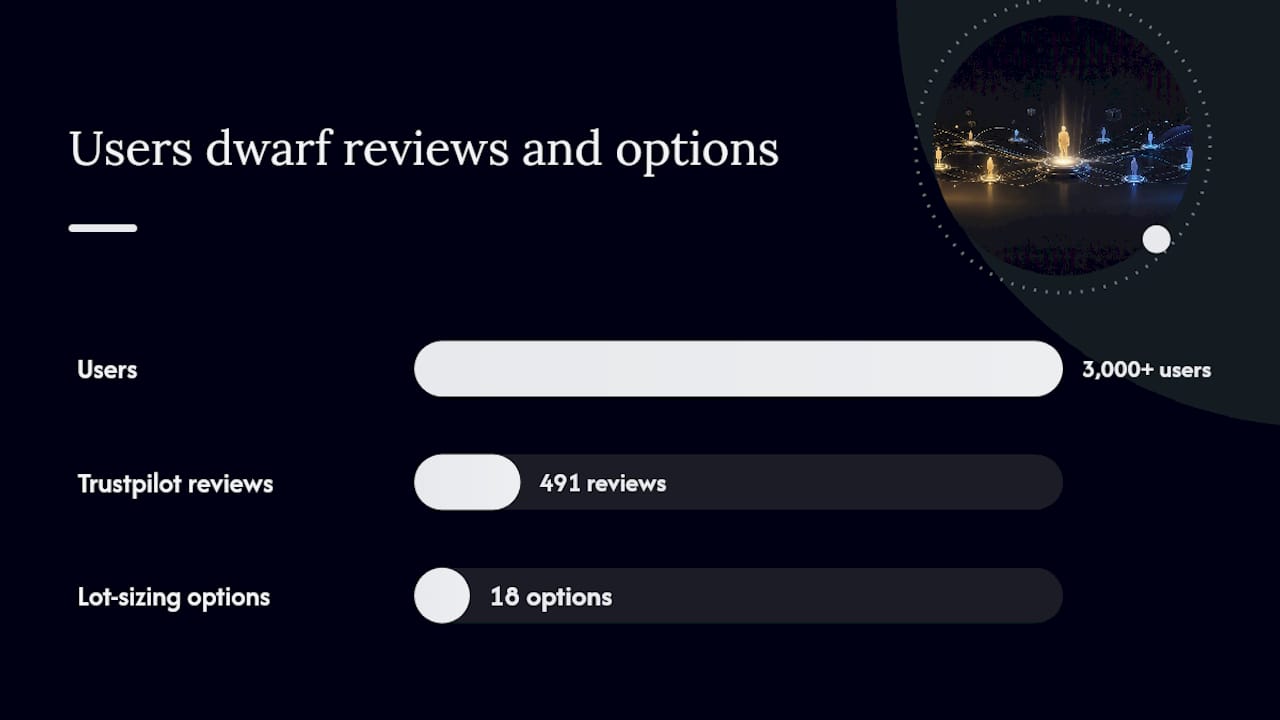
Mt4copier has been active since 2010, serves 3,000+ users, and carries 491 Trustpilot reviews. The 7-day free trial is the right evaluation ritual: run the full demo test plan from Section 6 during the trial window and validate every checklist item before committing to a subscription.
Pro Tip: During the trial, run the demo test plan from this checklist against your actual broker servers and symbol names. A trial that only tests on a generic demo account misses the broker-specific symbol mapping issues that cause most post-launch failures.
Past results do not guarantee future performance. Local Trade Copier is trade replication software only.
What does Local Trade Copier cost and how long does setup take?
Timeline estimates:
- Discovery and consent collection: 1–3 days
- Environment setup (VPS provisioning, terminal installation): 1–2 days
- Copier configuration and symbol mapping: 1 day
- Demo test window: 3–7 days
- Total from zero to live: roughly 1–2 weeks for a first deployment
Cost components:
- Local Trade Copier subscription (covers MT4, MT5, and DXTrade components)
- VPS rental: typically $20–$50/month for a Windows VPS with adequate specs
- Staff or setup time: budget 4–8 hours for initial configuration and testing
- Backup and storage: minimal, covered by most VPS plans
- Incidental support hours for symbol mapping or broker-specific issues
Pilot with 1–3 clients before scaling. Allocate a 10-minute daily ops slot for log review from day one. The trade copying best practices guide covers daily routines and scaling considerations in more detail.
What running multi-account replication actually teaches you
The operational lesson that takes most educators by surprise is how much of the work happens after setup. Configuration is a one-time task. Log review, incident response, and client communication are daily ones. The educators who run clean, auditable operations are the ones who treat the daily 10-minute log check as non-negotiable, not optional.
Delegating that daily review to an ops assistant works well, but only after you have trained them on what a rejected order looks like in the Experts tab and what to do when they see one. A checklist they can follow without asking you is worth more than any automation.
The other lesson: replication software copies trades. It does not improve them, filter bad ones, or protect clients from drawdowns. The strategy layer is entirely yours. Build the operational infrastructure to support it, but never confuse the two.
Local Trade Copier covers every item on this checklist
Mt4copier’s Local Trade Copier is the locally installed solution that maps directly to each step above: MT4 and MT5 installation with post-install verification, DXTrade sync via WebRequest with symbol mapping, and security hardening guidance covering VPS setup and credential isolation. The 7-day free trial gives you enough time to run the full demo test plan from this checklist against your actual broker environment.

Start the trial, run the test cases in Section 6, and export your first audit log before the trial ends. That single session tells you whether the configuration is production-ready. Mt4copier has been active since 2010 with 3,000+ users and 491 Trustpilot reviews. Past results do not guarantee future performance.
Sources
Installation and setup:
- Handy
Configuration and testing:
Daily operations and monitoring:
Educator-specific resources:
This article is general information, not a substitute for advice from a qualified financial advisor. Consult a qualified financial professional about your own circumstances before acting on anything here.
Recommended
- Prop trading best practices: Multi-account copying in 2026
- Trading Performance Tracking Methods for Multi-Account Forex Traders
- mtrading.com Alternatives for Professional Trade Replication
- Multi-Asset Trade Copying Examples for Traders in 2026
