

Broker server time is the clock on your broker’s trade server, and MetaTrader uses it for chart timestamps, orders, and logs. Broker server-time offsets shift daily candle boundaries and session filters, and daylight saving changes can alter the offset. Base time-sensitive indicators and EAs on server time, or convert to UTC consistently.
TL;DR:
- Check Market Watch during active trading, compare TimeCurrent, TimeTradeServer, and TimeLocal, then verify the broker offset against UTC in seconds.
- Subtract the broker’s exact offset in seconds from server time to get UTC; apply your local offset afterward, and recheck after daylight saving changes.
- Set indicator and EA session filters to server time, convert outside signals before use, and store the measured offset so backtests match live runs.
- When copying trades across brokers, test on demo accounts and align time filters; a quiet symbol can freeze the clock without fresh quotes.
What broker server time is and how MetaTrader uses it
MetaTrader 4 and 5 derive chart, order, and history times from the broker’s trade server, and the last quote arrival time shown in Market Watch is the live representation of that clock. Your computer’s clock plays no part in it. This is why two traders on different brokers can see the same candle open at different local hours.
MQL gives you four functions that expose different clocks, as described in the MQL function reference:
- TimeCurrent: the last known server time, tied to the last incoming tick.
- TimeTradeServer: an estimated, continuously increasing server time.
- TimeLocal: the time on your computer’s clock.
- TimeGMT: GMT, calculated with the DST switch of your local computer.
Server time matters because chart formation, historical logs, order timestamps, and any session filter inside an indicator or EA all run on that clock. If you set a “London open” filter in your local hours without converting, it will fire at the wrong moment on the broker’s chart.
The server clock only moves when quotes arrive, so it can stand still when no ticks come in. That behavior is explained in the MQL5 programming notes, and it explains most “frozen clock” complaints.
How to find your broker’s server time in MT4 and MT5
You can read and verify server time in a few minutes. Run these checks while the market is open, because a quiet feed gives you stale numbers.
- Open Market Watch and make sure a live, actively quoting symbol is selected. Note the time shown in the header, which reflects the last quote arrival.
- Run a short script that prints TimeCurrent(), TimeTradeServer(), and TimeLocal() to the Experts tab. Compare the three values and write down the gap between server and local time.
- Check during active hours. If the header does not move, switch to a symbol that is ticking or wait for the next tick before trusting the reading.
- Compare the server reading against a UTC source such as NIST’s time and daylight saving pages, then record the offset in seconds, not rounded hours.
Pro Tip: Take your reading within a second or two of a fresh tick, then repeat it three times. If the three offsets agree, you can trust the number.
How to convert server time to UTC or your local time and handle DST
The method is simple arithmetic. Server time minus the server offset gives UTC, and UTC plus your own offset gives local time. Use the exact offset in seconds when you can, because rounding to whole hours can leave minute or second drift in EAs that act on precise timestamps. The MQL5 notes recommend a seconds-based calculation for exactly this reason.
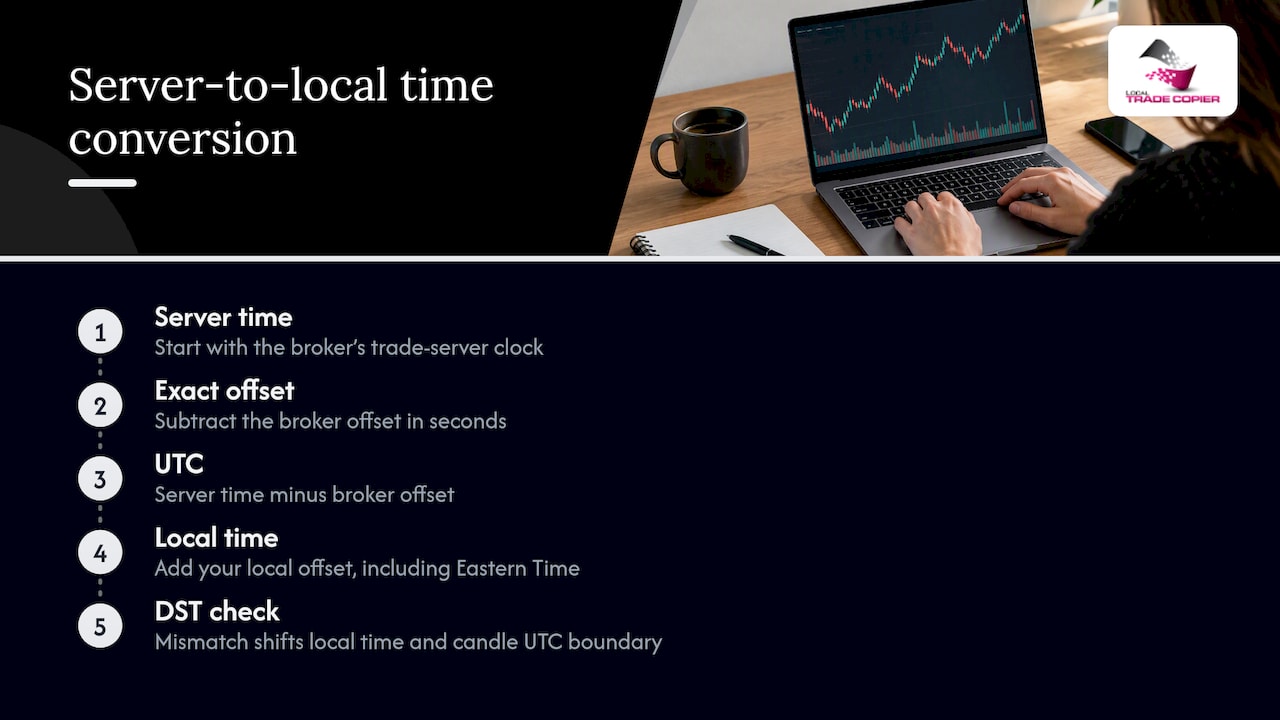
The conversion is straightforward: subtract the broker’s offset from server time to get UTC, then apply the Eastern Time offset to get Eastern time.
The same server hour lands one hour apart on your clock depending on whether DST is in effect where you live. Brokers often switch their own offset on a different date than your country does. For a few weeks each spring and autumn, the gap between your clock and theirs can differ from the rest of the year. A change in the server offset also moves the daily candle boundary, so a candle that used to open at midnight server time now opens at a different UTC hour.
Why does precision matter? TimeTradeServer can behave like an hour-rounded approximation in some implementations. An EA that trades on minute or second marks benefits from computing the offset as the exact difference between TimeCurrent and TimeGMT in seconds, then applying it consistently. Verify your DST dates against an official reference before you rely on them.
A practical checklist for traders, indicators, and EAs
Work through these steps so every time-sensitive piece of your setup agrees on one clock.
- Confirm the server offset in seconds during live ticks and store it in a config file, so backtests and live runs use the same value.
- Set indicator and EA session filters in server time. Convert any external times, such as signal providers or news alerts, into server time before they reach the EA.
- When copying between brokers with different server times, test on demo accounts first and use time-based filters or time-offset settings so open and close logic lines up. Our guide on time-based filters and our walkthrough of session windows cover this in detail.
- Document each test: date and time, symbol, recorded offset, and what the EA did. Repeat after every DST transition, since the offset can change.
Pro Tip: Keep a one-line note of your broker’s offset in summer and winter next to each EA’s settings. When something behaves oddly in March or November, you will know where to look first.
Timing checks are also easier on a stable machine. If you run terminals on a VPS, our notes on improving MetaTrader speed on multi-core VPS servers help keep tick flow steady during tests. For a broader view of delay and slippage in multi-account work, see our scalping and copy trading setup guide.
Common mistakes when server time looks wrong
Most timing problems trace back to a handful of habits. Here is what to check first:
- Frozen header: if Market Watch time does not update, you are probably looking at a symbol with no recent ticks, or the market is closed. Switch symbols or wait for the market to open.
- Treating TimeLocal as server time: the two clocks are independent. Compare TimeCurrent and TimeLocal against a known UTC source instead of assuming they match.
- DST surprises: your broker may change its offset on a different date than your country does. Verify around the change windows in March and October or November.
- EA timing bugs: log the timestamps your EA actually sees through TimeCurrent and compare them with the server time you expect. A consistent gap usually points to a filter written in the wrong clock.
- Forcing the terminal to match local time: this is not supported and can cause synchronization errors, so adapt your logic to server time instead.
Author and evidence: the documentation behind this advice
The claims above rest on platform documentation, not on opinion. The MetaTrader help pages state that chart and quote times come from the broker’s trade server, and the TimeCurrent reference confirms it returns the time of the last quote receipt, formed on the trade server and independent of your computer’s clock. The MQL function references also define TimeTradeServer, TimeLocal, and TimeGMT and show where hour-based approximations fall short.
Our site carries related guides.
Why consistent server-time handling matters in multi-account setups
When I look at multi-account problems, timing mismatches show up far more often than people expect. A time-based filter written in the wrong clock can quietly skip a trade on one account while another takes it. Time-offset settings and server-time filters are practical because they remove that guesswork. My advice is to run a demo trial first and write down each broker’s offset before you go live. Past results do not guarantee future performance, and careful setup only reduces avoidable errors.
— Rimantas
An alternative: software that handles different broker server times for you
If converting offsets by hand across several brokers sounds tedious, we built Local Trade Copier to copy trades between accounts on MT4 and MT5. It copies your existing trades between accounts on MT4 and MT5 and does not add any strategy or market logic of its own, so it does not change your outcomes. The point is less manual conversion work when brokers run different server clocks. See our time-offset settings page and the installation guide, then start from our pricing page to learn about the free trial.

FAQ
What server time does MT5 use?
MT5 uses the clock of your broker’s trade server, not your computer’s clock. The Market Watch header shows the time of the last quote received from that server.
Why does my Market Watch time stop updating?
Server time moves only when new quotes arrive. When the market is closed or a symbol has no fresh ticks, the header can stand still, so check again during active trading hours.
How do I convert broker time to UTC?
Subtract the broker’s offset from server time to get UTC, then add your own offset to get local time.
Does daylight saving change broker server time?
Often yes, and it may shift the offset by one hour. Brokers do not always change on the same date as your country, so verify the offset around the transition weeks.
Sources
- Market Watch – Trading Operations – MetaTrader 5 Help
- Date and Time – MQL5 functions – MQL5 features – MQL4 Reference
- Local and server time – Common APIs – MQL5 Programming for Traders
- Nist
